Team Members
Team Members
When you bring developers, sysadmins, or clients into a project, each person needs exactly the access their role requires — no more. FlyWP’s team members system lets you invite people by email, assign them one of three roles, and for Server and Site Administrators, restrict their access to only the specific servers or sites they need.
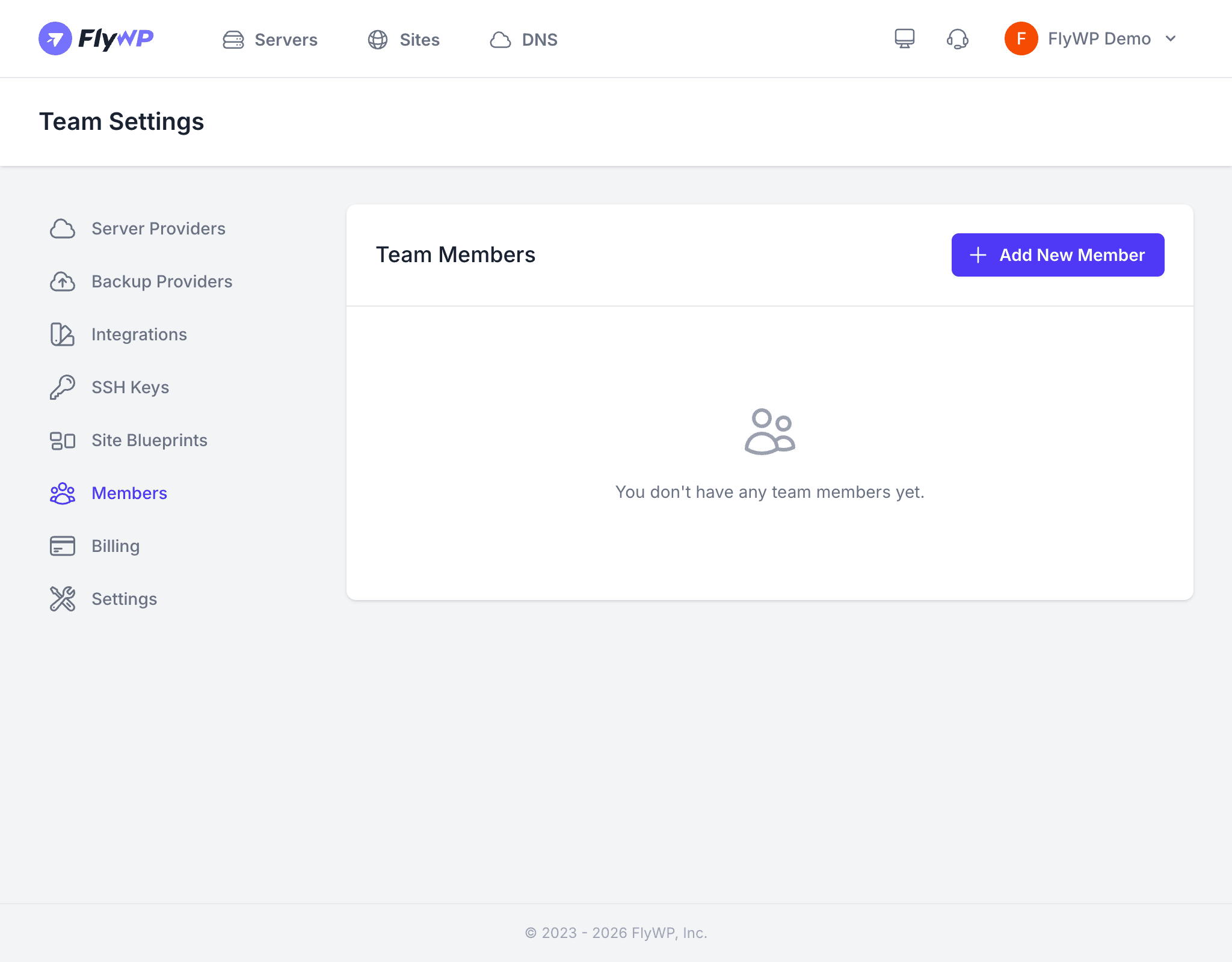
Inviting a Team Member
- Navigate to Team Settings > Members.
- Click Add New Member.
- Enter the person’s email address.
- Choose a role (see role descriptions below).
- If you chose Server Administrator or Site Administrator, select the specific servers or sites they can access.
- Click Invite Member.
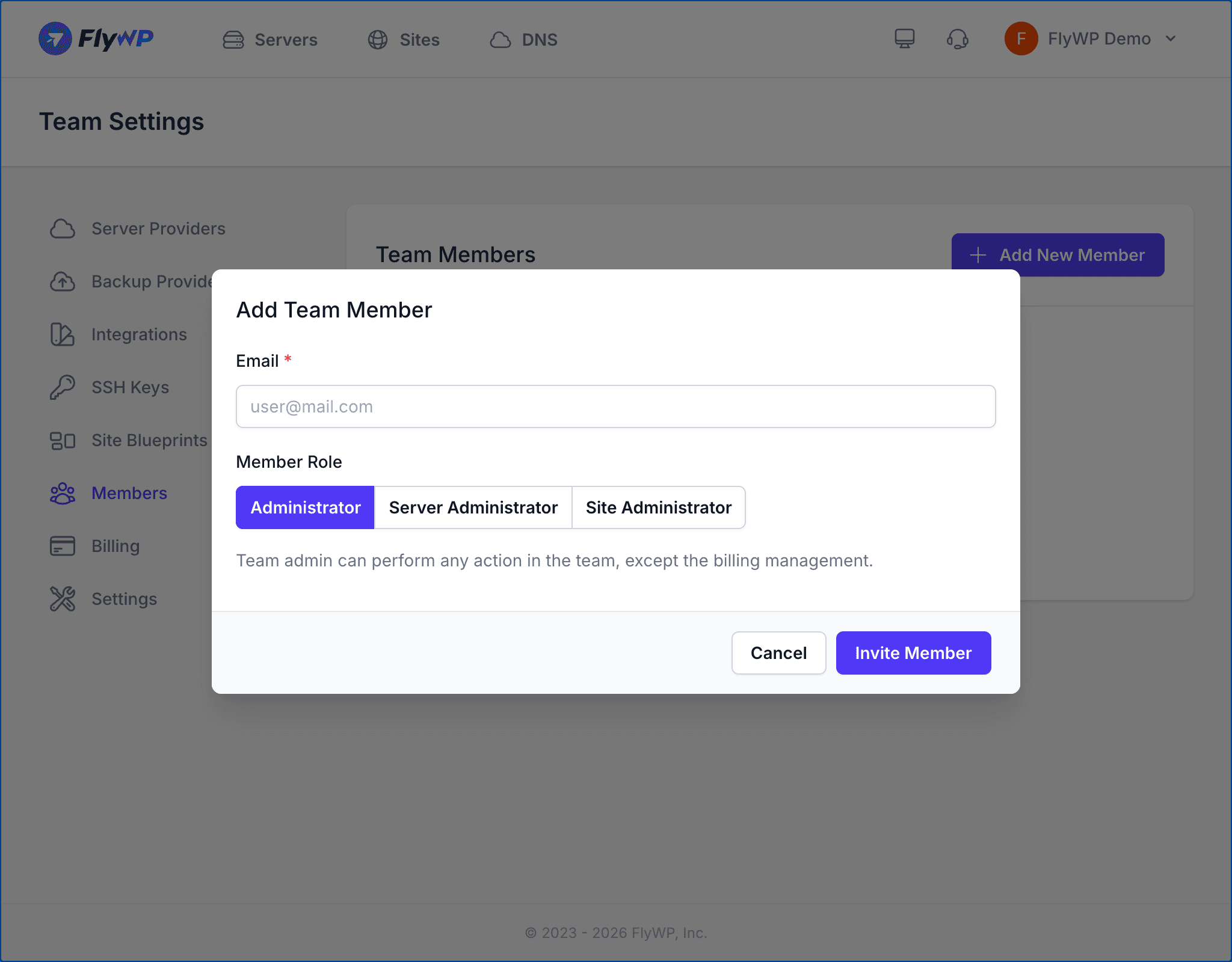
FlyWP sends an invitation email with an acceptance link. If the person doesn’t have a FlyWP account yet, they’ll be prompted to create one before joining. Pending invitations appear in the members list until accepted or cancelled.
Roles and Permissions
FlyWP has three invitable roles. Each role determines what a member can see and do across the team.
Administrator
Administrators have broad access to all team resources. Invite this role for trusted team leads or co-managers.
| Area | Access |
|---|---|
| Team | Manage team settings and members |
| Servers | Create, update, and delete any server |
| Server services | SSH keys, cron jobs, firewall rules, supervisor, daemons, database, status |
| Sites | Create, update, and delete any site |
| DNS Manager | Full DNS access across all connected domains |
Administrators cannot access billing or delete the team — only the team owner can do those.
Server Administrator
Server Administrators manage one or more specific servers and their sites. When you select this role, you choose which servers they can access.
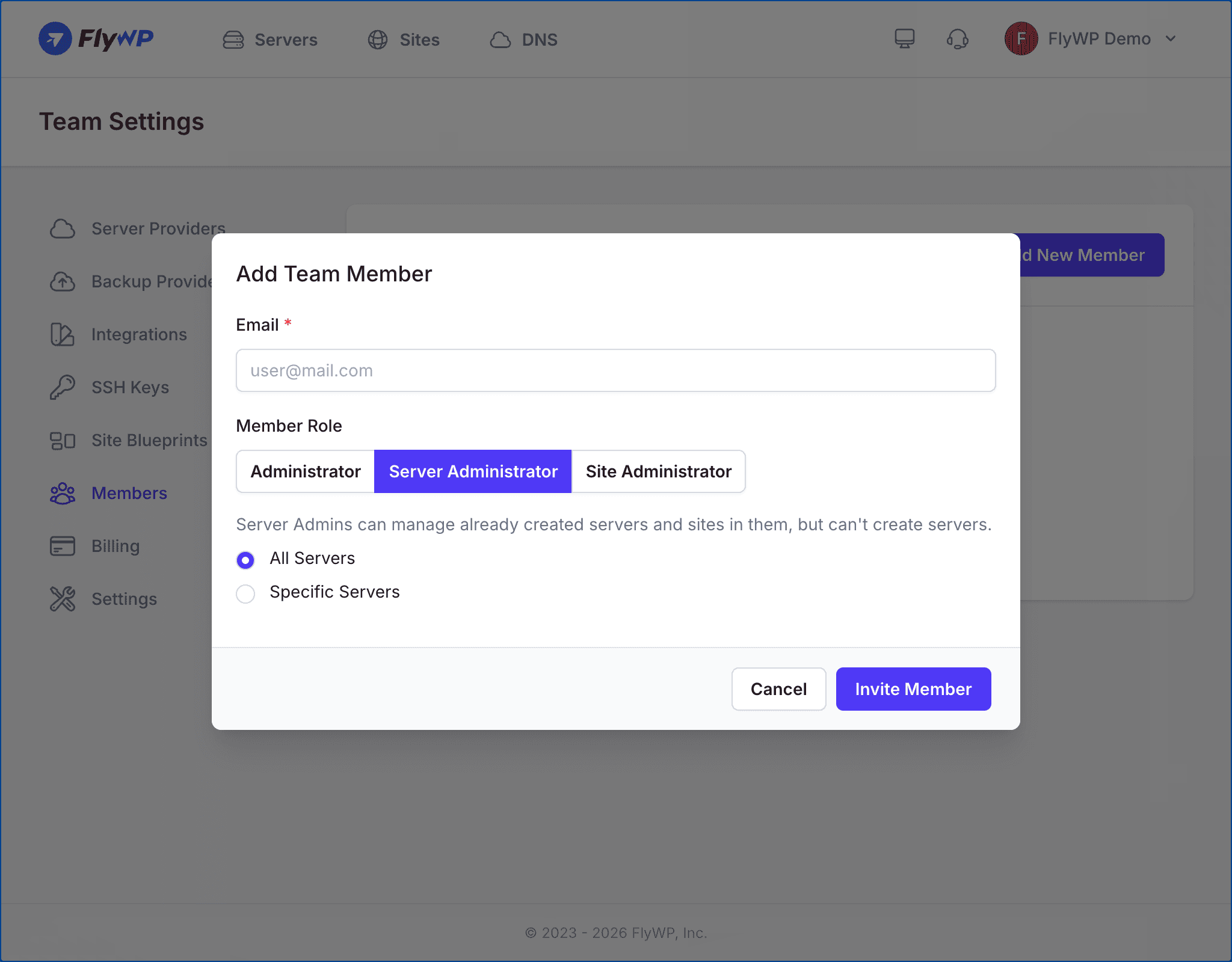
| Area | Access |
|---|---|
| Assigned servers | View, update server configuration |
| Server services | SSH keys, cron jobs, firewall rules, supervisor, daemons, database, status |
| Sites on assigned servers | Create, update, and delete sites |
| Team settings | No access |
| DNS Manager | No access |
Use this role for a sysadmin or DevOps engineer who owns infrastructure management but should not touch team billing or DNS.
Site Administrator
Site Administrators can manage one or more specific sites, with no access to server-level configuration.
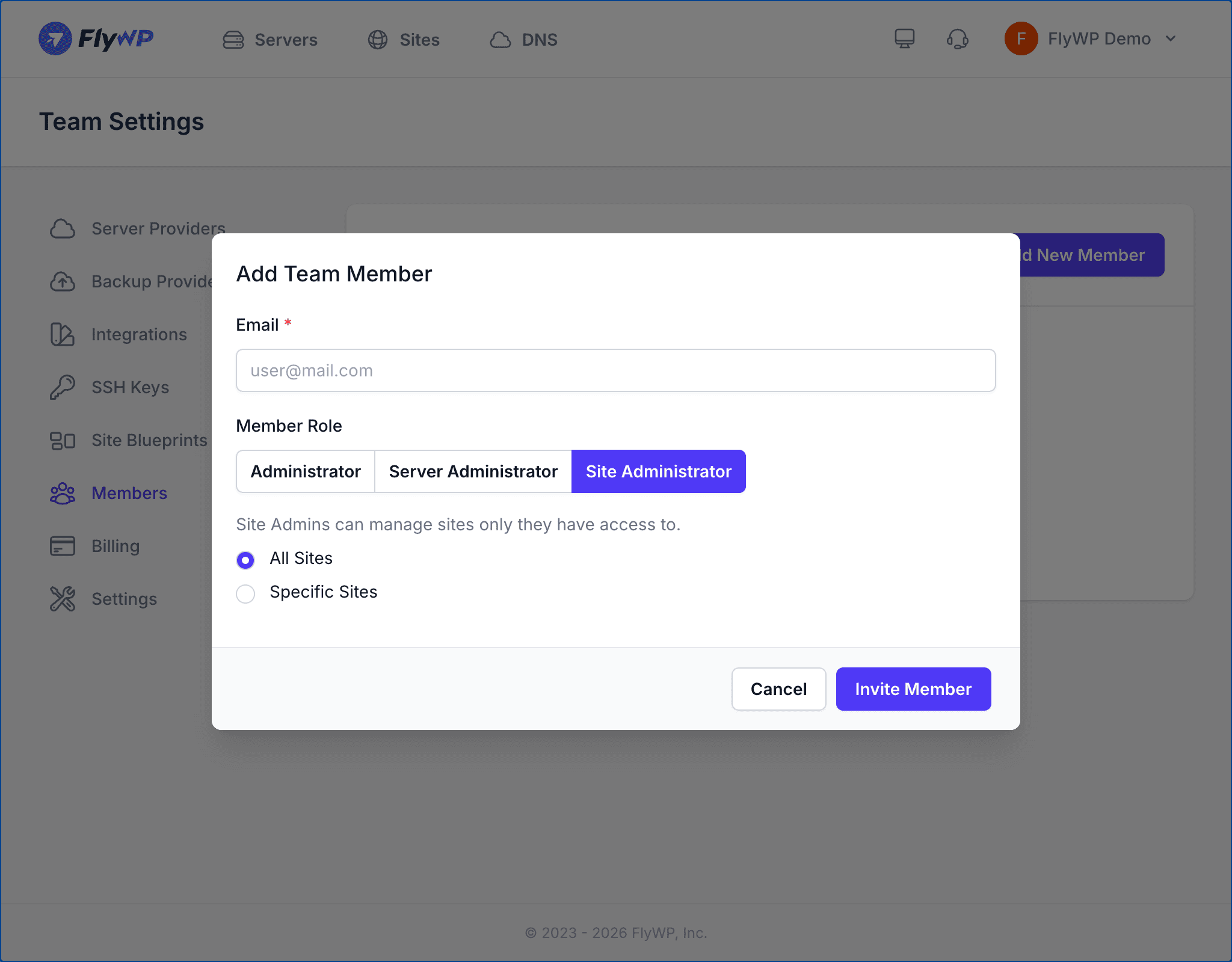
| Area | Access |
|---|---|
| Assigned sites | View, update, and delete assigned sites |
| SSH keys | Add and remove SSH keys on assigned sites |
| Server configuration | No access |
| Team settings | No access |
| DNS Manager | No access |
Use this role for a developer or client who only needs to manage their own WordPress site without touching the underlying server.
Updating a Member’s Role
- Click Update Role next to the member in the list.
- Select the new role.
- If switching to Server or Site Administrator, choose the resources they can access.
- Click Save.
Removing a Member
See Remove a Team Member for the full process, including a note about SSH keys that remain on servers after removal.