Theme Management
Theme Management
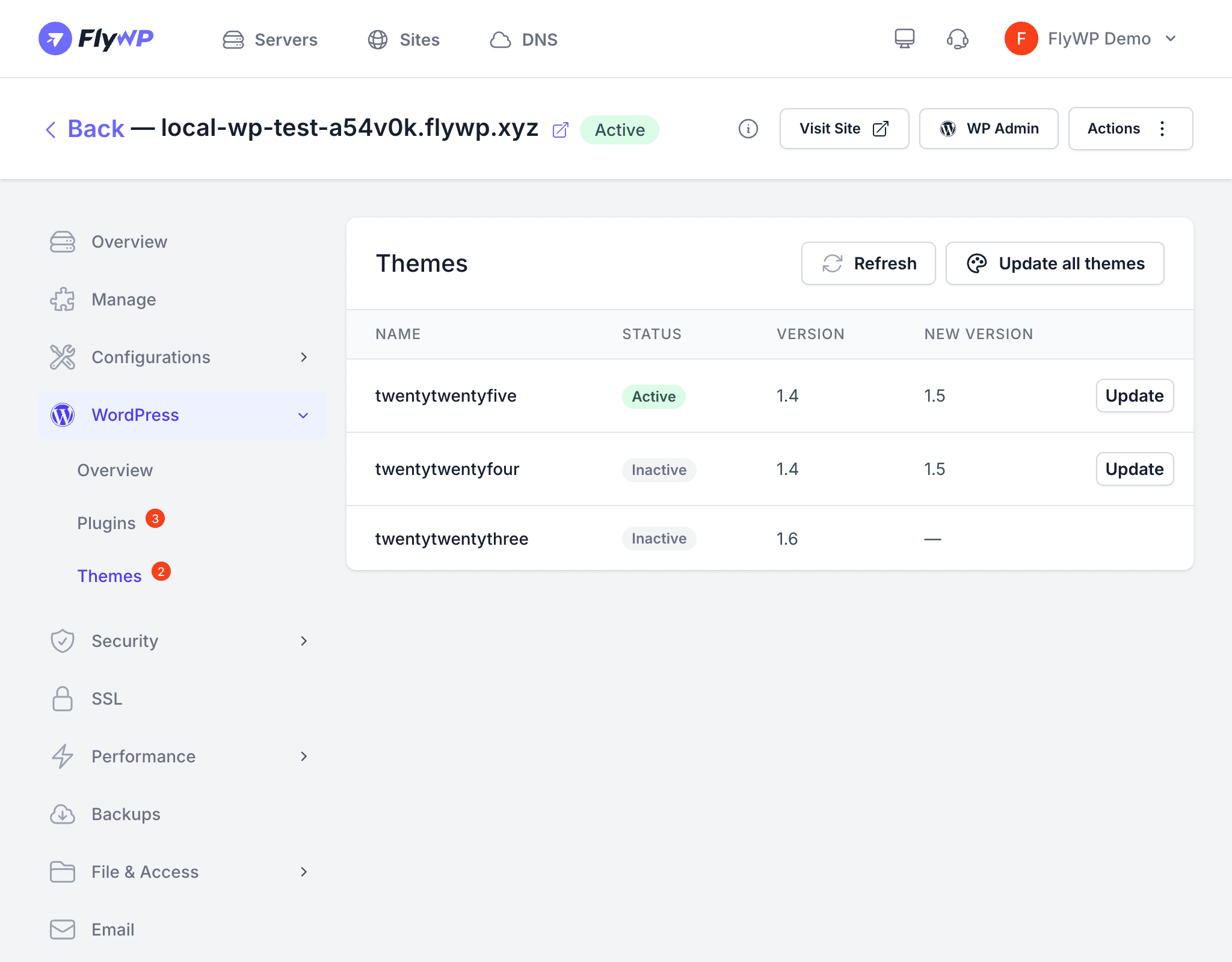
FlyWP lets you view and update WordPress themes from the dashboard, so you never need to log into each site’s WP admin just to run updates. This is especially useful when managing multiple sites.
Requirements
Theme management requires the FlyWP Helper Plugin to be installed and active on your site. The helper plugin is what allows FlyWP to fetch theme data and push updates remotely. See Helper Plugin for installation instructions.
Viewing Installed Themes
Navigate to your site, then go to WordPress > Themes. FlyWP will display all themes installed on the site, including:
- Theme name
- Currently installed version
- Available update version (if an update exists)
- Whether the theme is active or inactive
Updating Themes
When an update is available, the theme row will show the new version number alongside the current one.
To update one or more themes:
- Check the box next to each theme you want to update.
- Click the Update Selected button.
- FlyWP will push the update to the site via the helper plugin.
You can also update all themes at once by selecting all and clicking Update Selected.
Always take a backup before updating themes. A theme update can change your site’s visual appearance, layout, or functionality. Use the Backups feature to create a full backup before proceeding.
Active vs Inactive Themes
FlyWP shows both active and inactive themes. It is important to keep inactive themes updated as well. Outdated inactive themes remain on the server and can contain security vulnerabilities that attackers may exploit, even if the theme is not currently in use. If you do not plan to use an inactive theme, consider deleting it entirely.