Security
Security
WordPress sites are attacked constantly — automated bots probe for weak login pages, vulnerable plugins, and open endpoints around the clock. FlyWP’s security tools let you shut down those attack vectors before they reach your site, without needing to install a separate security plugin. You get server-level firewall rules, login lockdowns, file integrity checks, and a vulnerability scanner — all from one dashboard.
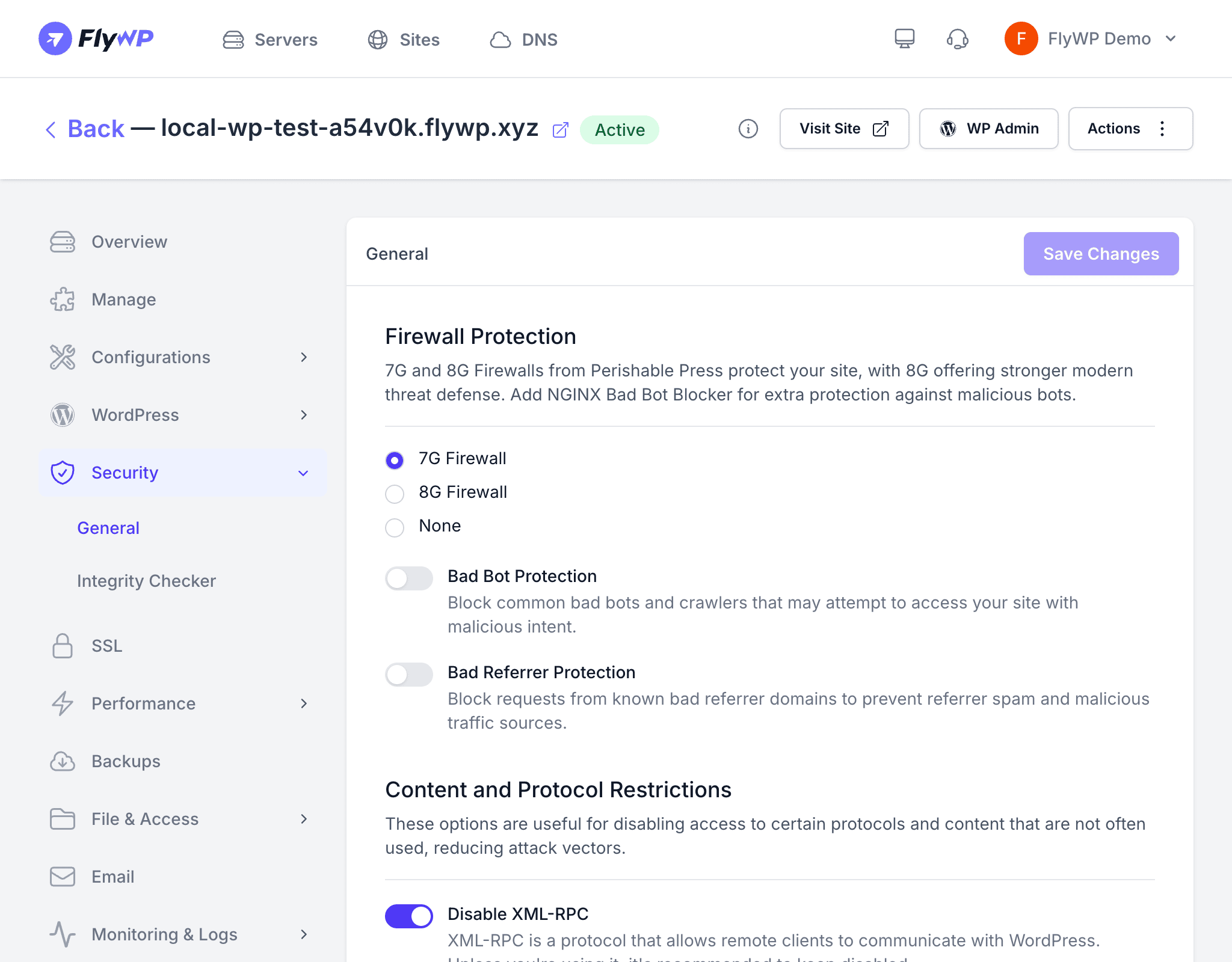
FlyWP organizes security controls into three sub-tabs: General security settings, Plugin and Core Integrity Checks, and a Vulnerability Scanner. Together, these tools help you block malicious traffic, lock down sensitive endpoints, and stay ahead of known vulnerabilities.
General Security Settings
The General tab organizes security controls into logical groups. Each setting can be toggled on or off individually — turn on what you need, leave off what you don’t.
Firewall Protection
A server-level firewall (a filter that inspects incoming web requests and blocks suspicious ones before they ever reach WordPress) is your first line of defense. FlyWP lets you choose your ruleset or turn it off entirely.
| Setting | Description |
|---|---|
| 7G/8G Firewall | A lightweight, server-level firewall that blocks common attack patterns — such as SQL injection (attempts to manipulate your database through form inputs) and XSS (cross-site scripting, where attackers inject malicious code into your pages) — before they reach WordPress. Choose between the 7G and 8G rulesets, or set to None to disable. |
| Bad Bot Protection | Blocks requests from known malicious bots and crawlers that waste server resources or scrape your content. |
| Bad Referrer Protection | Blocks requests that arrive with suspicious or spammy referrer headers (the field that tells your server which site sent the visitor). Commonly associated with referrer spam. |
Content and Protocol Restrictions
WordPress ships with several legacy features that most sites no longer need — and attackers actively target. Disabling these reduces your attack surface without affecting day-to-day site operation.
| Setting | Description |
|---|---|
| Disable XML-RPC | Turns off the XML-RPC interface (xmlrpc.php), a legacy remote-access protocol that is a common target for brute-force attacks and DDoS amplification (using your server to flood other servers). Most modern plugins and the WordPress mobile app no longer require it. |
| Disable RSS/Atom Feeds | Prevents your site from serving RSS and Atom feeds (subscription formats that let readers follow your content). Disable these if you do not use them. |
| Disable wp-links-opml.php | Blocks access to a legacy blogroll export file that can expose information about your site structure to attackers. |
Directory Protection
Two of WordPress’s core directories should never be accessed directly from the web. These settings enforce that at the server level.
| Setting | Description |
|---|---|
| Protect wp-content | Blocks direct PHP execution inside the wp-content directory, preventing attackers from running malicious scripts they may have uploaded through a compromised plugin or theme. |
| Protect wp-includes | Blocks direct access to the wp-includes directory, which contains WordPress core files that your site needs internally but that no visitor should ever request directly. |
User Interaction Controls
If your site does not rely on comments or cross-site notifications, disabling these features removes two commonly abused spam vectors.
| Setting | Description |
|---|---|
| Disable Comments | Turns off the WordPress commenting system site-wide. |
| Disable Trackbacks | Prevents your site from sending or receiving trackbacks and pingbacks (automated notifications between WordPress sites), which are frequently abused for spam. |
Admin and Login Security
Your WordPress login page is a high-value target. These settings let you block public access entirely and rely on FlyWP’s magic login instead.
| Setting | Description |
|---|---|
| Disable WP Admin | Blocks public access to the /wp-admin path. You can still reach the admin area through FlyWP’s magic login feature. |
| Disable Login | Blocks access to wp-login.php, shutting out brute-force login attempts entirely. Use FlyWP’s magic login to access your site instead. |
If you enable both Disable WP Admin and Disable Login, confirm that FlyWP’s magic login works for your site before saving. If you cannot reach it, you will lose access to your WordPress admin.
Advanced Security
These settings add extra hardening for sites that need tighter control over browser behavior and code changes.
| Setting | Description |
|---|---|
| Security Headers | Adds HTTP security headers — instructions sent to visitors’ browsers that enforce stricter policies — such as X-Content-Type-Options, X-Frame-Options (prevents your site from being embedded in iframes on other sites), and Referrer-Policy (controls how much referrer information your site shares). |
| Disable Theme/Plugin Editor | Removes the built-in code editor from the WordPress admin, so no one can modify theme or plugin files directly through the dashboard. |
| Disable Theme/Plugin Updates | Prevents WordPress from applying automatic theme and plugin updates, giving you full control over when updates are applied. |
Plugin and Core Integrity Checks
The Plugin and Core Integrity Checks tab compares your installed WordPress core files and plugin files against their official published versions. If any file has been modified — whether by a malicious actor or an accidental edit — FlyWP flags it so you can investigate.
Vulnerability Scanner
The Vulnerability Scanner tab checks your installed plugins, themes, and WordPress core against known vulnerability databases (public records of security flaws and their fixes). When FlyWP finds a match, it shows you the affected component, severity level, and recommended action — typically updating to a patched version.