Logs
Logs
Diagnose issues and monitor activity with real-time access to your site’s log files.
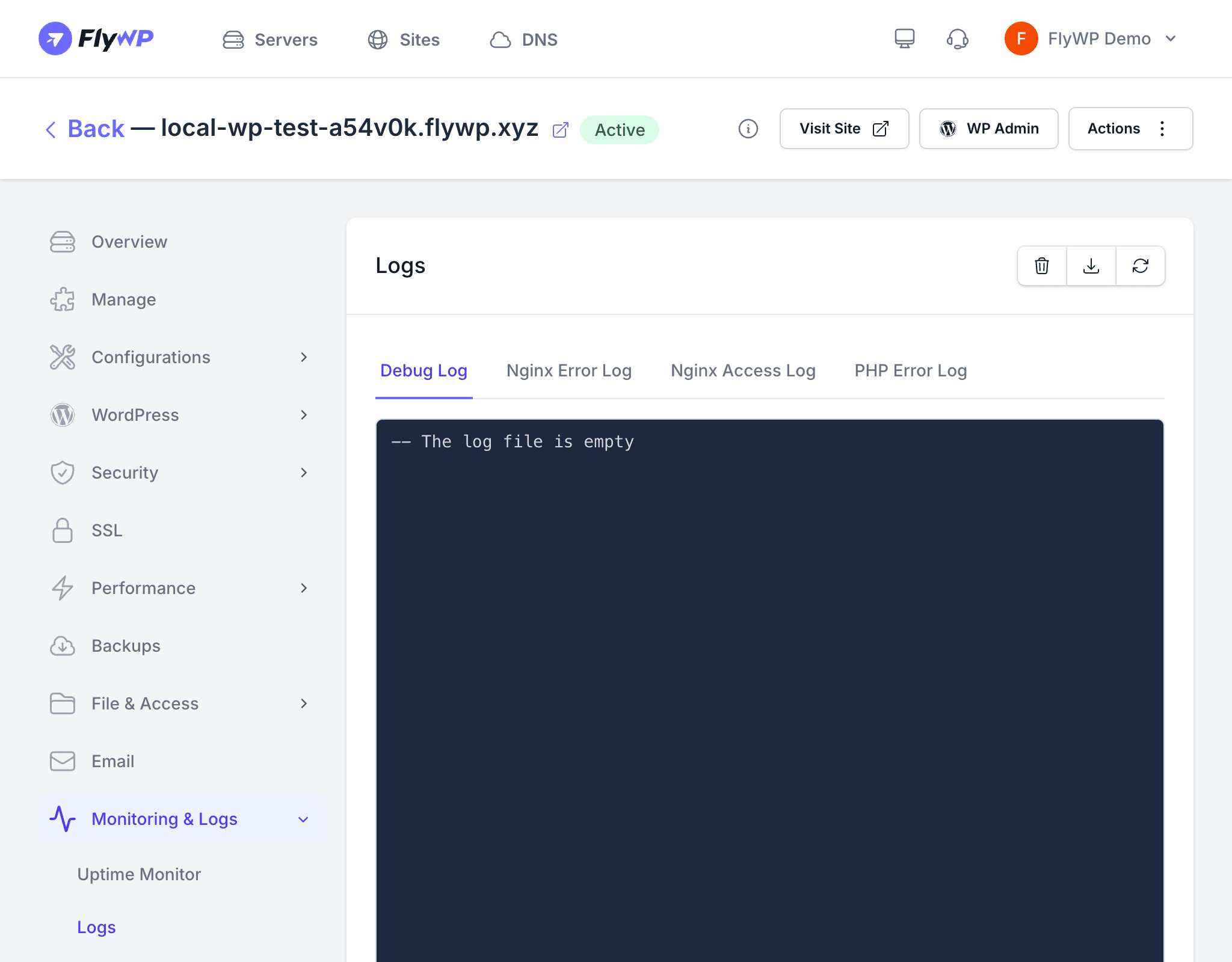
The Logs tab gives you direct access to your site’s error logs, access logs, and application logs without needing to SSH into the server. You can fetch the latest entries, filter for specific events, and download full log files for offline analysis.
Available Log Types
| Log Type | What It Contains |
|---|---|
| Error logs | PHP errors, warnings, and fatal exceptions generated by your site. This is the first place to look when something breaks. |
| Access logs | Every HTTP request made to your site, including the URL, status code, response size, and visitor IP. Useful for traffic analysis and identifying suspicious requests. |
| Application logs | WordPress-specific logs and any custom log output from plugins or themes. |
Viewing Logs
- Navigate to your site’s Logs tab.
- Select the log type you want to view.
- Click Fetch to load the most recent entries.
Log entries are displayed in reverse chronological order, with the newest entries at the top.
Filtering Logs
Use the filter controls to narrow down the log output:
- Search — filter entries by keyword (e.g., “Fatal error”, “404”, or a specific plugin name)
- Date range — limit results to a specific time window
This helps you zero in on the entries that matter when you are debugging a specific issue.
Downloading Logs
Click the Download button to save the full log file to your local machine. Downloaded logs are useful for:
- Sharing with a developer or support team
- Analyzing with external log management tools
- Archiving for compliance or audit purposes
Clearing Logs
Click Clear or Delete to remove log entries from the server. This is helpful when:
- Log files have grown large and you want to start fresh
- You have resolved an issue and want a clean baseline to detect new problems
Clearing logs is permanent. Make sure you download any logs you may need before deleting them.
Common Debugging Scenarios
Site showing a white screen
Check the error logs for PHP fatal errors. Common causes include a plugin conflict, exhausted memory limit, or syntax error in a recently edited file.
Slow page loads
Check the access logs for requests with high response times. Cross-reference with the error logs to see if PHP warnings or database connection issues coincide.
Suspicious traffic
Review the access logs for unusual patterns — high request volumes from a single IP, repeated requests to wp-login.php, or requests targeting non-existent URLs.