Supervisor
Supervisor
If you have background tasks that must keep running no matter what — processing queued jobs, handling real-time connections, or running custom worker scripts — Supervisor is the tool that keeps them alive. When a process crashes or the server reboots, Supervisor (a process control system for Linux) automatically restarts it so you never have to babysit it manually.
Supervisor manages what are called daemons — long-running background programs that operate silently behind the scenes without a user interacting with them directly.
Installing Supervisor
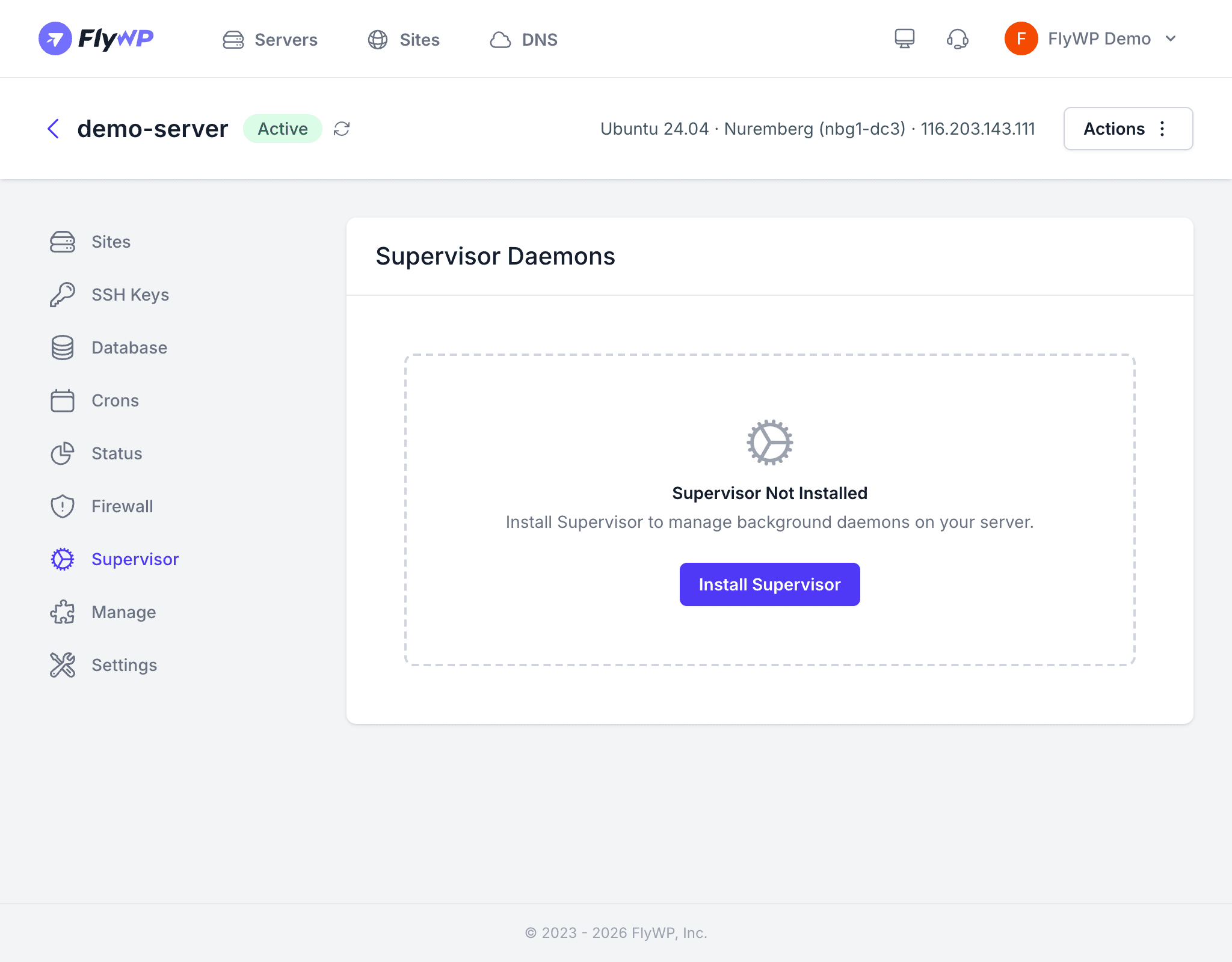
Supervisor is not installed by default. When you first visit the Supervisor tab, you will see a message: “Supervisor Not Installed.”
- Navigate to your server’s detail page and click the Supervisor tab.
- Click the Install Supervisor button.
- Wait for the installation to complete (usually under a minute).
Once installed, you can create and manage daemon processes.
Creating a Daemon
After Supervisor is installed, add a background process like this:
- Click Create Daemon (or Add New depending on your view).
- Fill in the daemon details:
- Name — a descriptive label (e.g., “Laravel Queue Worker”)
- Command — the full shell command to run (e.g.,
php /home/fly/site.com/artisan queue:work) - Number of Processes — how many parallel instances to run simultaneously
- Directory — the working directory from which the command runs
- Click Save.
Supervisor starts the daemon immediately and monitors it from that point forward.
Managing Daemons
Each daemon in the list supports these actions:
| Action | What It Does |
|---|---|
| Start | Starts a stopped daemon |
| Stop | Gracefully stops the daemon |
| Restart | Stops and then starts the daemon (useful after deploying new code) |
| Delete | Permanently removes the daemon configuration |
Common Use Cases
Here are typical daemons you might configure, along with example commands:
| Daemon | Command Example | Purpose |
|---|---|---|
| Queue worker | php artisan queue:work --tries=3 | Processes background jobs in a Laravel app |
| WebSocket server | node /home/fly/app/websocket.js | Maintains persistent real-time connections |
| Custom worker | /home/fly/scripts/process-uploads.sh | Runs a custom background shell script |
Before adding a daemon, verify the command works correctly when you run it manually via SSH (secure shell access to your server). A misconfigured command causes Supervisor to enter a restart loop, which can consume significant server resources.
Supervisor vs. Cron Jobs
Not sure whether to use Supervisor or a cron job (a task scheduler that runs commands at set times)? This table helps:
| Feature | Supervisor | Cron Jobs |
|---|---|---|
| Purpose | Long-running processes that should always be active | Tasks that run at scheduled intervals |
| Execution | Runs continuously, restarts on crash | Runs once at the scheduled time |
| Best for | Queue workers, WebSocket servers | Cleanup scripts, backups, scheduled reports |
Best Practices
- Set the right number of processes — for queue workers, 1–3 processes is usually sufficient for a single server. Too many processes can exhaust your available RAM.
- Use descriptive names so you can identify at a glance what each daemon does.
- Restart daemons after deployments to ensure they pick up your latest code changes.
- Monitor resource usage on the Status tab to catch any daemons consuming excessive CPU or memory.