Remove a Team Member
Remove a Team Member
When someone no longer needs access to your infrastructure — a contractor who has wrapped up, an employee who has moved on, or a collaborator whose role has changed — you want to cut off their access quickly and cleanly. Removing a team member in FlyWP revokes their access to all your team’s servers and sites immediately, with no delay and no loose ends on the FlyWP side.
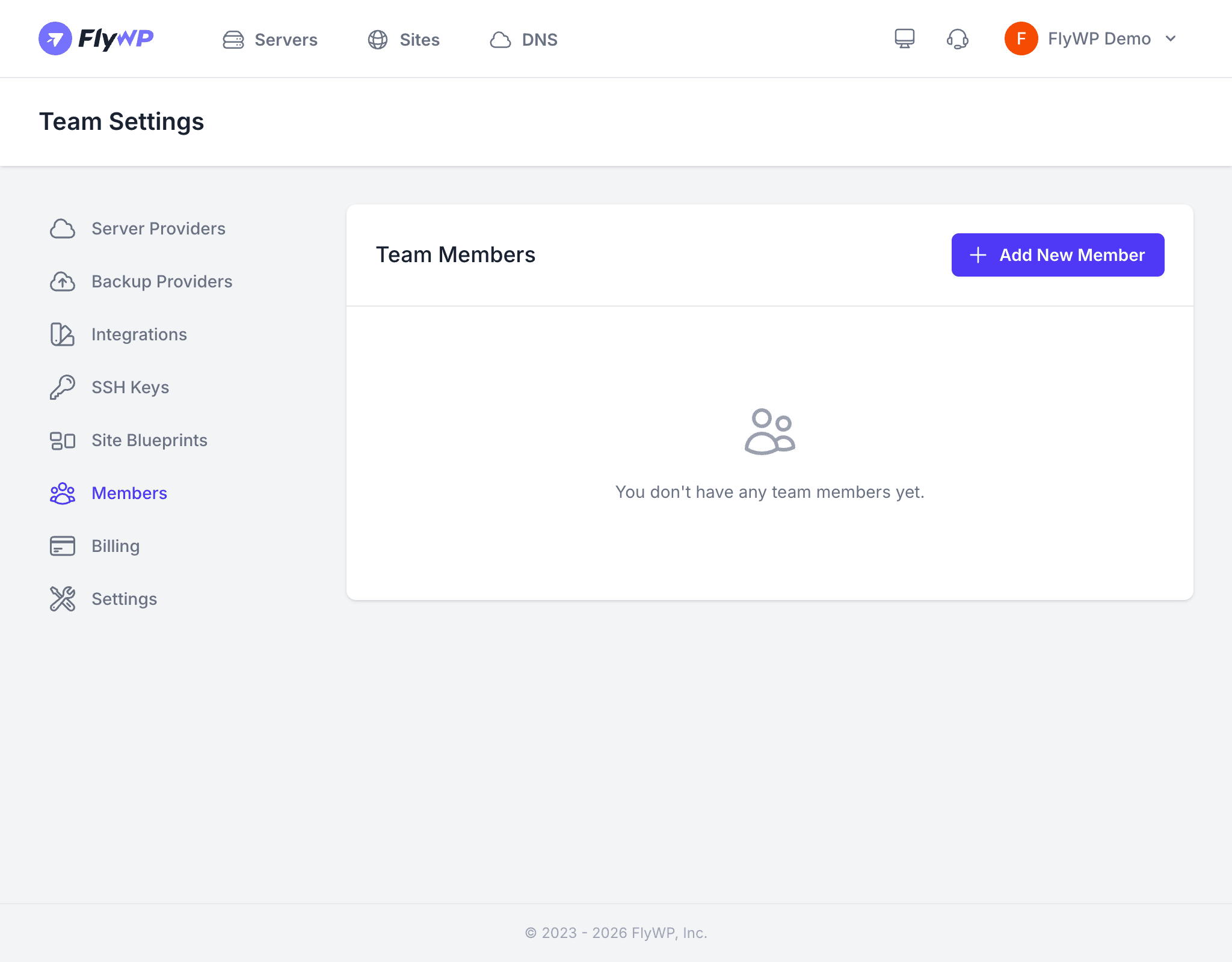
How to Remove a Member
Here is how to remove someone from your team.
- Navigate to Team Settings > Members.
- Find the member you want to remove in the list.
- Click on the member’s name to open their details.
- Click Remove Member.
- Confirm the removal in the dialog.
FlyWP removes the member immediately. They can no longer view or manage any of the team’s servers, sites, or settings.
What Happens After Removal
It helps to know exactly what changes — and what stays the same — when you remove someone.
| Aspect | Result |
|---|---|
| Team access | Revoked immediately — the member can no longer view or manage team resources |
| Servers and sites | Remain in the team; nothing is deleted |
| Personal FlyWP account | Unaffected — the member can still log in to FlyWP and access their own teams |
| Pending invitations | If the member was invited but had not yet accepted, the invitation is also cancelled |
Removing a team member does not automatically revoke SSH keys (direct server login credentials) they may have added to individual servers. After removing a member, review your server SSH keys to ensure the person no longer has direct server access.
Who Can Remove Members
Your ability to remove someone depends on your own role within the team.
- Owners can remove any member, including admins.
- Admins can remove members with the Member role but cannot remove other admins or the owner.
- Members cannot remove other team members.