NGINX Configuration
NGINX Configuration
Your WordPress site’s web server (the software that receives and responds to visitor requests) is controlled by a configuration file. When the defaults FlyWP sets up are not enough — say you need to block a specific URL, forward traffic to another service, or pass custom headers — the NGINX Config tab gives you direct access to edit that file without touching the command line.
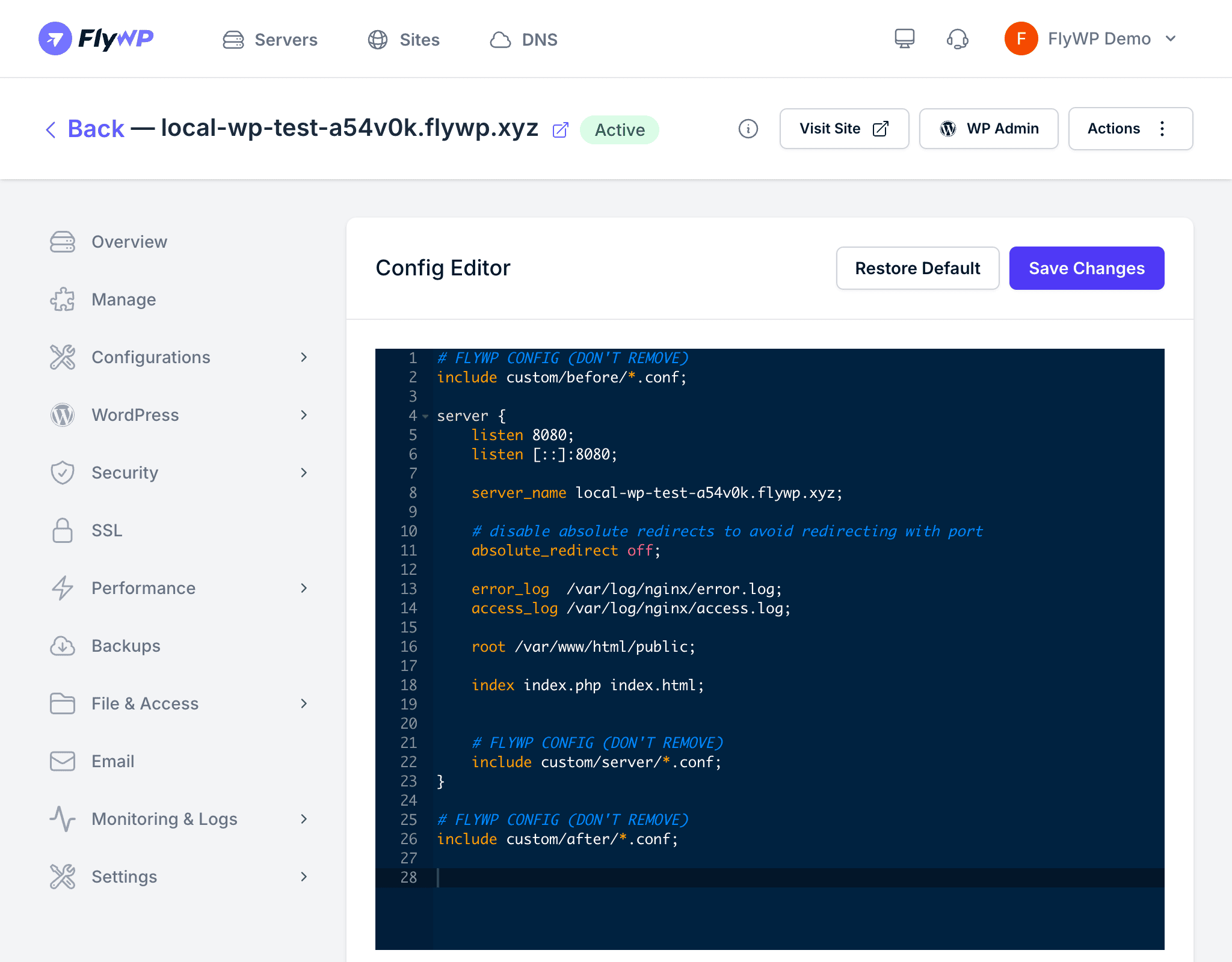
FlyWP generates a well-tuned Nginx (pronounced “engine-x”, a popular high-performance web server) configuration for every site. The NGINX Config tab lets you view and edit it directly when you need custom rules such as redirects, header modifications, or proxy directives (instructions that forward requests to another server).
Viewing the Configuration
Open the NGINX Config tab to see the full Nginx configuration file for your site. The editor displays the active configuration with syntax highlighting (color-coded formatting that makes directives easier to read), so you can quickly scan for specific settings.
Editing the Configuration
Make your changes in the editor, then click Save. FlyWP validates the syntax and reloads Nginx automatically — no SSH (Secure Shell, a way to run commands on the server remotely) required.
Common customizations include:
- Adding custom response headers (metadata sent with every page load, used for security policies or caching instructions)
- Configuring URL rewrites to redirect old paths to new ones
- Setting up reverse proxy rules to route requests to another service
- Adjusting client body size limits (controls the maximum upload size at the web server level)
- Configuring caching rules for specific file types
An invalid Nginx configuration will prevent Nginx from reloading and can take your site offline. Always double-check your syntax before saving. If something goes wrong, use the Restore to Default option to revert immediately.
Storing Custom Configurations
FlyWP stores your custom configuration separately from the default template. When FlyWP updates its base Nginx configuration — for example, after enabling SSL (Secure Sockets Layer, the technology behind HTTPS) or changing caching settings — your custom additions are preserved rather than overwritten.
Restoring the Default Configuration
If your customizations cause issues, click Restore to Default to revert to the original FlyWP-generated configuration. FlyWP removes all custom changes and returns the configuration to a known-good state.
Cloudflare Configuration
If your site is behind the Cloudflare proxy (orange-cloud enabled in your Cloudflare DNS dashboard), Cloudflare routes visitor requests through its own network before they reach your server. This means your server normally sees Cloudflare’s IP addresses (a numerical label identifying a device on a network), not your real visitors’ addresses — which breaks analytics, security plugins, and rate limiting.
FlyWP can add a special configuration block to fix this by:
- Setting the
real_ip_headerdirective to read theCF-Connecting-IPheader Cloudflare attaches to every request - Adding Cloudflare’s IP ranges as trusted proxies via
set_real_ip_from, so your server knows to trust that header