WP Config Editor
WP Config Editor
Debugging a WordPress issue or adjusting update settings usually means connecting to your server over SSH (Secure Shell — a command-line tool for accessing remote servers) and manually editing a sensitive PHP file. The WP Config Editor removes that friction entirely — you get a clean dashboard interface to read and update your site’s core configuration without touching the command line.
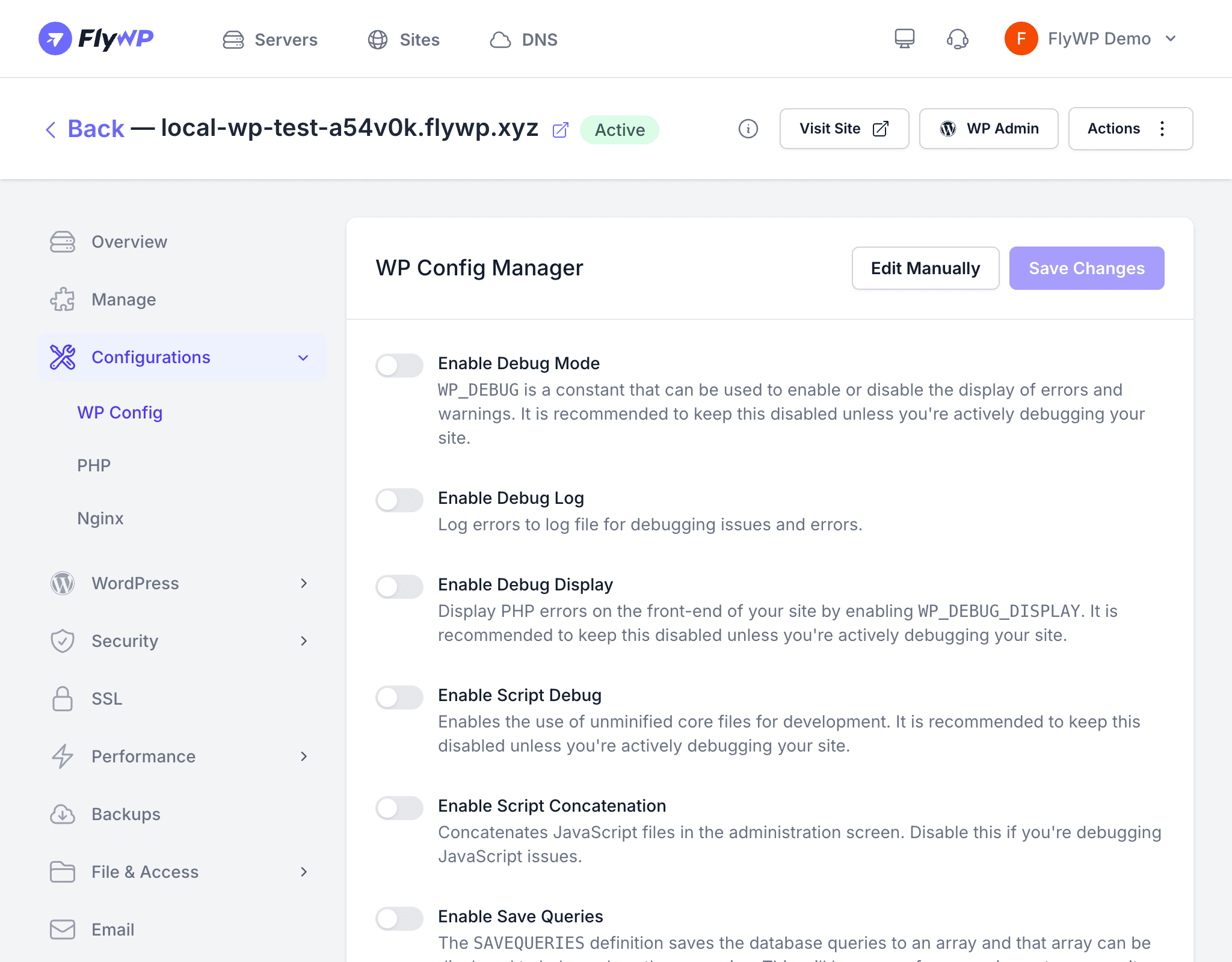
This is particularly useful when you need to turn on debug logging to investigate an error, or when you want to control how WordPress handles automatic updates on a production site.
FlyWP connects to your server via SSH, parses the wp-config.php file using a dedicated PHP parser (a tool that reads PHP code and understands its structure), and writes validated changes back — so you never risk accidentally corrupting the file with a typo.
How It Works
Here is what happens behind the scenes when you make a change:
- FlyWP connects to your server via SSH and reads
wp-config.php. - The file is parsed to extract PHP constants (fixed configuration values your site reads at startup) and the table prefix.
- You edit values through a clean form interface.
- FlyWP validates changes with the WPConfigTransformer before writing anything back to the server.
- The current configuration is cached in FlyWP for quick access next time you visit.
Available Constants
The editor exposes the most commonly needed WordPress constants. A constant is a named value set once in wp-config.php that WordPress reads every time a page loads — think of it as a global on/off switch for a feature.
| Constant | Values | Purpose |
|---|---|---|
| WP_DEBUG | true / false | Enable or disable WordPress debug mode |
| WP_DEBUG_LOG | true / false | Write debug messages to wp-content/debug.log |
| WP_DEBUG_DISPLAY | true / false | Show debug errors on screen (not recommended in production) |
| SCRIPT_DEBUG | true / false | Use unminified core JS and CSS files |
| CONCATENATE_SCRIPTS | true / false | Combine admin scripts into fewer HTTP requests |
| SAVEQUERIES | true / false | Store database queries in memory for debugging |
| WP_AUTO_UPDATE_CORE | true / minor / false | Control automatic WordPress core updates |
Editing a Constant
- Navigate to Sites and open the site you want to configure.
- Click the WP Config tab.
- Toggle a constant on or off, or select the desired value from the dropdown.
- Click Save Changes.
FlyWP pushes the update to your server immediately. The page refreshes to confirm the new values.
Enabling WP_DEBUG_DISPLAY on a production site exposes error details to visitors. Use WP_DEBUG_LOG instead to write errors to a log file that only you can access.
Table Prefix
The editor also displays your WordPress table prefix (the $table_prefix variable, commonly wp_). This prefix is added to the front of every WordPress database table name — for example, wp_posts or wp_options. Knowing your prefix is handy when you need to query the database directly.
Auto-Update Behavior
The WP_AUTO_UPDATE_CORE constant controls how WordPress handles core updates:
| Value | Behavior |
|---|---|
true | Automatically install all core updates (major and minor) |
minor | Only install minor and security releases automatically |
false | Disable all automatic core updates |
Troubleshooting
- Changes not taking effect — Clear any page cache (a saved copy of your pages served to speed up load times) or object cache after updating config values. Some caching layers serve stale responses until cleared.
- Editor shows stale values — Click the refresh button to re-read the file from the server over SSH.
- Validation error — FlyWP validates all changes before writing. If a value is rejected, check that you are using a supported value for that constant.