Custom PHP Cron Jobs
Custom PHP Cron Jobs
Scheduled tasks — publishing posts at midnight, sending weekly digests, cleaning up old data — only work reliably when something triggers them on time. This guide shows you how to run those tasks on a proper server schedule instead of relying on visitor traffic to kick them off.
Why FlyWP Disables wp-cron.php
WordPress ships with a built-in scheduler called wp-cron.php. The problem: it fires only when someone visits your site. On a low-traffic site, scheduled posts may go live hours late. On a busy site, every single visitor triggers an unnecessary cron check, wasting server resources.
FlyWP disables wp-cron.php by default and replaces it with a server-level cron job — a scheduled command the server runs on a fixed interval, completely independent of your site’s traffic. This gives you reliable, predictable task execution.
Adding a Custom Cron Job
To add a cron job (a scheduled server command), head to your server’s Cron Jobs tab:
- Navigate to your server’s detail page.
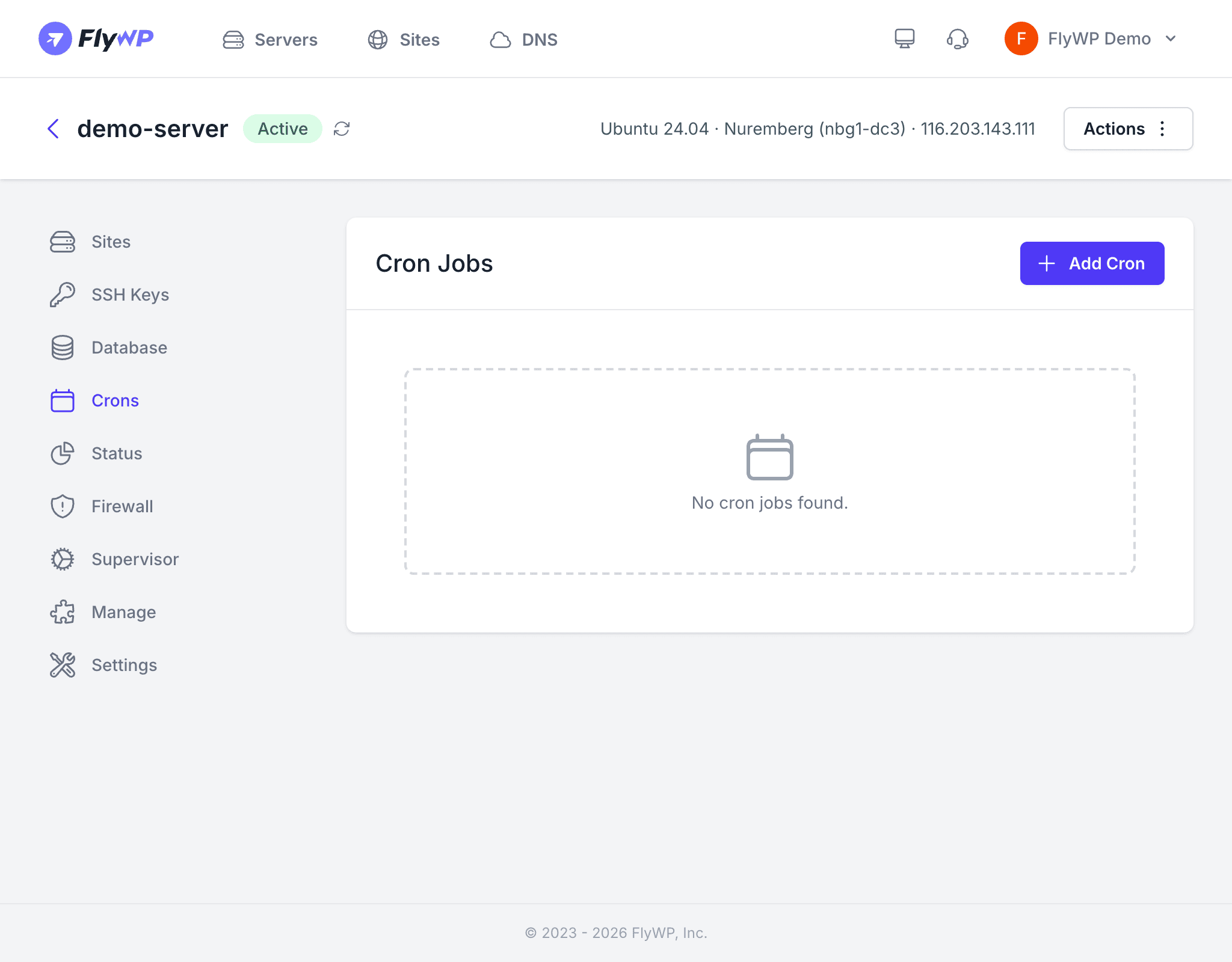
- Click the Crons tab.
- Click Add Cron.
- Enter the command, schedule, and user.
- Click Save.
Common Cron Commands
Here are the most useful commands to get you started. Replace domain.com with your actual site folder name.
| Task | Command | Schedule |
|---|---|---|
| Run WordPress scheduled events | cd /home/fly/domain.com && wp cron event run --due-now | Every minute (* * * * *) |
| Run a custom PHP script | cd /home/fly/domain.com && php custom-script.php | As needed |
| Clear transients | cd /home/fly/domain.com && wp transient delete --expired | Daily (0 0 * * *) |
Cron for Sites on Subdomains
Each site on your server has its own folder under /home/fly/, including subdomain sites. When adding a cron job for a subdomain, make sure the command points to the right directory.
For example, for a subdomain site at shop.example.com:
cd /home/fly/shop.example.com && wp cron event run --due-nowCron Schedule Syntax
Cron schedules use a five-field expression where each field represents a unit of time: minute, hour, day of month, month, and day of week. A * means “every” for that unit.
| Schedule | Expression |
|---|---|
| Every minute | * * * * * |
| Every 5 minutes | */5 * * * * |
| Hourly | 0 * * * * |
| Daily at midnight | 0 0 * * * |