FlyWP Server CLI
FlyWP Server CLI
When something goes wrong at 2 AM, or when you need to automate a repetitive task across multiple sites, having direct command-line access to your server puts you in control. FlyWP includes a built-in CLI (command-line interface — a text-based way to control your server by typing commands) that lets you restart services, inspect logs, and manage sites without leaving your terminal. This is for power users, developers, and anyone who prefers scripting over clicking.
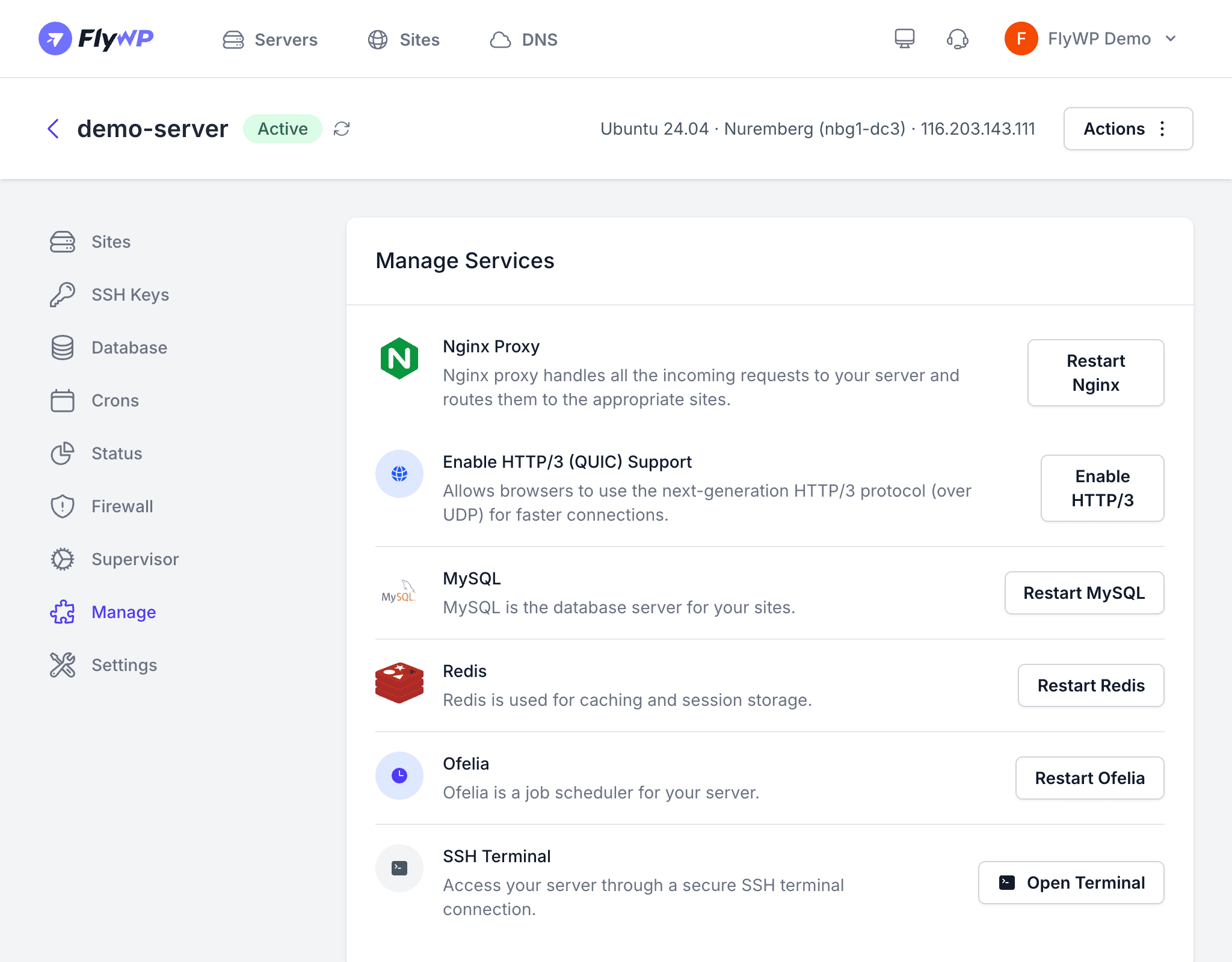
Connecting to Your Server
SSH (Secure Shell — an encrypted protocol for logging into a remote server) into your server as the fly user:
ssh fly@your-server-ipThe fly user is the default administrative user created during server provisioning. FlyWP grants it the permissions needed to manage sites and services through the CLI commands below.
Server Architecture
FlyWP uses a Docker-based architecture (Docker is a system that runs each application in its own isolated container, similar to separate virtual machines but much lighter). Each site runs in its own container, and server-level services — NGINX (the web server), MySQL (the database), Redis (an in-memory data store that speeds up database queries), and others — also run as containers. The CLI commands you run interact with these containers behind the scenes.
Common Operations
Restarting Services
When a service becomes unresponsive or you want to apply a configuration change, restart it by name:
flyctl restart nginxflyctl restart phpflyctl restart mysqlChecking Service Status
View the status of all running containers and services at a glance:
flyctl statusViewing Logs
When you need to trace an error, inspect raw logs for a specific service or site:
flyctl logs nginxflyctl logs phpManaging Sites
List all sites currently running on the server:
flyctl sitesWhen to Use the CLI
The CLI shines in situations where clicking through a dashboard is too slow or not possible at all. Here are the most common reasons to use it:
- Automated deployments — integrate server commands into CI/CD pipelines (automated build and deploy workflows)
- Bulk operations — perform actions across multiple sites quickly without repeating dashboard steps
- Advanced debugging — inspect container internals, trace network issues, or review raw logs in real time
- Scripting — write custom maintenance scripts that run on a schedule using cron (a time-based task scheduler built into Linux)
CLI commands operate directly on your server’s containers. Incorrect commands can disrupt running sites. Always verify what a command does before executing it on a production server.