Server Provisioning
Server Provisioning
Understand every step FlyWP takes to turn a fresh cloud instance into a production-ready server.
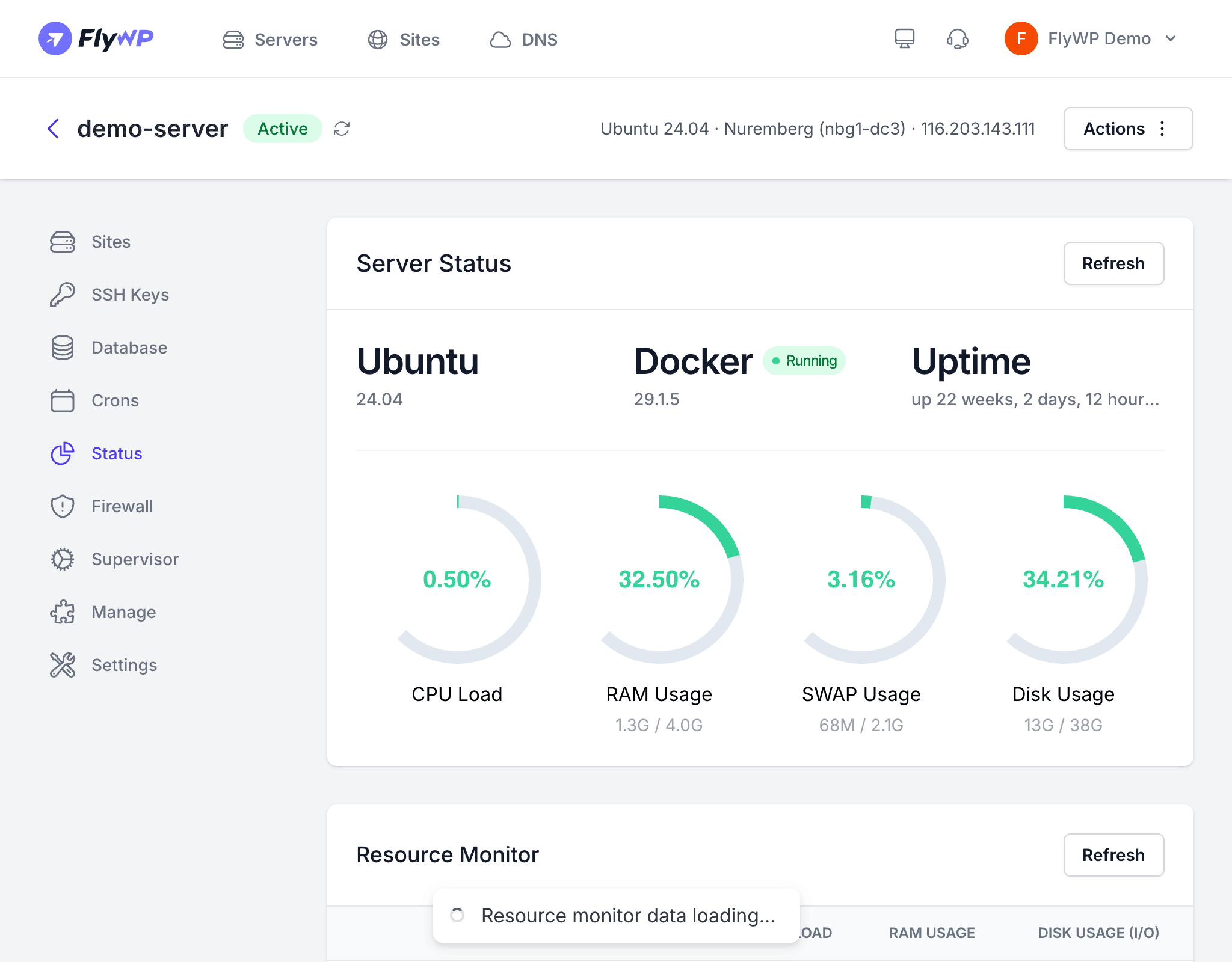
When you create a new server through FlyWP, an automated provisioning pipeline takes over. The process typically completes in a few minutes, and you can follow along in real time via a progress bar in the dashboard.
Provisioning Stages
Your server moves through three statuses during setup:
| Stage | What Happens |
|---|---|
| Creating | FlyWP sends a request to your cloud provider to spin up a new instance |
| Provisioning | FlyWP connects to the instance via SSH and runs the setup script |
| Ready | The server is fully configured and available for hosting sites |
Stage 1 — Waiting for an IP Address
After the cloud provider accepts the creation request, FlyWP polls the provider’s API until a public IP address is assigned. This uses an exponential backoff strategy — starting at 15-second intervals and stretching up to 60 seconds — for a maximum of 10 attempts. Once an IP is returned, FlyWP moves on to the next stage.
Stage 2 — Running the Provision Script
FlyWP connects to the server as root over SSH, uploads a provisioning script, and executes it. The script performs the following steps, reporting progress back to the dashboard after each one:
Swap Memory Configuration
Swap space is configured based on the server’s available RAM:
- 1—2 GB RAM — 1 GB of swap
- 8 GB+ RAM — swap set to 37.5% of total RAM
Swap acts as overflow memory, preventing out-of-memory crashes on smaller servers.
System Package Upgrades
All existing system packages are upgraded to their latest versions to eliminate known vulnerabilities before any services are installed.
Docker Installation
Docker is installed with the overlay2 storage driver and a custom network configuration:
- Subnet pool:
172.80.0.0/16with/24allocated per network - Log format: JSON, capped at 100 MB per file, with a maximum of 3 rotated files
This ensures site containers are isolated from each other and log files do not consume unbounded disk space.
SSH Hardening
- Password authentication is disabled — only key-based access is permitted
- Host keys are regenerated to replace any provider-supplied defaults
User Setup
A dedicated fly user is created with sudo and Docker group membership. All subsequent operations on the server use this user rather than root.
Unattended Security Upgrades
The unattended-upgrades package is installed and configured so that critical security patches are applied automatically without manual intervention.
Stage 3 — Post-Provisioning Setup
After the script finishes, FlyWP performs three final steps:
- SSH keys — all team members’ public keys are added to the
flyuser’sauthorized_keysfile - Firewall rules — default rules are created to allow SSH (port 22), HTTP (port 80), and HTTPS (port 443)
- Status update — the server status is set to Ready and a broadcast event notifies the dashboard
Real-Time Progress Tracking
The dashboard displays a progress bar with labeled steps as the server is being provisioned. Each callback from the provision script — provision_started, configure_swap, upgrade_packages, install_docker, unattended_upgrades, provision_complete — advances the progress indicator so you always know where things stand.
Do not attempt to SSH into the server or create sites until the status shows Ready. Interrupting the provisioning process can leave the server in an inconsistent state.