Advanced Domain Manager
Advanced Domain Manager
Manage domains at scale across all the sites on a server from a single interface.
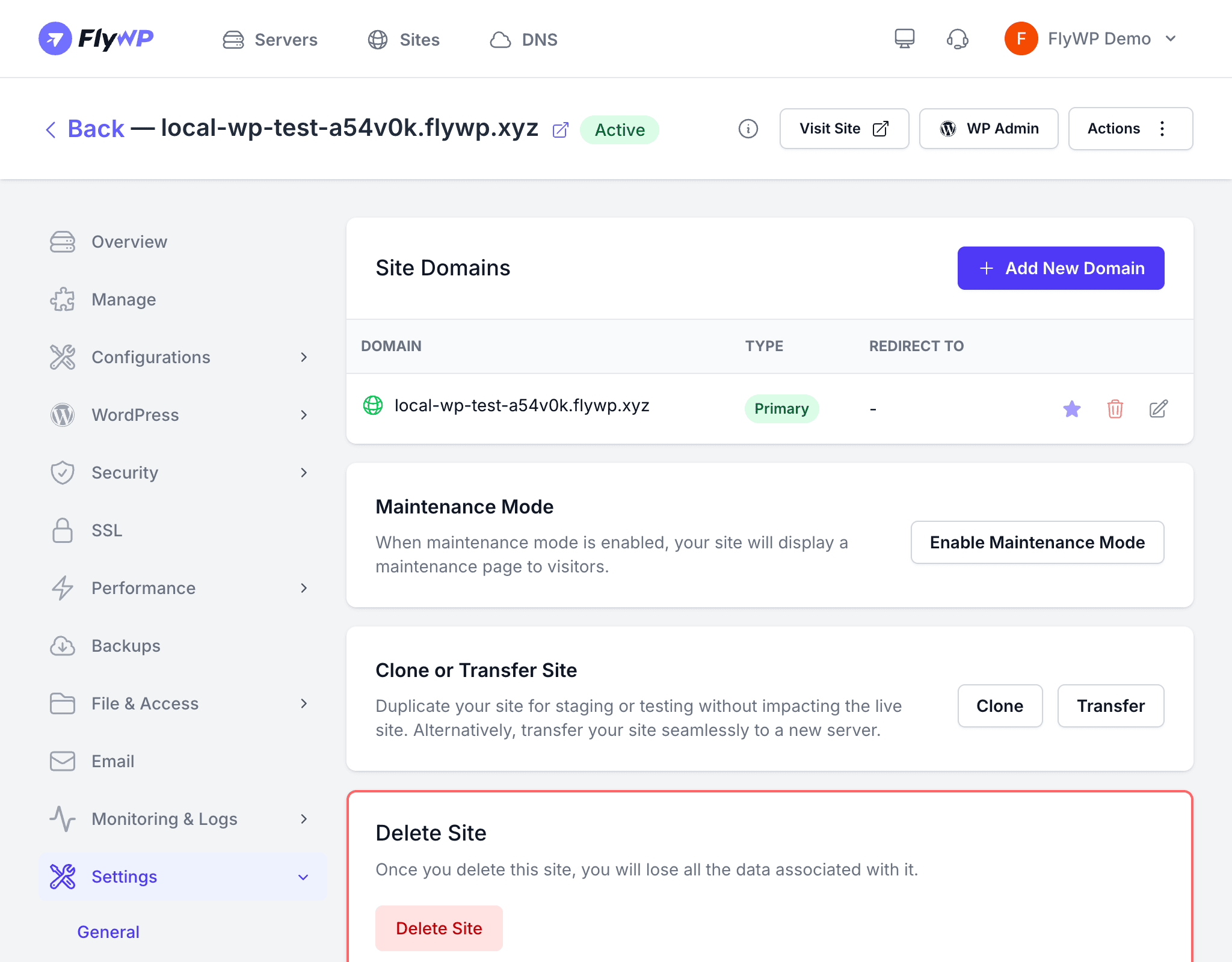
While the per-site Domain Management page handles domains for individual sites, the Advanced Domain Manager gives you a centralized view of every domain across your server. This is especially useful when you manage dozens of sites and need to audit, reassign, or bulk-configure domains.
What You Can Do
| Action | Description |
|---|---|
| View all domains | See every domain configured across all sites on a server in one table |
| Change primary domain | Switch which domain serves as the main address for a site |
| Add alias domains | Point additional domains to an existing site without redirects |
| Add redirect domains | Redirect one domain to the primary domain with a 301 response |
| Remove domains | Delete domains that are no longer needed |
| Check DNS status | Verify that each domain’s DNS A record points to the correct server IP |
Domain Types
The Advanced Domain Manager works with the same three domain types available at the site level:
- Primary — the main domain visitors and search engines use. Each site has exactly one primary domain.
- Alias — additional domains that serve the same content as the primary domain without redirecting. Useful for localized domains or brand variations.
- Redirect — domains that issue a 301 redirect to the primary domain. Useful for old domains or common misspellings.
Switching the Primary Domain
To change a site’s primary domain:
- Open the Advanced Domain Manager from the server dashboard.
- Find the site whose primary domain you want to change.
- Click the domain you want to promote to primary.
- Confirm the switch.
FlyWP will:
- Update the NGINX configuration to serve the new primary domain
- Move the old primary domain to an alias or redirect (your choice)
- Request a new SSL certificate if the new domain does not already have one
- Update WordPress
siteurlandhomeoptions automatically
Changing the primary domain updates your WordPress settings. If you use hardcoded URLs in themes or plugins, you may need to run a search-and-replace after the switch.
Adding Domains in Bulk
When you need to add the same alias or redirect to multiple sites, the Advanced Domain Manager lets you work faster than configuring each site individually.
- Select one or more sites.
- Choose Add Domain.
- Enter the domain name and select the type (alias or redirect).
- FlyWP configures the domain, provisions SSL, and updates NGINX for each selected site.
DNS Verification
Each domain row shows a DNS status indicator. A green check means the domain’s A record resolves to the correct server IP. A warning icon means DNS is not yet configured or is pointing elsewhere.
Use the Check DNS button to re-verify at any time — helpful after making DNS changes at your registrar.
SSL Certificates
Domains added through the Advanced Domain Manager follow the same SSL workflow as the per-site domain settings:
- Standard domains receive a free Let’s Encrypt certificate automatically
- Wildcard domains require a Cloudflare DNS integration for DNS-01 validation
See SSL Certificates for more details.