Adding a Server
Adding a Server
When you are ready to host WordPress sites, the first step is getting a server. FlyWP takes the complexity out of that process — whether you want FlyWP to handle everything for you or you prefer to use infrastructure you already pay for. Within a few minutes, you will have a fully configured server running Docker (the container platform that isolates and runs your services), Nginx (the web server that handles incoming traffic), MySQL (the database), and Redis (an in-memory data store that speeds up repeated database queries).
Provisioning Methods
FlyWP gives you two ways to add a server, depending on how much control you want over billing and infrastructure.
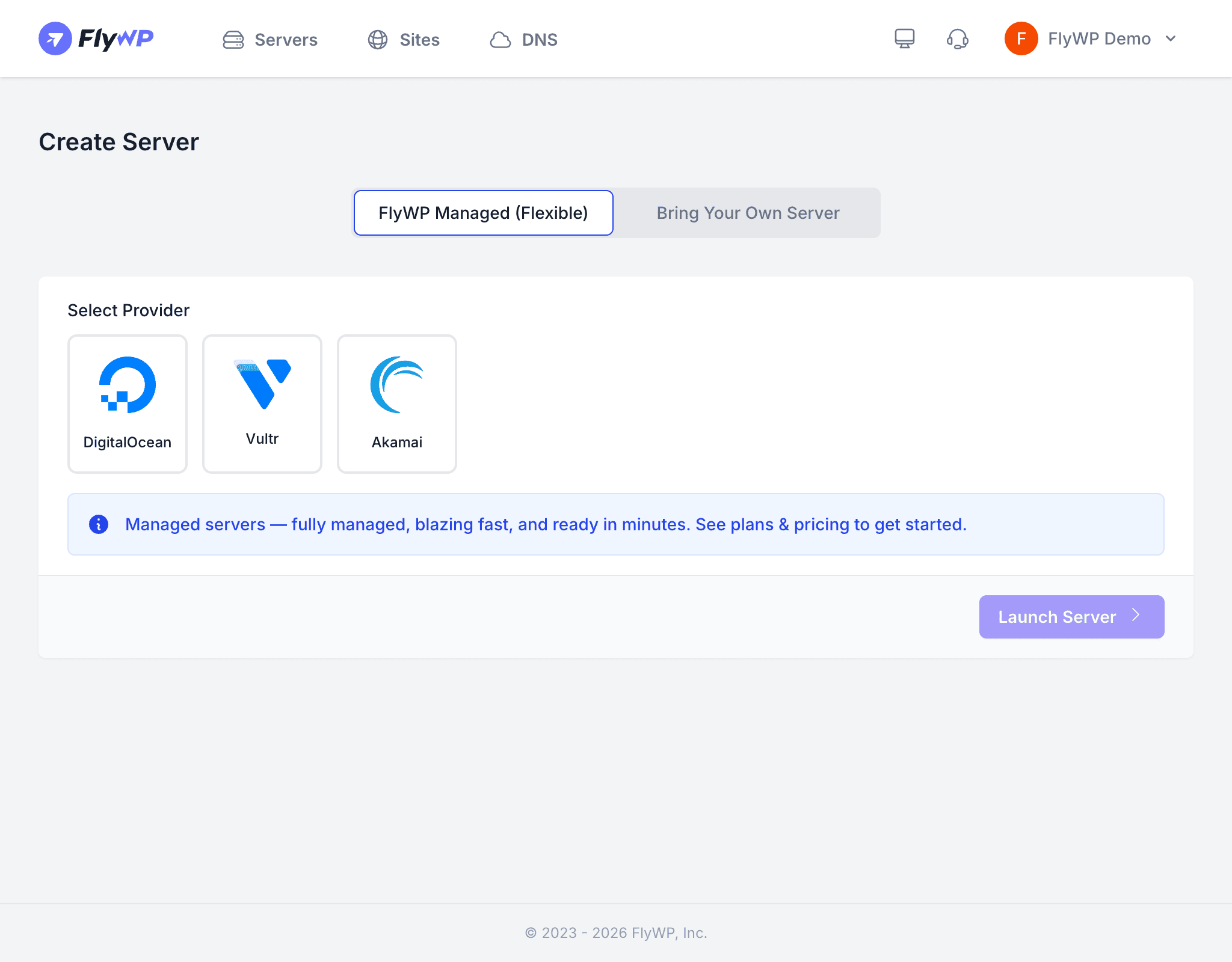
Provision Through FlyWP
This option is the fastest path to a running server. FlyWP creates and configures everything — you never need to log into a cloud provider dashboard. FlyWP bills you directly for the server cost, so there is only one invoice to track.
- Currently supports DigitalOcean and Vultr
- Requires a payment method on your FlyWP account
- Best choice if you do not already have a cloud provider account
Use My Cloud Account
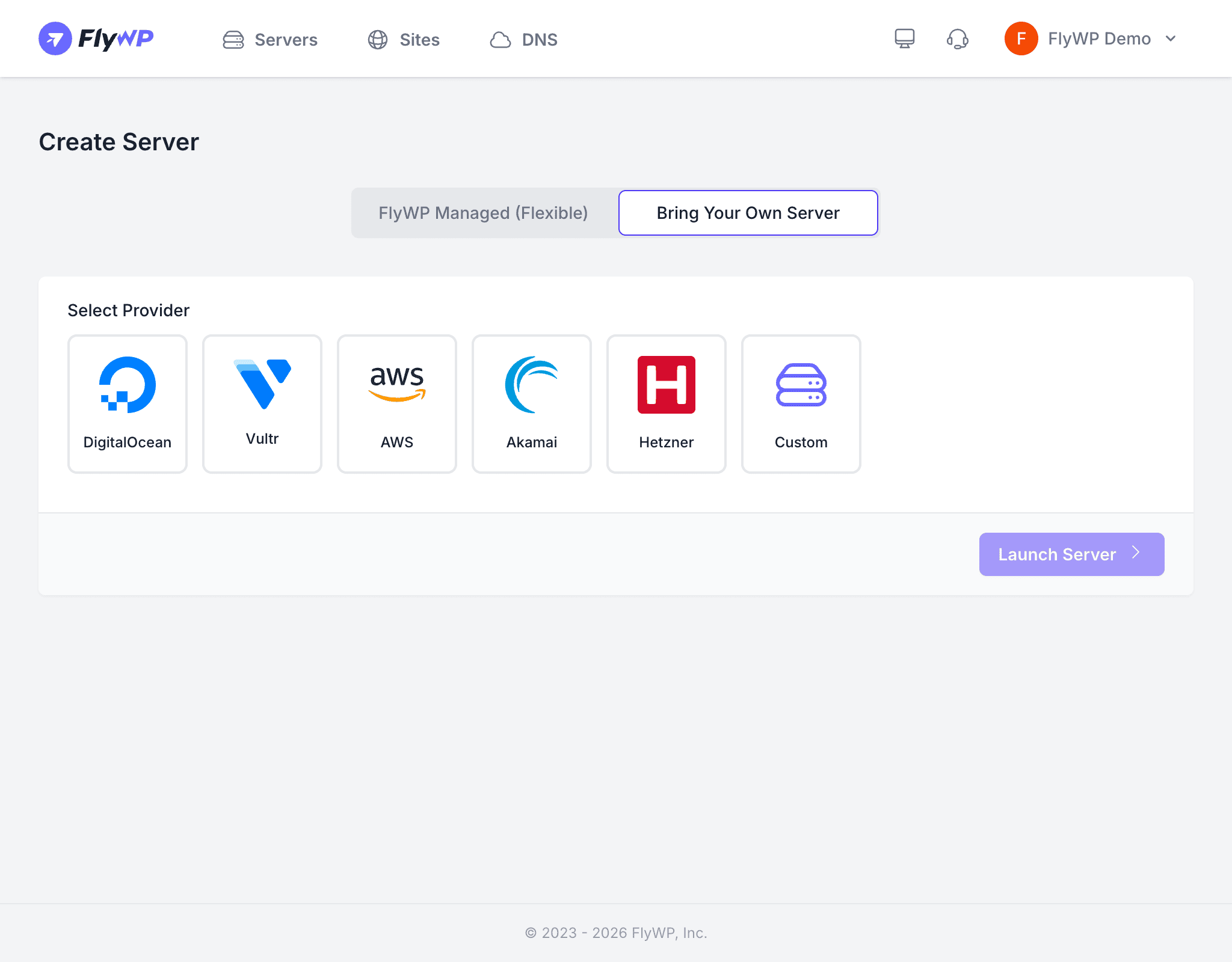
If you already have an account with a cloud provider and want to keep infrastructure costs on that bill, connect your account and FlyWP will provision the server inside it. You pay the cloud provider directly.
Supported providers:
| Provider | Notes |
|---|---|
| DigitalOcean | Connect via API token (a secret key that lets FlyWP act on your behalf) |
| Vultr | Connect via API key |
| AWS | Connect via IAM credentials (AWS Identity and Access Management — controls what FlyWP is allowed to do in your account) |
| Akamai (Linode) | Connect via personal access token |
| Hetzner | Connect via API token |
| Custom | Any VPS (Virtual Private Server) with SSH access — see Custom Server |
Step-by-Step: Adding a Cloud Provider Server
- Click Create New Server from the Servers page.
- Choose your provisioning method — Provision Through FlyWP or Use My Cloud Account.
- If using your own account, select the cloud provider and the connected account you want to use.
- Choose a server location — pick the data center region closest to most of your visitors for the best performance.
- Select a server type:
- Shared vCPU — cost-effective for most WordPress sites; your server shares CPU resources with other tenants on the same physical machine
- Dedicated vCPU — your server gets guaranteed CPU resources; ideal for high-traffic or resource-intensive sites
- Pick a server size based on your expected traffic and storage needs.
- Enter a server hostname — a descriptive label for your own reference, such as
production-web-1. - Confirm the operating system (Ubuntu Server 24.04 LTS is pre-selected).
- Click Launch Server.
FlyWP begins provisioning immediately. The process typically takes 2–5 minutes depending on the provider.
Server Size Options
FlyWP groups available server sizes by CPU architecture. x86 processors (from Intel or AMD) are the most widely available. Arm64 (Ampere) processors are a newer architecture that can offer better performance per dollar on many workloads.
x86 (Intel / AMD)
| Plan | vCPUs | RAM | Disk | Monthly Cost |
|---|---|---|---|---|
| Entry | 1 vCPU | 1 GB | 25 GB | Varies by provider |
| Standard | 2 vCPUs | 2 GB | 50 GB | Varies by provider |
| Performance | 4 vCPUs | 8 GB | 100 GB | Varies by provider |
| High Memory | 8 vCPUs | 16 GB | 200 GB | Varies by provider |
Arm64 (Ampere)
| Plan | vCPUs | RAM | Disk | Monthly Cost |
|---|---|---|---|---|
| Entry | 1 vCPU | 1 GB | 25 GB | Varies by provider |
| Standard | 2 vCPUs | 2 GB | 50 GB | Varies by provider |
| Performance | 4 vCPUs | 8 GB | 100 GB | Varies by provider |
Operating System
FlyWP provisions all servers with Ubuntu Server 24.04 LTS — a long-term support release that receives security updates through 2029. You do not need to choose or configure the OS yourself.
If you are connecting a custom server, it must be a fresh VPS with no pre-installed software. FlyWP needs a clean environment to install its stack correctly. See Custom Server for details.