Sites
Sites
When you manage more than a handful of WordPress sites, keeping track of them across different servers becomes a real challenge. The Sites page solves that by pulling every site you’ve created on FlyWP into one searchable, filterable dashboard — so you can check health, trigger actions, and navigate to any site in seconds, without remembering which server it lives on.
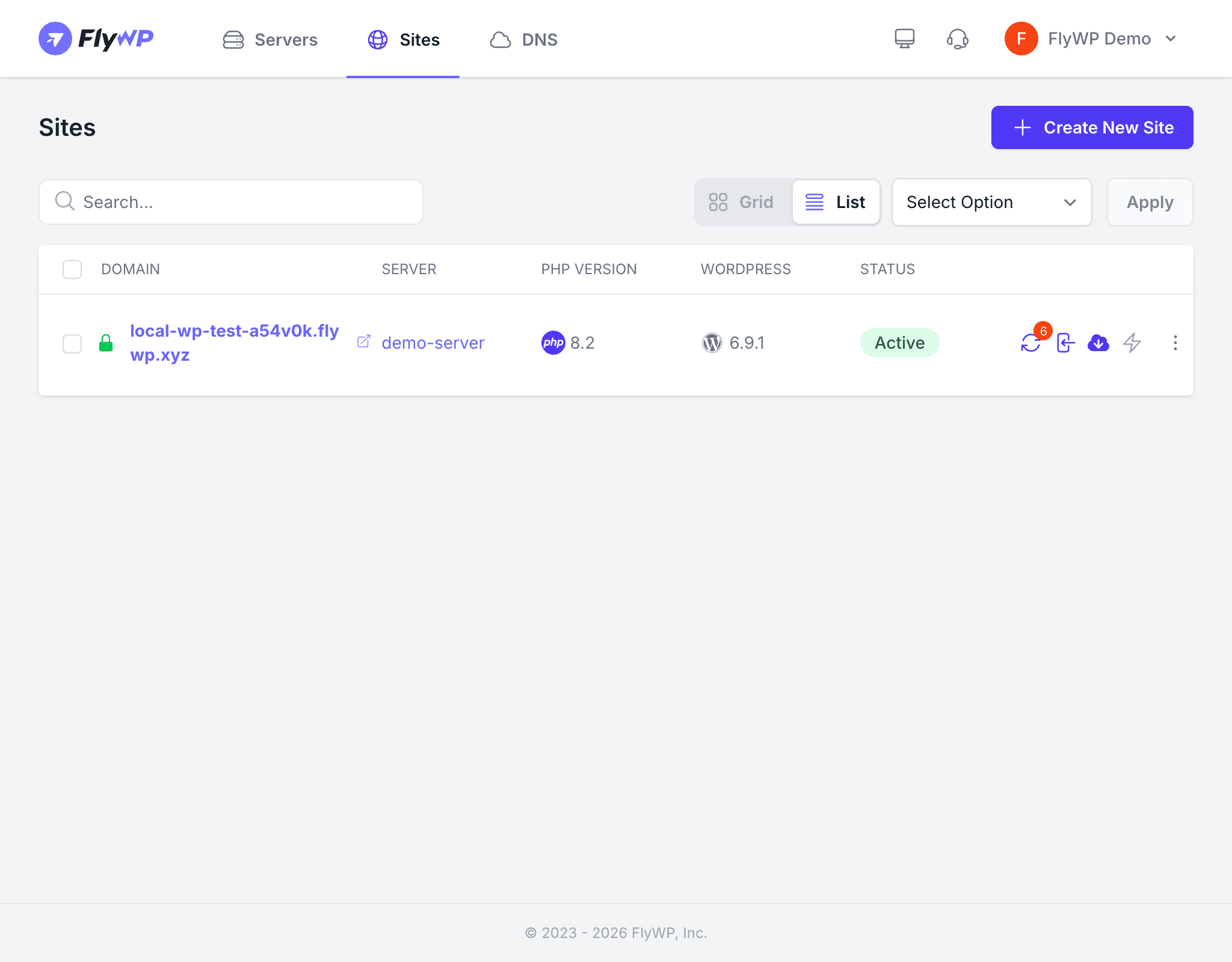
Whether you’re running three sites or three hundred, this is your starting point for day-to-day site management.
What You See on the Sites Page
Each site card displays the following details:
- Domain — the site’s primary domain, shown with a lock icon when SSL (Secure Sockets Layer, the technology that enables the padlock and
https://in your browser) is active - Server name — which server hosts this site
- PHP version — the PHP version the site is running (e.g., 8.2, 8.3)
- WordPress version — the currently installed WordPress version
- Status badge — indicates whether the site is active, creating, sleeping, or has an issue
- Action icons — quick shortcuts for refresh, clone, backup, and deploy
Navigating the Site List
Grid and List View
Use the Grid/List toggle in the top-right corner to switch layouts:
- Grid view — displays sites as visual cards, great for scanning a handful of sites
- List view — displays sites in a compact table, better when you manage many sites
Searching for a Site
The search bar at the top lets you filter sites by domain name. Start typing and results update instantly.
Filtering Sites
Use the Select Option dropdown to narrow the list by server, status, or other criteria. This is especially helpful when you manage dozens of sites and need to focus on a specific subset.
Creating a New Site
Click the Create New Site button to launch the site creation wizard. You will choose a server, pick a site type, configure your domain, and set up WordPress — all in a guided flow. See Creating a Site for full details.
Quick Actions
Each site card includes a row of action icons so you can perform common tasks without opening the site’s detail page:
| Icon | Action |
|---|---|
| Refresh | Sync the latest site status from the server |
| Clone | Create a copy of the site on the same or a different server |
| Backup | Trigger an on-demand backup immediately |
| Deploy | Run a Git deployment (if Git deployment is configured) |
Site Detail Page
Clicking on any site card opens its detail page, where you can manage SSL, caching, security, backups, WordPress settings, file management, and more through a tabbed sidebar. Additional per-site settings include:
- PHP Settings — adjust the PHP version, memory limit, upload size, and other PHP configuration values for the site
- Environment — view and edit the site’s
.envfile directly from the dashboard - Cron Settings — configure WordPress cron jobs or disable the default WP-Cron in favour of a server-level cron