SSL Certificates
SSL Certificates
Without HTTPS (the encrypted connection shown by a padlock in your browser’s address bar), your site looks untrustworthy to visitors and ranks lower in search results. FlyWP takes care of this automatically — every site you create gets a working SSL (Secure Sockets Layer) certificate from the moment it goes live, with no manual setup required.
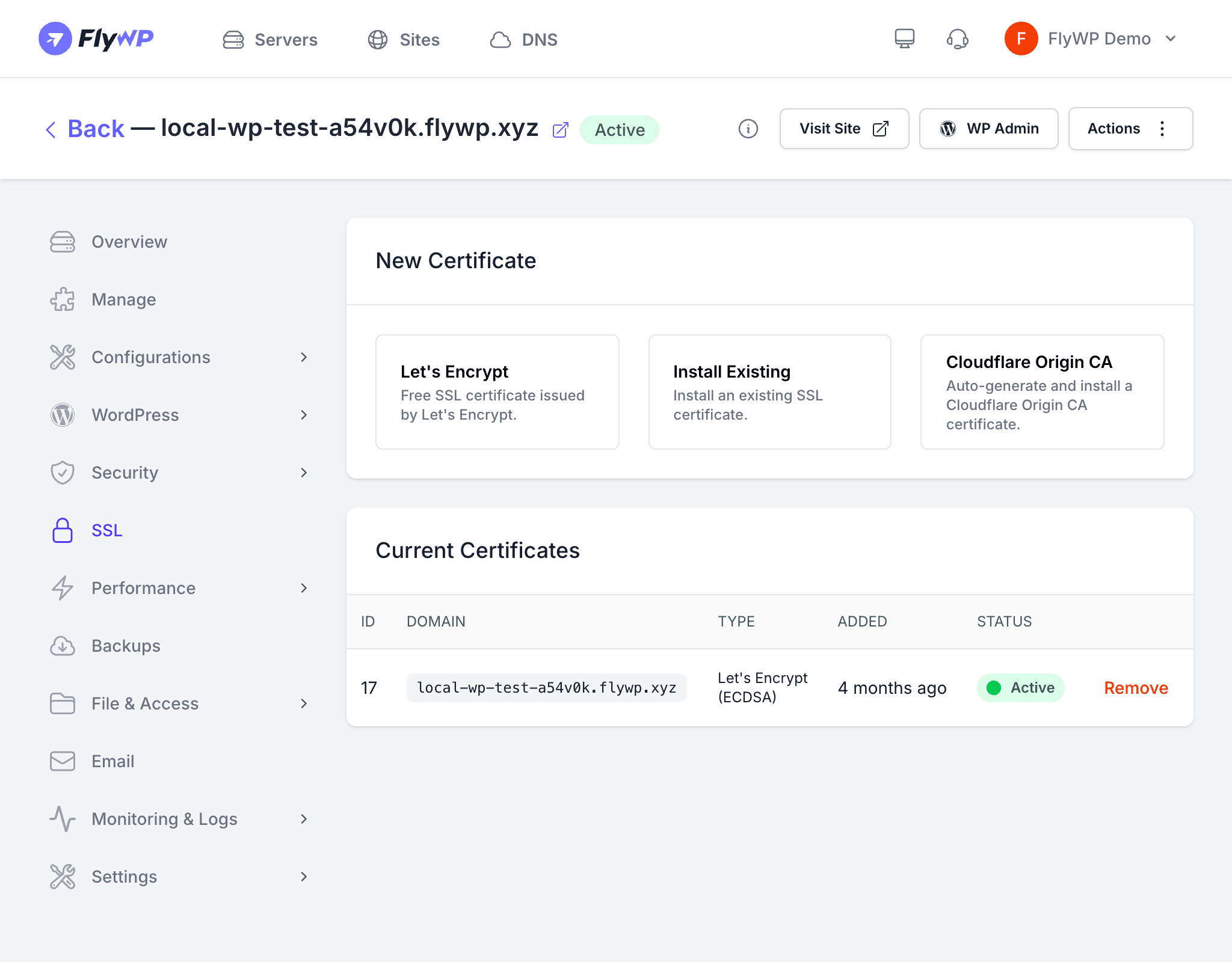
You can rely on a free, auto-renewing certificate from Let’s Encrypt, or bring your own if your organization has specific requirements. Either way, FlyWP handles installation and renewal for you.
SSL Options
Let’s Encrypt (Recommended)
Let’s Encrypt is a free, nonprofit certificate authority trusted by all major browsers. FlyWP provisions and renews these certificates automatically, so you never have to think about expiry dates. Key details:
- Cost — completely free
- Certificate type — ECDSA (Elliptic Curve Digital Signature Algorithm, a modern encryption standard that offers strong security with smaller key sizes and faster page loads)
- Renewal — FlyWP renews the certificate automatically before it expires
- Setup — no manual steps required; FlyWP provisions the certificate during site creation
Install Existing Certificate
If your organization requires a specific certificate — for example, an EV (Extended Validation) or wildcard certificate purchased from a commercial provider — you can upload it manually. This is uncommon for most WordPress sites, but useful when a client or compliance policy mandates a specific issuer.
To install an existing certificate:
- Navigate to your site’s SSL tab.
- Click Install Existing.
- Paste your certificate (the PEM-encoded
.crtfile contents — the text block starting with-----BEGIN CERTIFICATE-----). - Paste your private key (the PEM-encoded
.keyfile contents). - Click Install.
Include the full certificate chain when pasting — that means your certificate plus any intermediate certificates from your provider. Missing intermediates will cause trust errors in some browsers, even if your own browser shows the padlock.
Viewing Current Certificates
The Current Certificates table shows every certificate installed on the site:
| Column | Description |
|---|---|
| ID | A unique identifier for the certificate |
| Domain | The domain the certificate covers |
| Type | Let’s Encrypt or Custom |
| Added | The date the certificate was installed |
| Status | Current state — typically Active |
| Remove | Button to remove the certificate from the site |
How SSL Provisioning Works
When you create a new site with a real domain, FlyWP works through these steps automatically:
- Verifies that the domain’s DNS (Domain Name System — the system that maps your domain name to your server’s IP address) points to your server.
- Requests a certificate from Let’s Encrypt.
- Installs the certificate and configures your web server for HTTPS.
- Sets up automatic renewal so the certificate never expires.
If DNS is not yet pointed to your server, FlyWP will retry and provision the certificate once the records propagate (typically within a few minutes to a few hours, depending on your DNS provider).