PageSpeed Insights
PageSpeed Insights
Slow sites lose visitors and rank lower in search results — but tracking down the problem can feel overwhelming. FlyWP brings Google PageSpeed Insights (powered by Lighthouse, Google’s open-source auditing tool) directly into your dashboard so you can run performance scans, see exactly what is hurting your scores, and verify that your optimizations are working — without switching to another tool or guessing at the cause.
Score Categories
Each scan produces four scores on a 0—100 scale. Higher is better, and 90+ is the target for all four:
| Category | What It Measures |
|---|---|
| Performance | How fast your site loads and becomes interactive, including resource sizes, render-blocking scripts (files that delay the page from displaying), and server response time |
| Accessibility | How usable your site is for people with disabilities, including color contrast ratios, ARIA attributes (labels that screen readers use), and keyboard navigation |
| Best Practices | Adherence to modern web development standards such as HTTPS, safe JavaScript APIs, and correct image aspect ratios |
| SEO | Basic search engine optimization factors including meta tags, crawlability, mobile-friendliness, and structured data |
Core Web Vitals
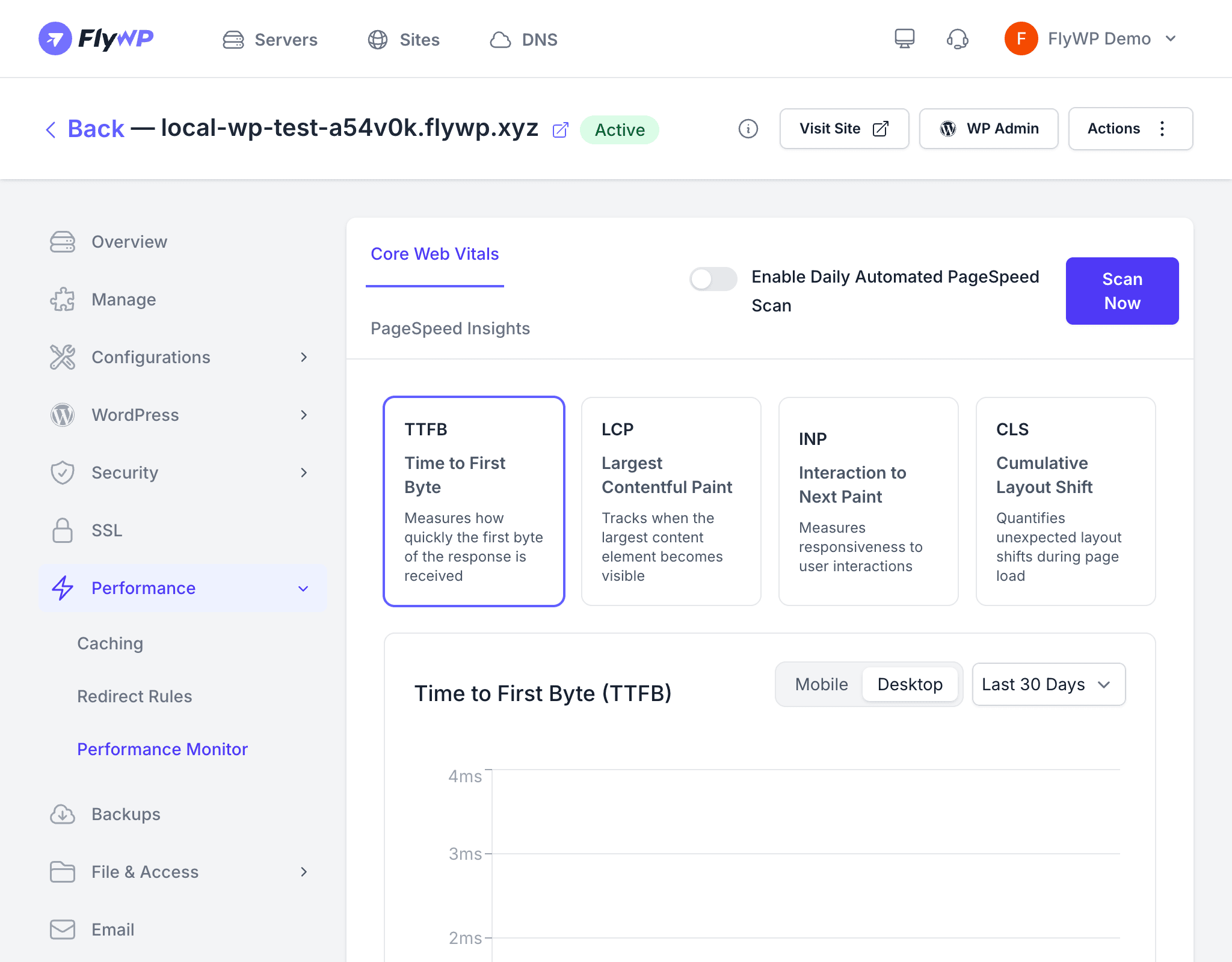
Beyond the four category scores, each scan also reports Google’s Core Web Vitals — a specific set of real-world speed and stability metrics that Google uses directly as search ranking signals. Improving these has the most immediate impact on both user experience and SEO.
| Metric | What It Measures | Good Threshold |
|---|---|---|
| LCP (Largest Contentful Paint) | Time until the largest visible element on the page is rendered | Under 2.5 seconds |
| CLS (Cumulative Layout Shift) | How much the page layout shifts while loading — the jumping effect that makes you click the wrong button | Under 0.1 |
| INP (Interaction to Next Paint) | How quickly the page responds to user interactions such as clicks, taps, and key presses | Under 200 milliseconds |
Running a Scan
Running a scan takes under a minute and gives you an instant snapshot of your site’s current health.
- Navigate to your site’s detail page and click the PageSpeed Insights tab.
- Click Run Scan.
- Wait for the analysis to complete — this typically takes 15—30 seconds.
- Review your scores and the detailed breakdown of each category.
Scan History and Trends
FlyWP stores every scan result so you can track your site’s performance over time rather than reacting to a single data point. The scan history helps you:
- Identify regressions — spot when a plugin update, theme change, or content addition caused scores to drop.
- Measure improvements — confirm that optimization efforts such as enabling caching or compressing images produced measurable gains.
- Establish baselines — know your typical scores so you can recognize when something is genuinely wrong.
PageSpeed Insights scores can vary between scans due to network conditions and server load. Look at the trend across multiple scans rather than reacting to any single result.
Common Performance Improvements
If your scores need improvement, FlyWP gives you several direct levers to pull:
| Issue | FlyWP Solution |
|---|---|
| Slow server response time | Enable FastCGI Cache (a server-side page cache) or Redis Object Cache (an in-memory data store that speeds up database queries) |
| Large page sizes | Optimize images and enable compression in your NGINX config (NGINX is the web server FlyWP uses to serve your site) |
| Render-blocking resources | Optimize plugin and theme assets within WordPress itself |
| Poor caching headers | Configure cache duration in FastCGI settings |
Best Practices
Consistent habits here will keep your scores healthy over time:
- Scan after every major change — run a scan after deploying code, updating plugins, or changing caching settings to catch regressions before visitors notice.
- Test both mobile and desktop — PageSpeed Insights evaluates mobile performance by default, which is typically harder to pass than desktop. Both matter for rankings.
- Focus on Core Web Vitals first — LCP, CLS, and INP have the most direct impact on user experience and search rankings.
- Use caching as your first lever — enabling FastCGI Cache and Redis Object Cache often produces the largest score improvement for the least effort.