Vulnerability Scanner
Vulnerability Scanner
Outdated plugins and themes are one of the most common ways WordPress sites get hacked. The Vulnerability Scanner lets you instantly check every component on your site against publicly disclosed security issues — so you know exactly what needs updating before an attacker finds it first. Reach for this whenever you install new plugins, after a batch of updates, or just to get peace of mind about a site’s security posture.
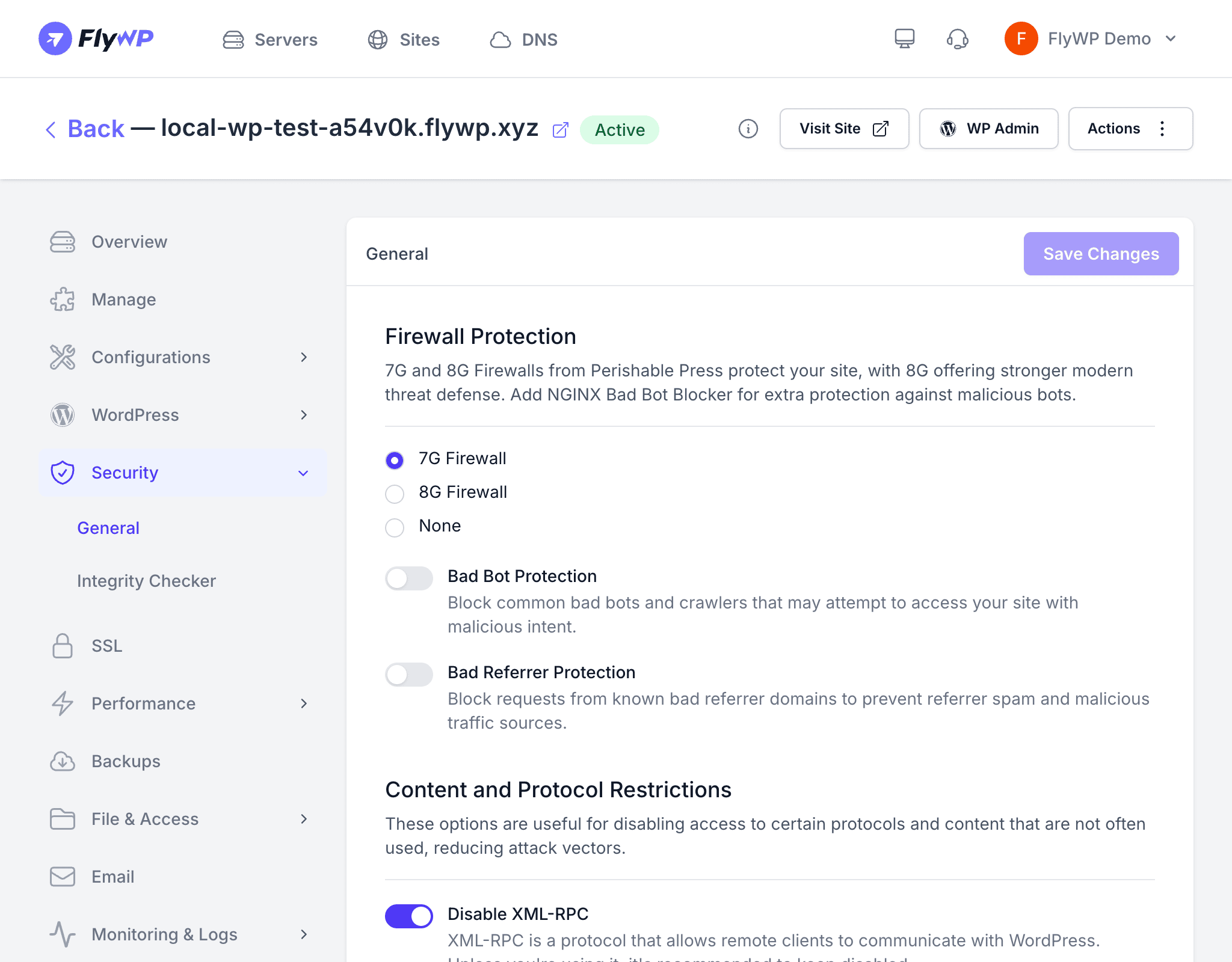
FlyWP cross-references every plugin, theme, and WordPress core version on your site against known vulnerability databases (public records of disclosed security flaws). When it finds a match, FlyWP surfaces the affected component, its severity level, and the recommended fix — usually updating to a patched version.
How It Works
- FlyWP connects to your site and inventories all installed plugins, themes, and the WordPress core version.
- FlyWP checks each component against known vulnerability records.
- Results come back with severity ratings and remediation guidance.
- A real-time status update broadcasts progress as the scan runs, so you can watch results appear live.
Scan Statuses
| Status | Description |
|---|---|
| Pending | The scan has been queued but has not started yet |
| Processing | The scan is actively checking your components |
| Completed | The scan finished and results are available |
| Failed | The scan could not complete — check your site’s connectivity |
Running a Scan
You can trigger a vulnerability scan in two ways:
- On-demand — Navigate to your site’s Security tab, open the Vulnerability Scanner sub-tab, and click Scan Now. Results appear in real time as each component is checked.
- Scheduled — Enable the automated scanner to add a cron job (a scheduled background task that runs automatically at set intervals) on your server. FlyWP runs the scan regularly and notifies you if new vulnerabilities appear.
Understanding Results
Each vulnerability entry includes:
| Field | Description |
|---|---|
| Component | The plugin, theme, or WordPress core version affected |
| Type | Whether the issue is in a plugin, theme, or core |
| Severity | The risk level — Critical, High, Medium, or Low |
| Recommended Action | What you should do, usually updating to a specific version |
Enabling Scheduled Scans
Rather than remembering to run scans manually, you can have FlyWP handle it automatically on a schedule.
- Go to your site’s Security > Vulnerability Scanner tab.
- Toggle the Scheduled Scan option to on.
- FlyWP adds a cron job to your server that runs the scanner automatically.
- You will receive notifications whenever new vulnerabilities are detected.
To disable scheduled scans, toggle the setting back to off. FlyWP removes the cron job automatically.
The scanner checks against publicly disclosed vulnerabilities only. Zero-day (previously unknown) or undisclosed issues will not appear in results. Keeping your plugins, themes, and WordPress core updated remains the single most effective security habit.
Notifications
FlyWP sends you a notification when:
- A scheduled scan discovers new vulnerabilities.
- A scan fails to complete due to a connectivity or server issue.
Notifications are delivered through your configured notification channels in team settings.