Vultr
Vultr
If you want affordable, globally distributed cloud servers without being locked into a big-name hyperscaler, Vultr is a strong choice. Connecting your Vultr account to FlyWP lets you spin up fully managed WordPress servers in minutes, picking from 24 data centers worldwide so your sites load fast for visitors wherever they are.
Prerequisites
Before connecting Vultr to FlyWP, make sure you have:
- A Vultr account — new users can get $100 in free credit through our referral link.
- A Personal Access Token (a secret key that allows FlyWP to create and manage servers on your behalf) from the Vultr API settings.
Connecting Vultr to FlyWP
Once you have your token ready, adding Vultr as a provider takes under a minute.
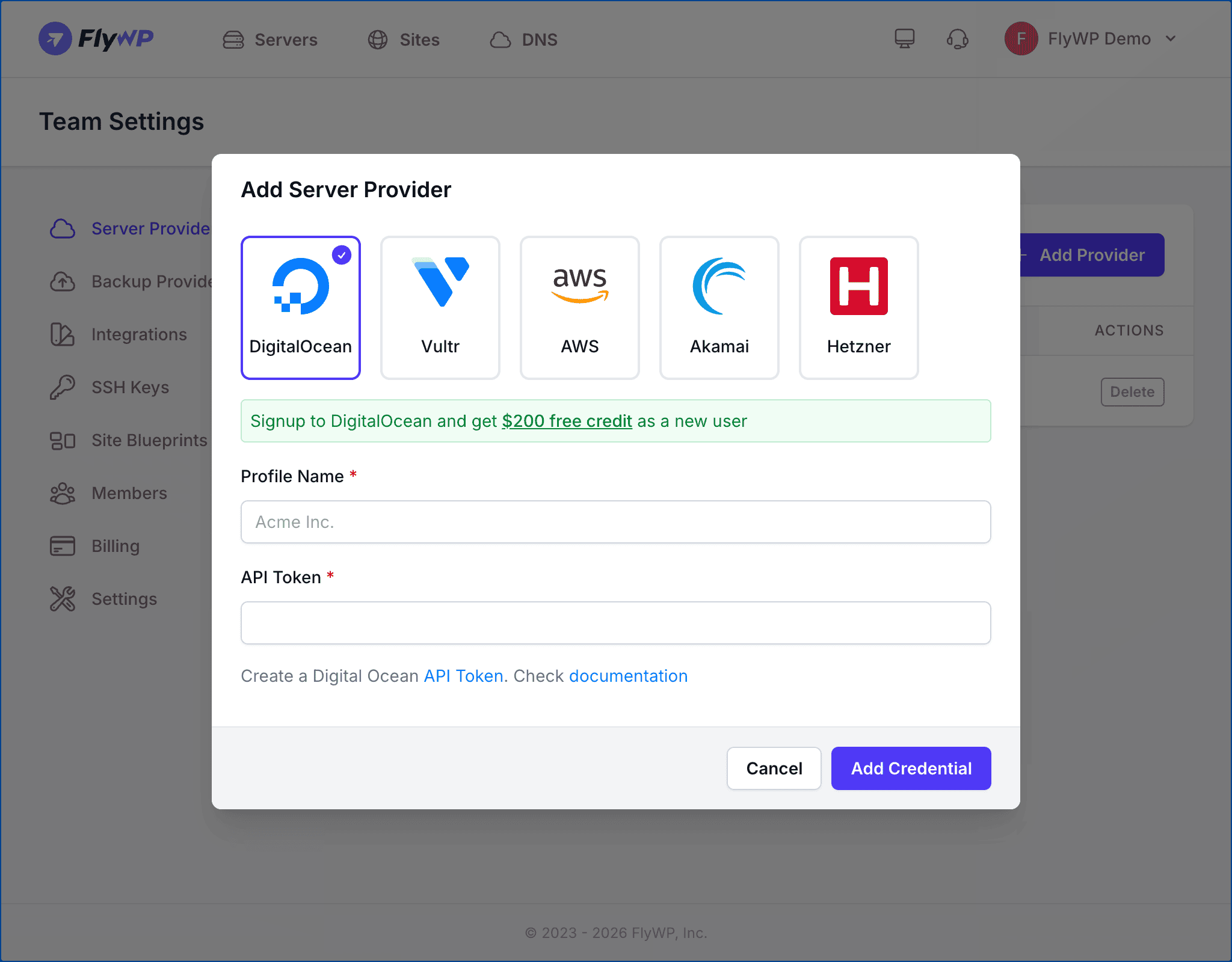
- Navigate to Team Settings > Server Providers.
- Click Add Provider.
- Select the Vultr icon from the provider list.
- Enter a Profile Name for this connection (e.g.,
Vultr Production). This must be unique within your team and can be up to 80 characters. - Paste your Personal Access Token into the token field.
- Click Add Credential.
FlyWP validates your token with the Vultr API (the programming interface Vultr exposes so tools like FlyWP can manage your account) before saving. If the token is invalid, you will see an error message.
Getting Your API Token
Step 1: Open the Vultr API Settings
Log in to your Vultr account and navigate to Account Settings > API, or go directly to https://my.vultr.com/settings/#settingsapi.
Step 2: Generate a Personal Access Token
Click Enable API if it is not already enabled, then generate a new Personal Access Token. The token needs full access to manage server instances.
Step 3: Copy the Token
Copy the token immediately and store it somewhere secure — a password manager works well. Vultr will not show you the full token again after you leave the page.
Available Server Options
When creating a server through FlyWP with Vultr, you can choose from the following options.
Server Types
Vultr offers three main tiers, each suited to a different workload:
| Category | Best For |
|---|---|
| Cloud Compute (Shared CPU) | Development, staging, and small production sites |
| High Frequency (Shared CPU) | Sites that benefit from higher clock speeds |
| High Performance (Dedicated CPU) | High-traffic production sites needing guaranteed resources |
Regions
Vultr operates 24 data centers around the world, covering North America, Europe, Asia Pacific, South America, and Australia. Placing your server in a region close to your visitors reduces latency (the delay between a user’s request and your server’s response), which directly improves perceived site speed.
Web Server Stack
Vultr servers provisioned through FlyWP support both Nginx (a widely used, high-performance web server) and OpenLiteSpeed web server stacks. You choose the stack when creating the server.
Pricing
Vultr uses USD-based pricing with both monthly and hourly billing. Shared CPU plans start as low as $2.50/month. Vultr bills you directly — FlyWP does not add any markup to infrastructure costs.