Email Configuration
Email Configuration
If your WordPress site’s password reset emails disappear, order confirmations never reach customers, or contact form notifications go missing, the culprit is almost always the default mail setup. FlyWP’s Email tab lets you connect a dedicated email delivery service so your site’s messages reliably reach inboxes — not spam folders.
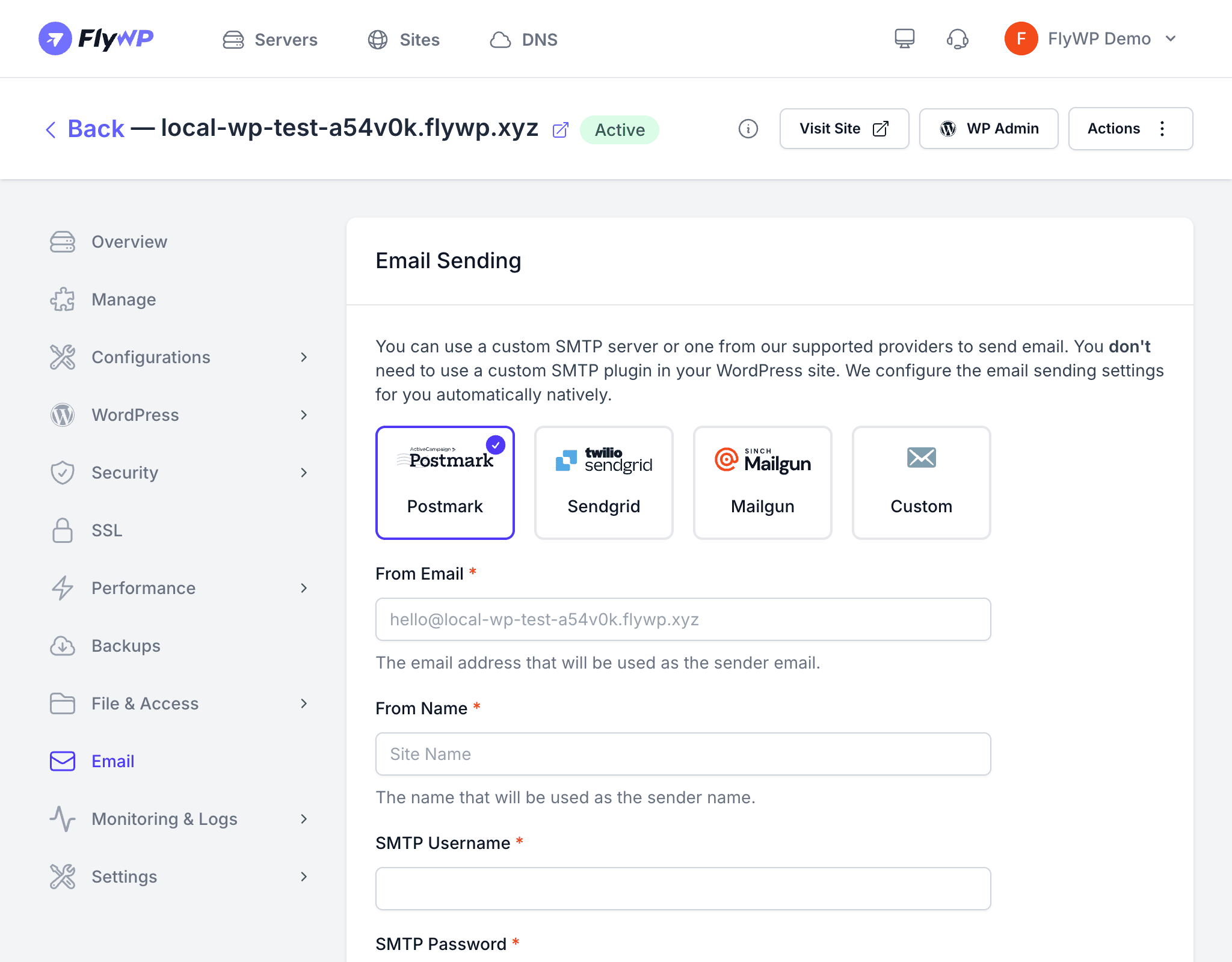
By default, WordPress sends email through the server’s built-in PHP mail function (a basic system-level mailer). Most modern email providers treat these messages as suspicious and quietly discard them. Connecting a proper SMTP (Simple Mail Transfer Protocol — a standardized way for applications to send email) service fixes this at the source, without requiring a WordPress plugin.
Why Configure Email?
WordPress sends emails automatically for situations your users depend on:
- Password resets — if this fails, users cannot regain access to their accounts
- New user registrations — the welcome email with login details
- WooCommerce order confirmations — critical for customer trust
- Contact form submissions — notifications to you and the sender
- Comment notifications and other plugin-triggered emails
Without a proper SMTP configuration in place, these emails may land in spam or never arrive at all. If you have ever had a user complain they never received a password reset link, this is the fix.
Recommended Email Providers
Transactional email services (providers built specifically for sending automated messages like confirmations and notifications, rather than newsletters) are purpose-built for this job. They maintain strong sender reputations and give you delivery logs to diagnose problems.
| Provider | Best For | Free Tier |
|---|---|---|
| Mailgun | High-volume transactional email, excellent deliverability | 1,000 emails/month |
| Postmark | Fast delivery and detailed delivery logs | No (paid only) |
| Amazon SES | Cost-effective at scale, AWS ecosystem | 62,000 emails/month from EC2 |
| SendGrid | Feature-rich with marketing email support | 100 emails/day |
| Brevo (Sendinblue) | Good free tier, easy setup | 300 emails/day |
How to Set Up Email
Before you start, grab your SMTP credentials from your chosen email provider’s dashboard. Then:
- Navigate to your site and click Email in the sidebar.
- Enter your SMTP credentials:
- SMTP Host — your email provider’s outgoing mail server address (e.g.,
smtp.mailgun.org) - SMTP Port — usually
587(recommended, uses TLS/STARTTLS encryption) or465(uses SSL encryption) - Username — your SMTP account username or API key, as shown in your provider’s dashboard
- Password — your SMTP password or app-specific password
- Encryption — select TLS (recommended) or SSL; both protect your credentials in transit
- From Address — the email address that appears in the “From” field when recipients receive your messages
- From Name — the sender name shown alongside the email address (e.g., your site or business name)
- SMTP Host — your email provider’s outgoing mail server address (e.g.,
- Click Save.
Testing Your Configuration
After saving, confirm delivery is working before relying on it for real users:
- Use the WordPress admin to trigger a test — requesting a password reset for your own account works well.
- Check the recipient inbox and the spam folder to confirm the email arrived.
- If it does not arrive, verify your SMTP credentials are correct and that the From Address domain matches your SMTP provider’s verified sender domain.
Most email providers require you to verify your sending domain (by adding DNS records that prove you own it) before messages will be delivered. If test emails are not arriving, check your provider’s dashboard for domain verification instructions.
Removing Email Configuration
If you prefer to manage email through a WordPress plugin instead, click the Delete button to remove the SMTP configuration from FlyWP. You can then use plugins like WP Mail SMTP or FluentSMTP to handle delivery directly from WordPress.