Common Issues
Common Issues
When something breaks on your server or site, finding the cause quickly is what matters most. This page walks you through the most common problems FlyWP users run into — from blank white screens to failed deployments — with clear steps to get things working again. If your issue is not listed here, check the FAQ or reach out to FlyWP support.
Site Not Loading After Domain Change
Symptom: You changed your site’s domain or pointed a new domain to your server, but the site shows a browser error or still loads the old site.
Cause: DNS changes take time to spread across the internet — a process called DNS propagation. Each DNS record has a TTL (Time to Live) value that controls how long servers around the world cache the old information. Propagation can take anywhere from a few minutes to 48 hours depending on your DNS provider and TTL setting.
Here is what to check:
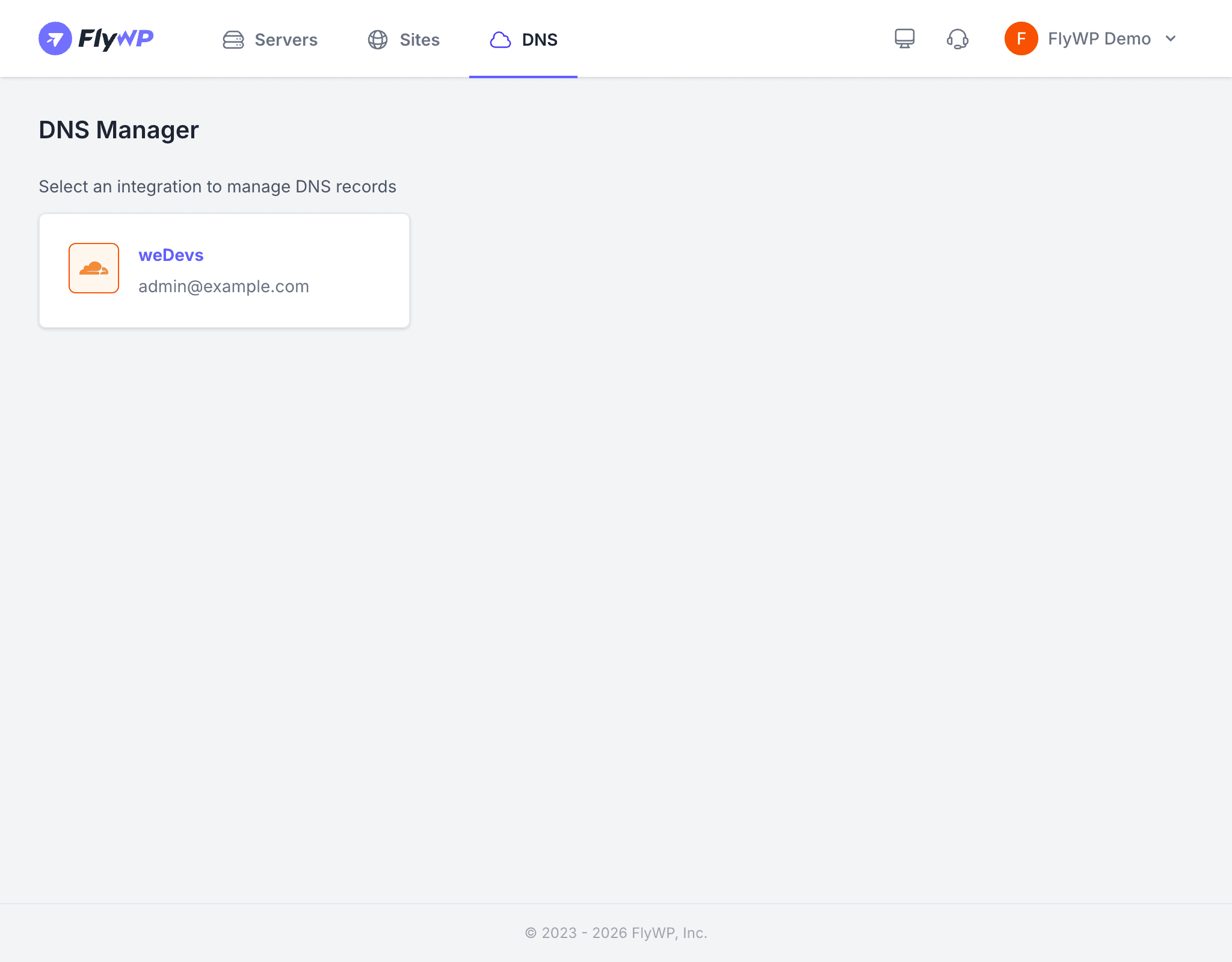
- Verify that your DNS records are correct — the A record (which maps a domain name to an IP address) for your domain should point to your server’s IP address. Check this in the DNS Manager or your DNS provider’s dashboard.
- Wait at least 15–30 minutes for propagation. Most changes take effect within this window when using Cloudflare.
- Clear your browser cache and try loading the site in an incognito or private window.
- Use a DNS lookup tool (like
digon the command line, or an online DNS checker) to confirm the domain resolves to the correct IP address.
SSL Certificate Not Provisioning
Symptom: Your site shows a browser security warning, or the SSL certificate status in FlyWP shows an error or stays in a pending state.
Cause: FlyWP uses Let’s Encrypt (a free, automated certificate authority) to issue SSL/TLS certificates — the technology that enables the padlock icon and HTTPS in browsers. Let’s Encrypt verifies that you own the domain by reaching your server over HTTP. If your DNS records are wrong or propagation is still in progress, that verification fails.
Work through these steps:
- Confirm that the A record for your domain points to the correct server IP address.
- If you are using Cloudflare with the proxy enabled (orange cloud), temporarily switch to DNS-only (gray cloud) and retry SSL provisioning. Once the certificate is issued, you can re-enable the proxy.
- Make sure port 80 is open in your server’s Firewall rules — Let’s Encrypt uses port 80 for domain validation.
- Wait for DNS propagation to complete, then retry SSL provisioning from your site’s SSL settings.
If your domain has a CAA record (a DNS setting that restricts which certificate authorities are allowed to issue certificates for your domain), make sure letsencrypt.org is on the allowed list. A misconfigured CAA record blocks Let’s Encrypt from issuing a certificate entirely.
502 Bad Gateway
Symptom: Visitors see a “502 Bad Gateway” error page when accessing your site.
Cause: Nginx (the web server software that handles incoming traffic) is running, but it cannot reach PHP-FPM (the process that actually runs your PHP code). This usually means the PHP process has crashed or is overwhelmed by too many requests at once.
To resolve it:
- Go to your server’s Manage tab and restart Nginx Proxy.
- If the error persists, restart the site’s PHP service from the site settings.
- Check whether your server is running out of resources — visit the Status tab to monitor CPU, RAM, and disk usage. A server that runs out of memory will cause PHP processes to crash and stop responding.
- Review your site’s error logs for specific PHP errors that point to the root cause, such as a broken plugin or theme.
White Screen of Death
Symptom: Your WordPress site shows a completely blank white page, often with no error message.
Cause: A fatal PHP error is occurring, but WordPress has error display turned off (as it should be on live sites). Common triggers include a broken plugin, a theme conflict, or PHP running out of memory.
Work through these steps in order:
- Check error logs — access your site’s error logs through FlyWP or via SSH (Secure Shell, a way to connect to your server’s command line) to identify the specific PHP error.
- Increase PHP memory limit — in your site’s PHP settings, try raising the
memory_limitvalue (for example, from 256M to 512M). This gives PHP more room to run complex operations. - Disable plugins — if you recently installed or updated a plugin, connect via SSH or SFTP (Secure File Transfer Protocol, used to manage files on your server) and rename the
wp-content/pluginsfolder towp-content/plugins-disabled. If the site loads, re-enable plugins one at a time to find the culprit. - Switch themes — rename your active theme’s folder to force WordPress to fall back to a default theme, helping you rule out a theme conflict.
- Enable debug mode — set
WP_DEBUGtotruein yourwp-config.phpfile to surface the specific error. Disable it again once you have identified the problem.
Cannot Connect via SSH
Symptom: Your SSH (Secure Shell) connection is refused, times out, or prompts for a password you do not have.
Cause: Firewall rules may be blocking the connection, the SSH key may not be configured correctly, or you may be using the wrong server credentials.
Check each of these in turn:
- Verify you are using the correct IP address, SSH port, and username (
fly) from the server’s Manage tab. - Confirm that your SSH key — a cryptographic credential that proves your identity without a password — has been added to the server on the SSH Keys tab.
- Verify that port 22 (or your custom SSH port) is open in the server’s Firewall rules.
- If using a private key file, make sure its permissions are set correctly:
chmod 600 ~/.ssh/your_key. Overly permissive key files are rejected for security reasons. - Try connecting with verbose output to get more detail on what is failing:
ssh -v fly@your-server-ip.
Database Connection Errors
Symptom: Your WordPress site displays “Error establishing a database connection.”
Cause: WordPress cannot reach its MySQL database (the software that stores all your site’s content, settings, and users). This happens when credentials are wrong, the MySQL service has stopped, or the server’s disk is full.
Work through these steps:
- Go to your server’s Manage tab and verify that the MySQL service is running. Restart it if needed.
- Check the database credentials in your site’s WordPress configuration. The database name, username, and password must match what FlyWP has on record (visible in the server’s Database tab).
- If MySQL keeps crashing, check the Status tab for available disk space. A full disk prevents MySQL from writing data, causing it to shut down.
- Confirm the credentials work by connecting to the database manually via SSH using the MySQL command-line client.
Deployment Failures
Symptom: A Git deployment fails, and your site does not update with the latest code.
Cause: Deployment scripts may contain errors, the Git repository (the version-controlled codebase where your site’s code lives) may be inaccessible, or a post-deployment command may be failing.
Here is how to diagnose it:
- Check the deployment logs on your site’s Deployment tab. The log output almost always contains the specific error message.
- Verify that your Git provider (GitHub, GitLab, or Bitbucket) is still connected in your Account Settings.
- Make sure the branch configured for deployment exists in the repository and has recent commits.
- If you use a deployment script, test those commands manually via SSH to confirm they work outside of the deployment process.
- Check that your server has enough disk space — a full disk causes Git operations to fail silently.