WP-CLI Access
WP-CLI Access
When the FlyWP dashboard doesn’t quite give you the control you need — bulk-updating dozens of plugins, running a database find-and-replace across thousands of rows, or automating repetitive tasks with scripts — WP-CLI is the tool you reach for. WP-CLI (the official command-line interface for WordPress) lets you interact with every part of a WordPress site from a terminal prompt, without touching the admin panel at all. On FlyWP, each site runs inside its own isolated Docker container (a self-contained environment that keeps sites separate from one another), so you’ll target the right container when running commands.
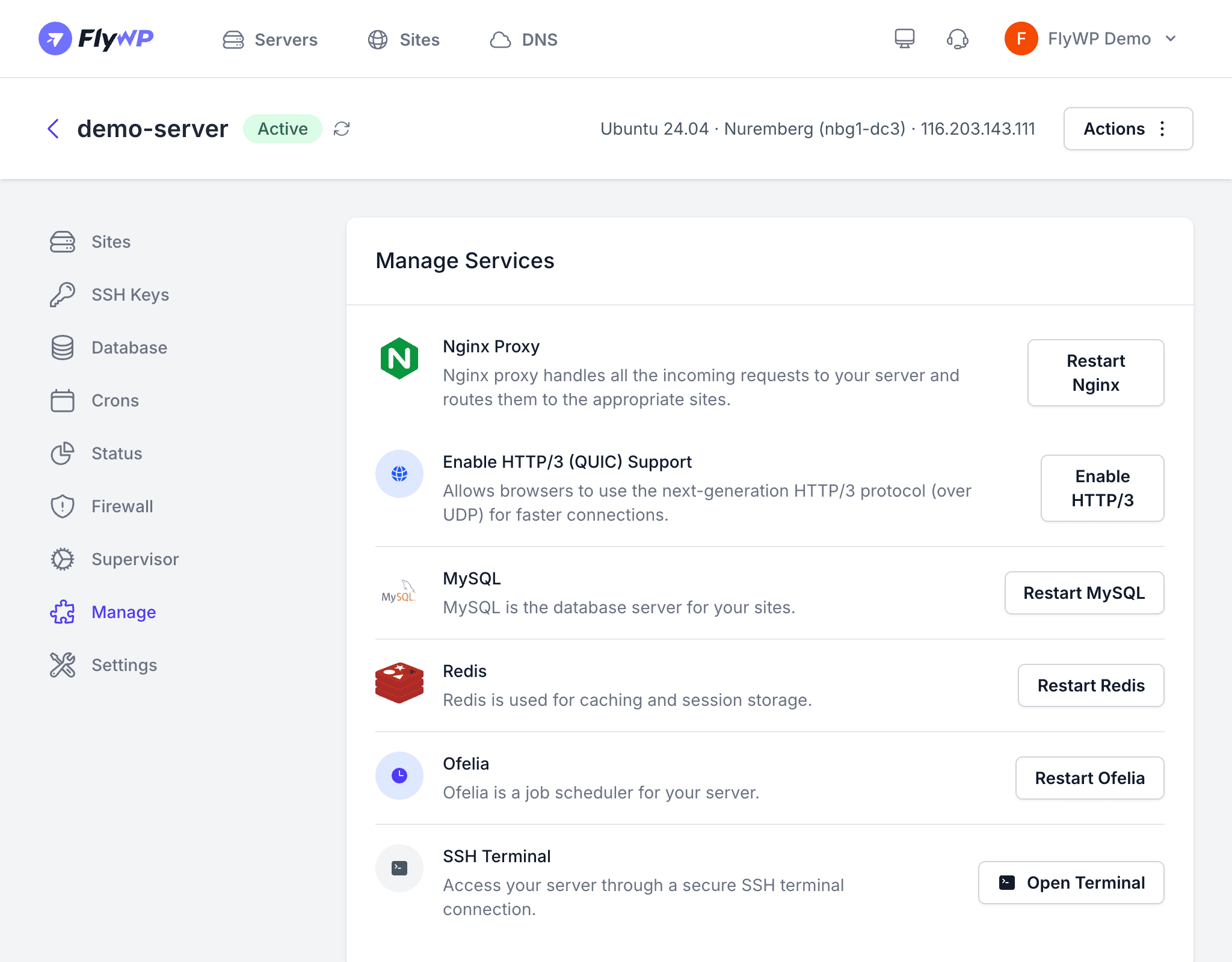
Accessing WP-CLI
You can run WP-CLI commands through two methods:
1. Server Terminal (Browser)
Open the Terminal tab on your server’s detail page in the FlyWP dashboard. This gives you a browser-based shell where you can run commands without a separate SSH (Secure Shell) client installed on your computer — useful if you’re on a shared machine or just want a quick one-off command.
2. SSH Access
Connect to your server via SSH (Secure Shell — an encrypted connection to your server’s command line) as the fly user:
ssh fly@your-server-ipSSH is the better choice when you’re running longer scripts or want to pipe command output into local files.
Running WP-CLI Commands
Because each site runs in an isolated Docker container, you need to target the correct container by its domain name. The docker exec command runs a command inside a named container:
docker exec -it your-domain-com wp plugin listHere are common WP-CLI commands you’ll use day-to-day:
# List installed pluginsdocker exec -it your-domain-com wp plugin list
# Update all pluginsdocker exec -it your-domain-com wp plugin update --all
# List installed themesdocker exec -it your-domain-com wp theme list
# Search and replace in the databasedocker exec -it your-domain-com wp search-replace 'old-url.com' 'new-url.com'
# Export the databasedocker exec -it your-domain-com wp db export /tmp/backup.sql
# Clear WordPress cachedocker exec -it your-domain-com wp cache flush
# Create a new admin userdocker exec -it your-domain-com wp user create admin admin@example.com --role=administratorSite Isolation
Each WordPress site on a FlyWP server lives in its own container, which means it has:
- Its own PHP environment and extensions
- Its own WP-CLI installation
- Its own file system (WordPress core, plugins, themes, uploads)
- Access to its own database only
This isolation is a security and stability feature: WP-CLI commands in one container cannot accidentally affect other sites on the same server.
Scripting with WP-CLI
You can chain WP-CLI commands to handle batch operations in a single session. For example, to cleanly remove a plugin:
# Deactivate and delete a plugindocker exec -it your-domain-com wp plugin deactivate akismetdocker exec -it your-domain-com wp plugin delete akismetAlways back up your site before running destructive WP-CLI commands like wp db import, wp search-replace, or wp plugin delete. These operations change or remove data permanently and cannot be undone without a backup.