Firewall
Firewall
Your server is exposed to the internet the moment it’s provisioned — and not all of that traffic is welcome. The firewall lets you decide exactly which connections are allowed in and which are turned away at the door, giving you control over your server’s attack surface without needing to touch the command line.
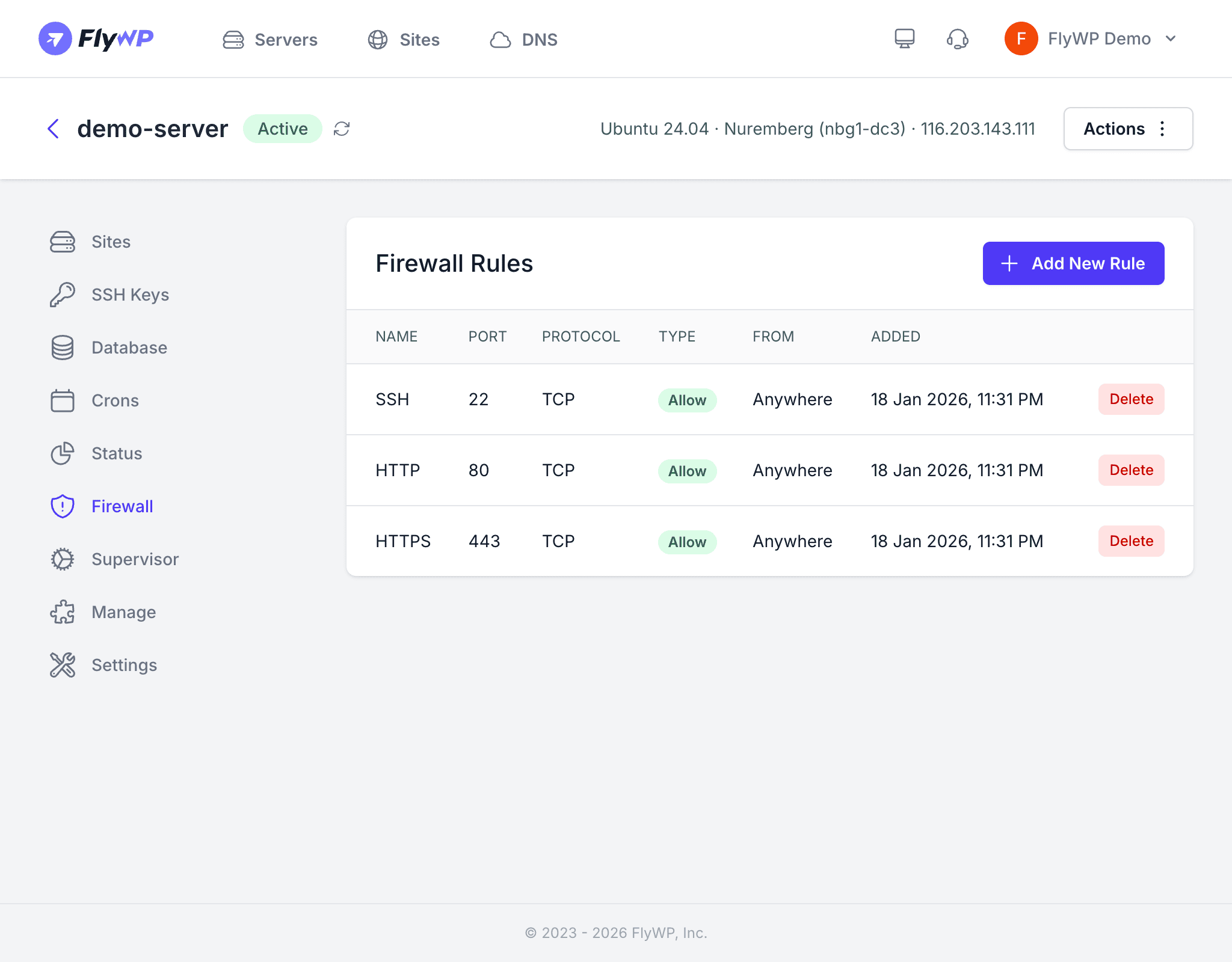
FlyWP sets up sensible default rules when your server is provisioned. You can add custom rules for any additional services you run, and remove rules you no longer need — with one important exception noted below.
Default Rules
Every FlyWP server comes with these firewall rules pre-configured:
| Name | Port | Protocol | Type | From |
|---|---|---|---|---|
| SSH | 22 | TCP | Allow | Anywhere |
| HTTP | 80 | TCP | Allow | Anywhere |
| HTTPS | 443 | TCP | Allow | Anywhere |
SSH (Secure Shell, used for encrypted command-line access to your server), HTTP (unencrypted web traffic on port 80), and HTTPS (encrypted web traffic on port 443) are the minimum set your server needs to stay reachable and serve websites.
Viewing Firewall Rules
The firewall rules table gives you a full picture of what’s currently open or blocked on your server:
| Column | Description |
|---|---|
| Name | A descriptive label for the rule |
| Port | The port number (or range) the rule applies to |
| Protocol | TCP, UDP, or both |
| Type | Allow (permit traffic) or Deny (block traffic) |
| From | The source — Anywhere or a specific IP address/range |
| Added | The date the rule was created |
| Actions | A Delete button to remove the rule |
Adding a New Firewall Rule
To open or block a port, add a new rule from the Firewall tab:
- Navigate to your server’s detail page and click the Firewall tab.
- Click the Add New Rule button.
- Fill in the rule details:
- Name — a descriptive label (e.g., “MySQL from office”)
- Port — the port number to open or block
- Protocol — TCP (used by most web services), UDP (used by streaming and DNS), or both
- Type — Allow or Deny
- From — leave as Anywhere or enter a specific IP address to restrict access
- Click Save.
The rule takes effect immediately — no server restart required.
Deleting a Firewall Rule
To remove a rule you no longer need:
- Find the rule in the table.
- Click the Delete button on that row.
- Confirm the deletion.
Deleting the wrong rule can cut off access to your server entirely. Removing the SSH rule (port 22) will lock you out, and removing HTTP/HTTPS rules (ports 80/443) will take your sites offline. Double-check before confirming.
Common Firewall Rules
Here are some rules you might add depending on what you’re running:
| Use Case | Port | Protocol | Type | From |
|---|---|---|---|---|
| Allow phpMyAdmin | 8081 | TCP | Allow | Your IP |
| Allow custom app | 3000 | TCP | Allow | Anywhere |
| Block specific IP | Any | TCP | Deny | Attacker IP |
| Allow Redis (in-memory data store) from another server | 6379 | TCP | Allow | Private IP |
Best Practices
- Restrict phpMyAdmin access — if you enable phpMyAdmin (a web-based database management tool) on port 8081, add a firewall rule that only allows your own IP address rather than Anywhere.
- Use Deny rules sparingly — it’s usually better to allow only what you need and leave everything else blocked by default, rather than maintaining a long deny list.
- Restrict database ports — never expose MySQL (port 3306) or Redis (port 6379) to Anywhere. Only allow specific IP addresses that genuinely need access.
- Document your rules — use clear, descriptive names so you remember why each rule exists months later.