Umami
Umami
If you want to know how people use your website — without handing that data over to Google or putting a cookie consent banner in front of every visitor — Umami is the answer. It gives you clean, actionable visitor analytics that live entirely on your own server, so you stay in control of your data and stay compliant with privacy regulations like GDPR (Europe’s data protection law) by default.
Why Umami?
- Privacy-focused — no cookies, no personal data collection, no tracking across sites
- GDPR-compliant — works without cookie consent banners
- Lightweight — the tracking script (a small snippet of JavaScript added to your pages) is under 2 KB, so it does not slow down your pages
- Self-hosted — all data stays on your server, not a third-party cloud
- Multi-site — track multiple websites from a single dashboard
- Simple UI — clean, fast dashboard with the metrics that matter
Deploying Umami
FlyWP handles the full setup — database, web server (NGINX), and SSL certificate (the encryption that makes your analytics URL start with https://) — in a single flow.
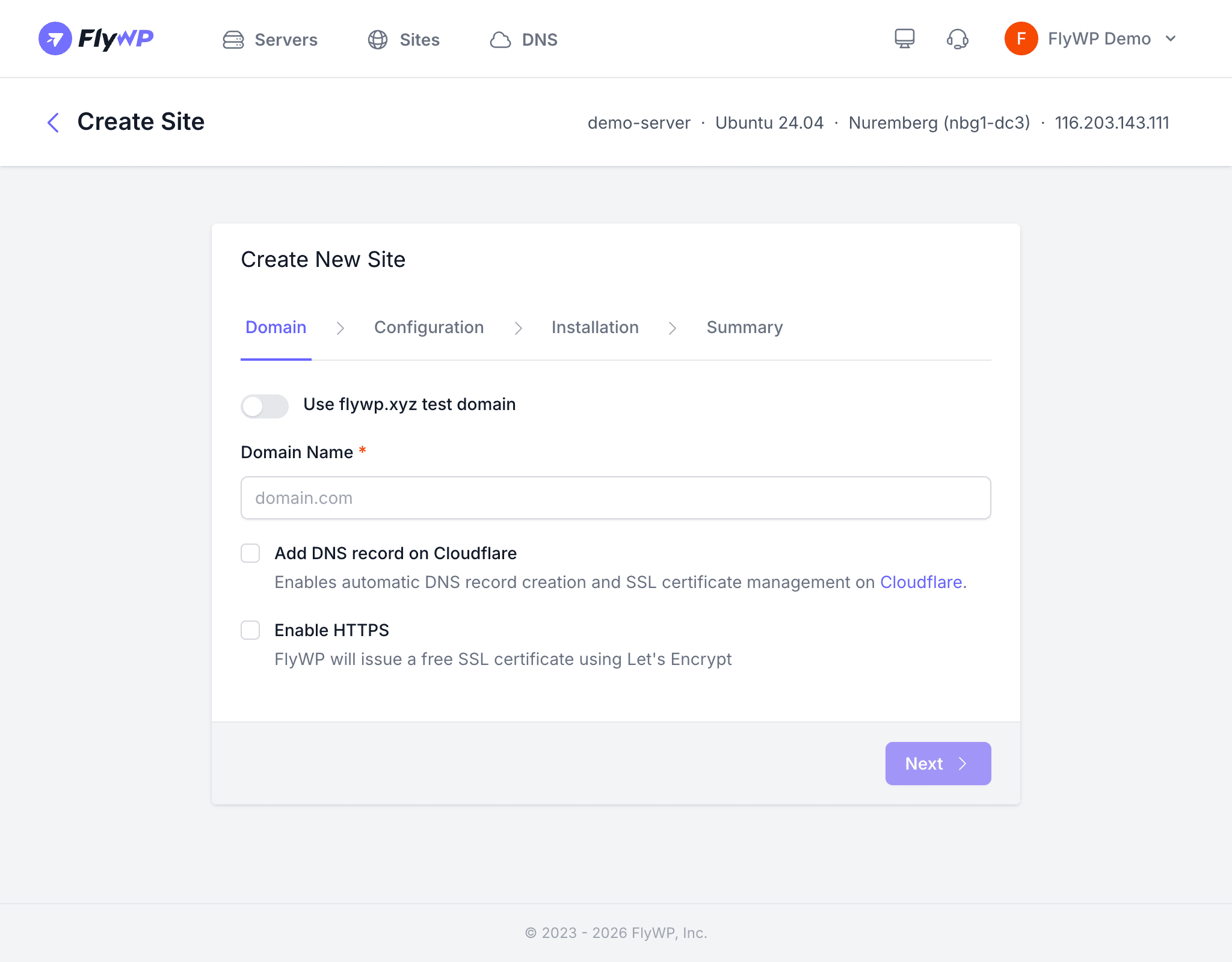
- Navigate to your server in the FlyWP dashboard.
- Go to the One-Click Apps section or click Create Site.
- Select Umami.
- Enter a domain for your analytics dashboard (e.g.,
analytics.yourdomain.com). - Click Create.
FlyWP provisions the Umami container with its own database, configures NGINX, and issues an SSL certificate automatically.
Environment Configuration
You can customize Umami’s behavior through environment variables (settings passed to the app at startup) from the FlyWP dashboard:
| Variable | Description |
|---|---|
APP_SECRET | A random string used to generate unique values (change from default) |
DISABLE_LOGIN | Set to 1 to disable the login page after setup |
TRACKER_SCRIPT_NAME | Custom name for the tracking script (helps avoid ad blockers) |
Setting Up Umami
After deployment, access your Umami dashboard at the domain you configured. The default credentials are:
| Field | Value |
|---|---|
| Username | admin |
| Password | umami |
Change the default admin password immediately after your first login. The default credentials are publicly known and your dashboard will be exposed if you leave them in place.
Adding a Website to Track
Once you are logged in, connect your first website so Umami knows what to measure.
- Log into your Umami dashboard.
- Go to Settings > Websites.
- Click Add Website and enter your site’s name and domain.
- Umami generates a tracking script snippet — a small line of HTML code.
- Add the snippet to your website’s
<head>section (the part of each page that loads before the visible content).
The tracking script looks like this:
<script defer src="https://analytics.yourdomain.com/script.js" data-website-id="your-id"></script>Viewing Analytics
The Umami dashboard gives you a clear picture of who is visiting and how they found you. It shows:
- Page views and unique visitors
- Referrer sources — where your traffic comes from
- Browser and OS breakdowns
- Country and language data
- Real-time visitor count
- Custom events you define