Google Drive
Google Drive
If you already have a Google account, you can put that storage to work as an offsite home for your site backups — no new accounts, no complicated setup, and no API keys to manage. FlyWP connects to Google Drive through a quick authorization flow, then handles all uploads automatically in the background. This is a great choice if you want a familiar, zero-cost backup destination for personal projects or small client sites.
FlyWP uses rclone (an open-source file-sync tool that handles cloud storage transfers) under the hood, and authorizes access through OAuth 2.0 (a standard login-and-permission protocol — the same “Sign in with Google” flow you have seen on other apps). That means you never paste credentials into FlyWP; you approve access directly through Google and FlyWP stores the resulting tokens securely.
Prerequisites
Before connecting Google Drive, you need:
- A Google account with sufficient Drive storage
- Permission to authorize third-party apps to access your Drive
How Authentication Works
Unlike S3-compatible providers that use static API keys, Google Drive uses OAuth 2.0 — a token-based authorization flow:
- You click Connect in FlyWP.
- FlyWP redirects you to Google’s authorization page.
- You grant FlyWP permission to manage files in a dedicated folder.
- FlyWP securely stores the access tokens and uses them for all backup operations.
FlyWP refreshes these tokens automatically before they expire, so you do not need to re-authorize unless you explicitly revoke access.
Setup Steps
Getting connected takes just a few clicks — no keys to copy or config files to edit.
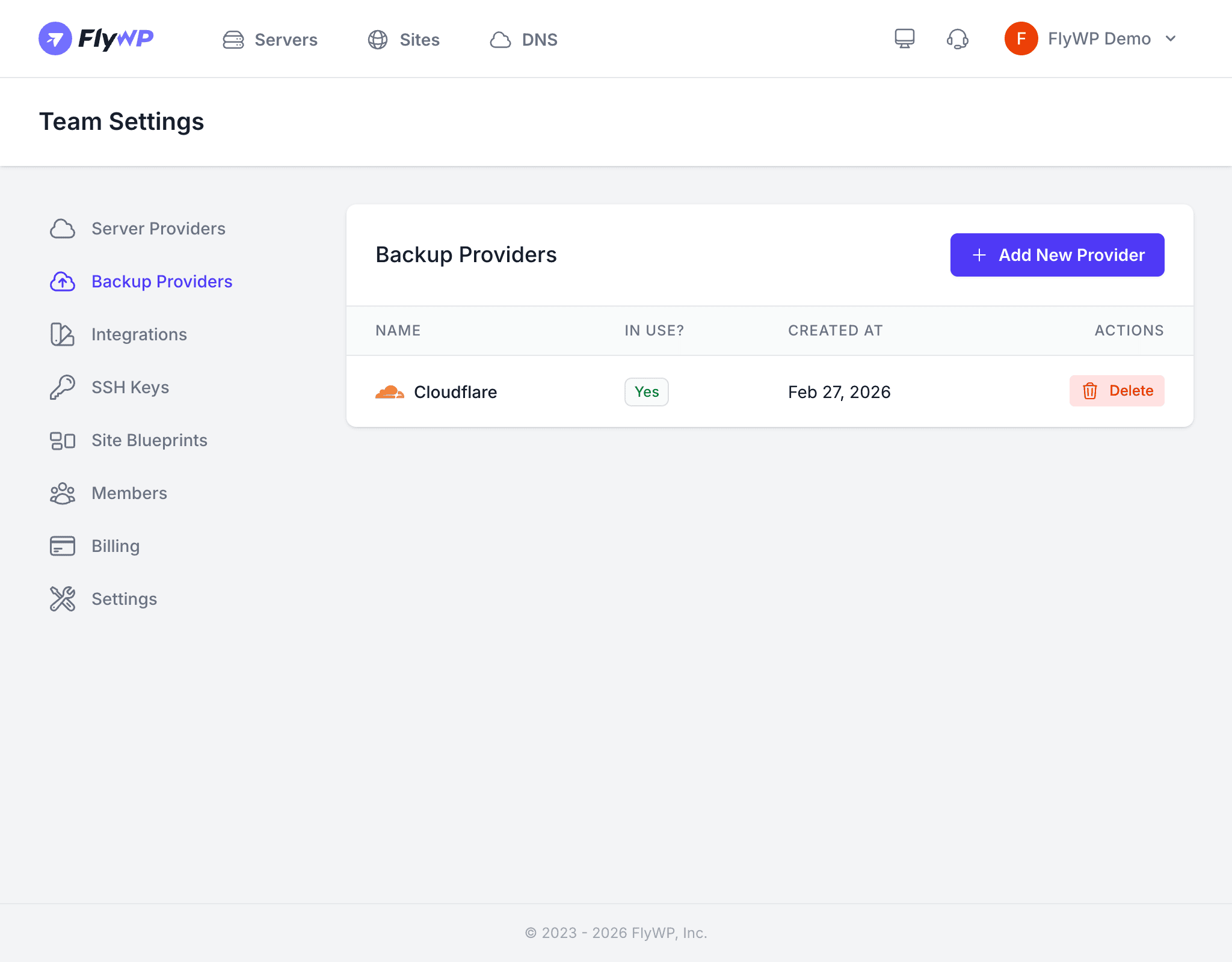
- In FlyWP, go to Team Settings > Backup Providers.
- Click Add Provider and select Google Drive.
- Click Authorize with Google.
- Sign in to your Google account and grant FlyWP access.
- You will be redirected back to FlyWP with the connection confirmed.
Storage Considerations
Google Drive storage is shared across all Google services on your account. Check how much free space you have before routing backups here, especially if you also use Gmail and Google Photos heavily.
| Plan | Storage |
|---|---|
| Free Google Account | 15 GB shared across Gmail, Drive, and Photos |
| Google One (100 GB) | Suitable for small sites with few backups |
| Google Workspace | Varies by plan — typically 30 GB to 5 TB per user |
Monitor your Google Drive storage usage. If your Drive runs out of space, backup uploads will fail. FlyWP will notify you of backup failures, but you will need to free up space or upgrade your Google plan before new backups can succeed.
Technical Details
FlyWP installs and configures rclone on your server automatically when you connect the provider. Rclone handles the actual file transfers to Google Drive, and FlyWP refreshes your OAuth tokens in the background before they expire — keeping backup operations uninterrupted without any action on your part.
Revoking Access
To disconnect Google Drive, remove it from FlyWP first, then optionally clean up the Google side:
- Remove the provider from Team Settings > Backup Providers in FlyWP.
- Optionally, revoke FlyWP’s access in your Google Account permissions.