Manage
Manage
Access your site’s credentials, restart key services, and perform maintenance tasks.
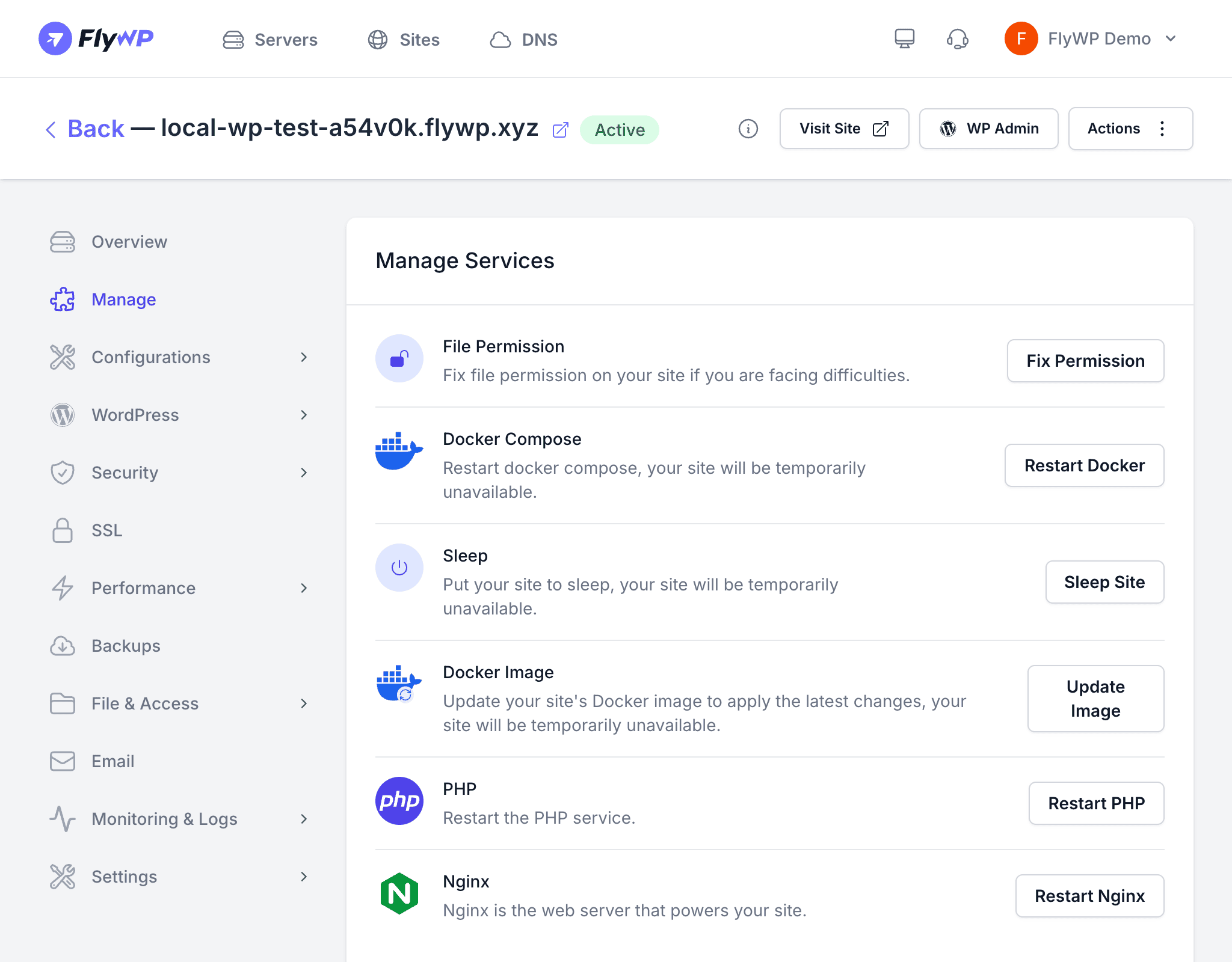
The Manage tab is your go-to place for site-level operations that keep things running smoothly. Here you will find database and Redis credentials, service restart controls, permission fixes, and the ability to put a site to sleep.
Credentials
Database Credentials
FlyWP displays the database connection details for your site:
| Field | Description |
|---|---|
| Database name | The name of the MySQL database used by this site |
| Username | The database user assigned to this site |
| Password | The database user’s password (click to reveal) |
Use these credentials to connect with an external database client like TablePlus, Sequel Ace, or phpMyAdmin.
Redis Credentials
If Object Cache is enabled, the Redis connection details are also displayed:
| Field | Description |
|---|---|
| Host | The Redis server address |
| Port | The Redis connection port |
| Password | The Redis authentication password (if set) |
Service Actions
The Manage tab provides quick actions for restarting and repairing the services that power your site.
Fix File Permissions
Click Fix File Permissions to reset all files and directories in your site to the correct ownership and permission modes. This is useful when:
- File uploads are failing with permission errors
- WordPress cannot write to
wp-content - A manual file operation changed ownership accidentally
Restart Docker
Click Restart Docker to restart the Docker container that hosts your site. This is a more aggressive restart that recreates the container environment.
Restarting Docker briefly takes your site offline. Use this only when a lighter service restart does not resolve the issue.
Update Docker Image
Click Update Docker Image to pull the latest version of the container image used by your site. This can include updated system packages, security patches, and base-level improvements from FlyWP.
Restart PHP
Click Restart PHP to restart the PHP-FPM process. This is helpful when:
- PHP processes are consuming too much memory
- A configuration change requires a PHP restart
- Your site is returning 502 or 504 errors
Restart Nginx
Click Restart Nginx to reload the Nginx web server configuration. Use this after making changes to the NGINX config or when the web server is not responding as expected.
Sleep and Wake
Sleep puts your site into a dormant state, stopping its containers to free up server resources. A sleeping site displays a placeholder page to visitors and consumes almost no CPU or memory.
- Click Sleep to put the site into dormant mode.
- Click Wake to bring it back online.
This is useful for:
- Development or staging sites that do not need to run 24/7
- Saving server resources when a site is temporarily unused
- Pausing a site without deleting it