SSH Keys
SSH Keys
If you have ever grown tired of typing a password every time you open a terminal connection to your server — or worried that a weak password could leave your server exposed — SSH keys solve both problems at once. They replace password logins with a cryptographic handshake that is both stronger and faster, and FlyWP makes adding them a matter of seconds.
SSH keys (Secure Shell keys — a pair of mathematically linked files, one public and one private) work like a lock and key: the public key lives on your server, and your local machine holds the private key. When you connect, your machine proves it holds the matching private key without ever transmitting it. No password is sent over the network, which eliminates an entire class of brute-force attacks.
Default SSH User
When FlyWP provisions a server, it creates a dedicated system user called fly and installs all SSH keys under that account. To connect from your terminal, run:
ssh fly@your-server-ipReplace your-server-ip with the IP address shown on your server’s detail page.
Viewing Your SSH Keys
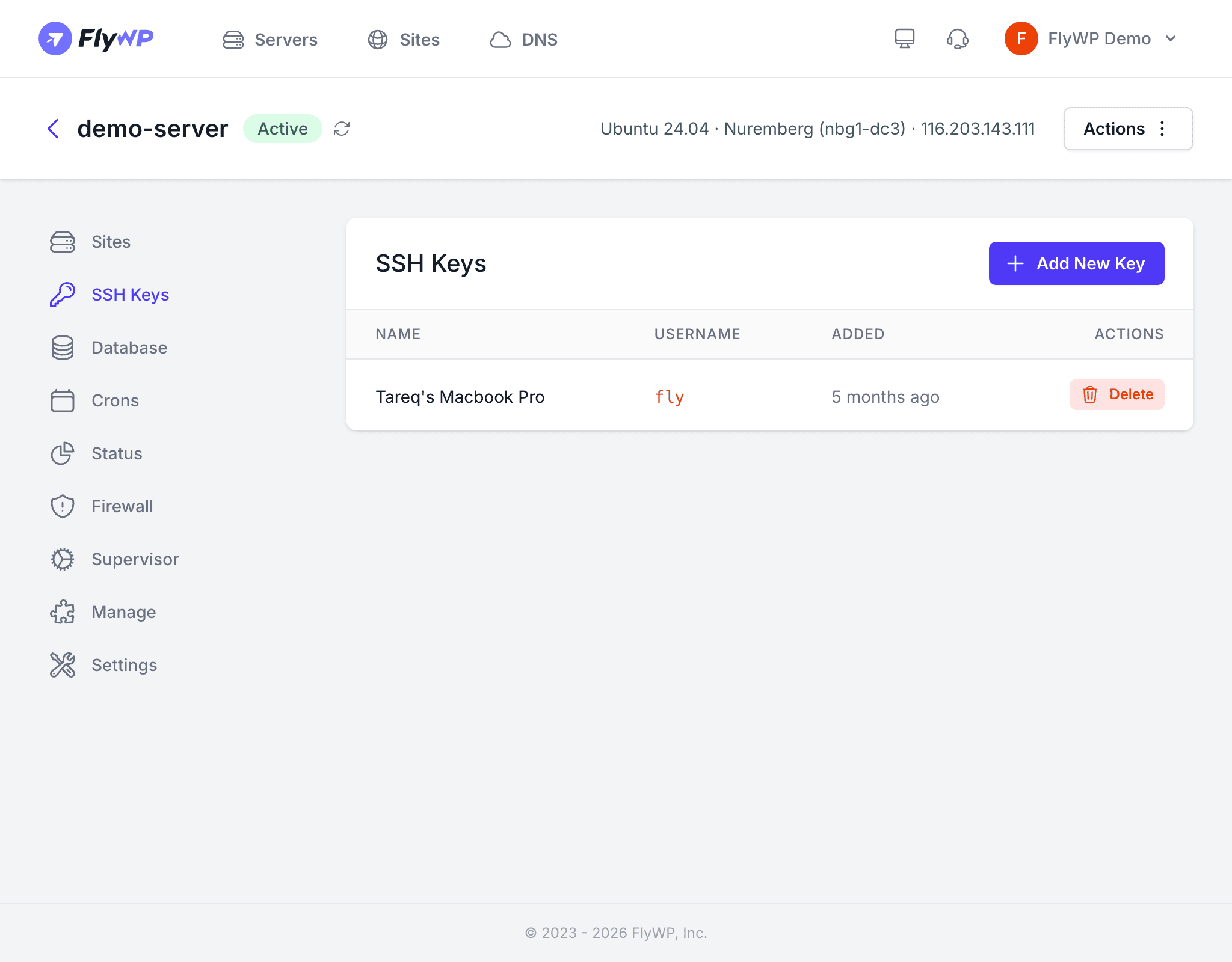
The SSH Keys tab lists every key currently authorized on the server, so you always know who — or which device — has access.
| Column | Description |
|---|---|
| Name | The label you gave the key when adding it |
| Username | The server user this key is associated with |
| Added | The date the key was added |
| Actions | A Delete button to remove the key |
Adding a New SSH Key
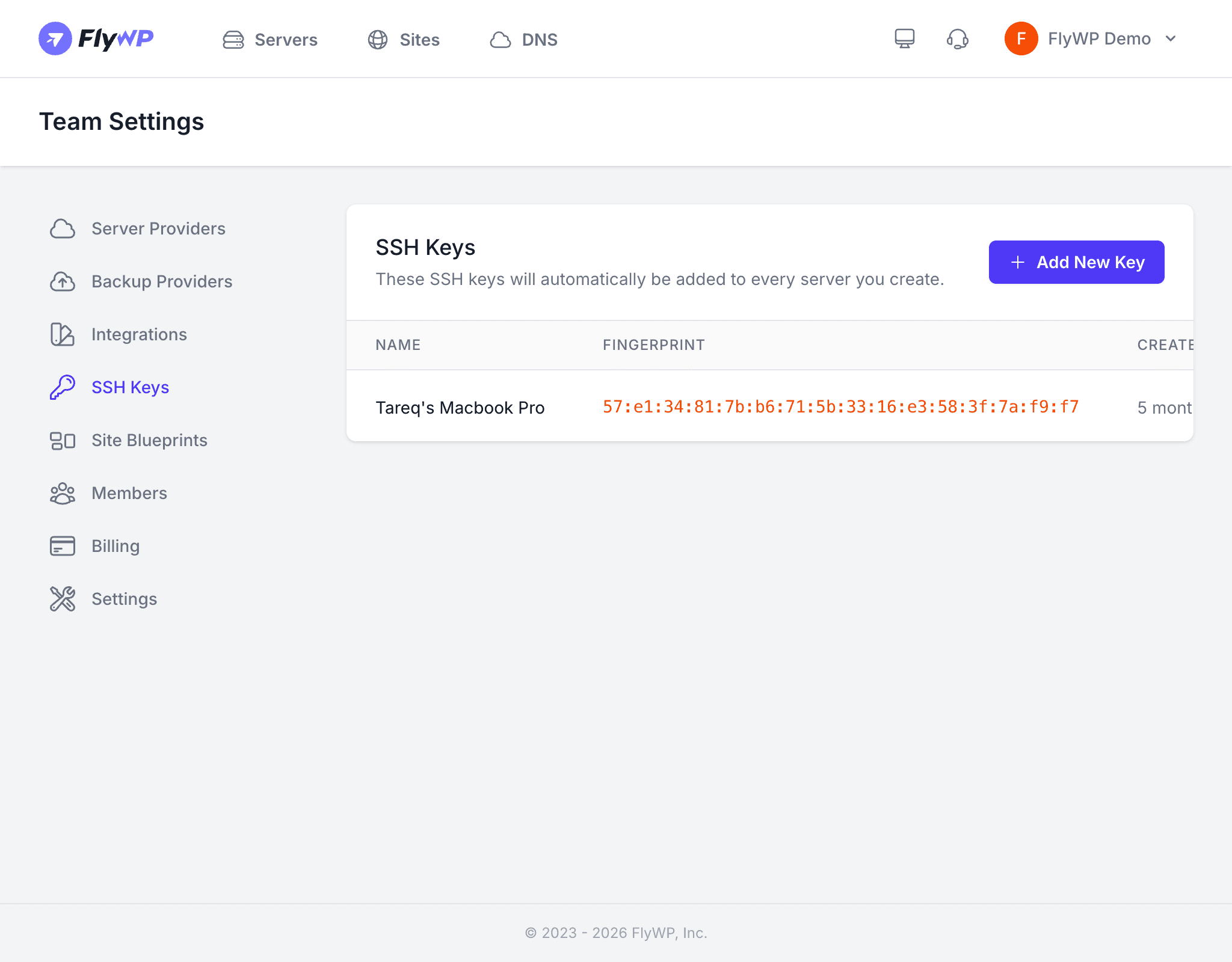
Before you start, you need the public key from your local machine. This is a text file ending in .pub — typically ~/.ssh/id_ed25519.pub or ~/.ssh/id_rsa.pub. You can open it in any text editor and copy its contents. If you do not have one yet, see the note below.
- Navigate to your server’s detail page and click the SSH Keys tab.
- Click Add New Key.
- Enter a name for the key (e.g., “My MacBook” or “CI Server”) so you can identify it later.
- Paste your public key text into the field provided.
- Click Save.
FlyWP installs the key on the server immediately. Your next ssh fly@your-server-ip command will connect without asking for a password.
Deleting an SSH Key
Removing a key immediately revokes that device’s or person’s access to the server.
- Find the key in the table.
- Click the Delete button on that row.
- Confirm the deletion.
Once deleted, the private key on the associated machine can no longer authenticate with this server.
Before deleting your last key, make sure you either have another working SSH key or know the server’s sudo password. Without one of these, you will lose terminal access. You can always retrieve the sudo password from the Manage tab.
Best Practices
A few habits that keep your server access both convenient and secure:
- Use Ed25519 keys — they are shorter, faster, and more secure than older RSA keys.
- Give each key a descriptive name so you can tell which device or person it belongs to.
- Remove keys for devices you no longer use to reduce your attack surface (the total number of ways someone could break in).
- Never reuse the same key pair across unrelated projects or organizations.
- Protect your private key with a passphrase for an extra layer of security — even if someone steals the file, they cannot use it without the passphrase.