Access Server Terminal
Access Server Terminal
Sometimes you need to run a command directly on your server — to check a log, restart a service, or troubleshoot something that no dashboard button can fix. The FlyWP terminal lets you do that without installing any extra software or configuring SSH (Secure Shell, a protocol for remote server access). Open a tab in your browser and you have a fully working command-line interface connected to your server.
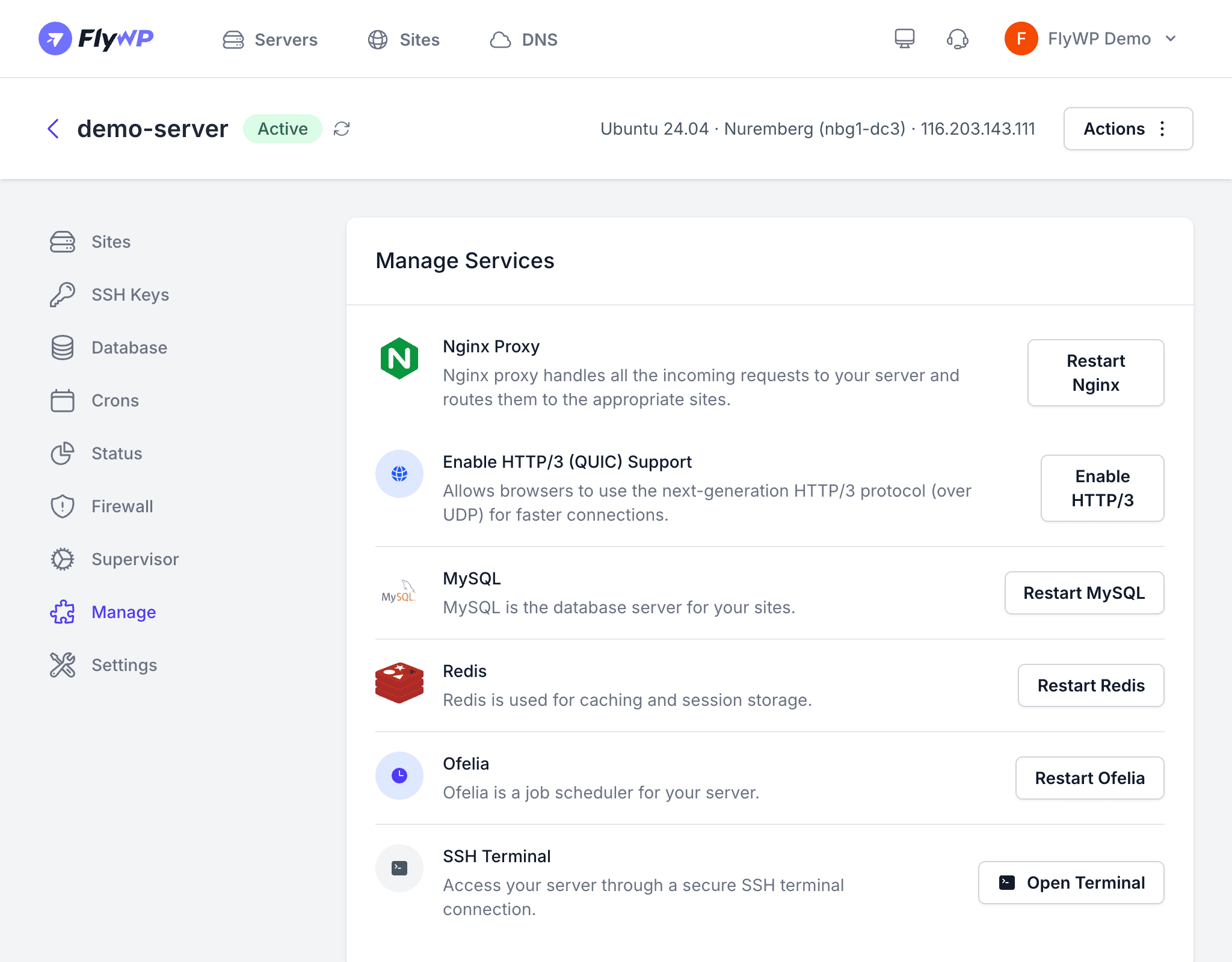
The Terminal tab on your server’s detail page opens an interactive, web-based terminal session. It connects to your server over a secure WebSocket (a persistent, two-way connection between your browser and the server) so keystrokes and output flow in real time.
Opening a Terminal Session
- Navigate to your server in the FlyWP dashboard.
- Click the Terminal tab.
- A terminal window opens in your browser, connected to your server.
FlyWP generates a short-lived session token (a temporary credential that proves your identity) that authenticates your connection automatically. You don’t need to enter a password or upload an SSH key.
Session Limits
To protect server resources and prevent abuse, terminal sessions have the following limits:
| Limit | Value |
|---|---|
| Token expiry | 10 minutes (a new token is generated each time you open the terminal) |
| Max concurrent sessions | 50 total across all users |
| Sessions per user | 5 simultaneous sessions |
| Sessions per server | 10 simultaneous sessions |
| Max data chunk | 8 KB per message |
| Max input payload | 1 KB per command |
| Max session data | 10 MB total per session |
Connection Details
The terminal connects via WebSocket on the following endpoint:
| Setting | Value |
|---|---|
| Port | 8090 |
| Path | /terminal-ws/ |
| Protocol | WebSocket (wss://) |
Security
FlyWP applies two layers of protection to every terminal session:
- Session tokens expire after 10 minutes. If your session disconnects, reopen the terminal tab to get a fresh token.
- IP verification (optional) — when enabled, the terminal only accepts connections from the IP address (your computer’s network identifier) that originally requested the token. This is disabled by default to accommodate users behind NAT or VPN (network setups that can make your IP address appear to change).
The terminal gives you root-level access to your server — the highest level of permissions, with no restrictions. Destructive commands cannot be undone. Always read a command carefully before running it, especially anything that deletes files or restarts services.
Common Uses
Here are the tasks people most often use the terminal for:
- Checking server logs and service status
- Restarting services (NGINX, PHP-FPM, MySQL)
- Running WP-CLI commands
- Debugging connectivity or permission issues
- Managing Docker containers (isolated environments that run individual services)