Configuring Email Sending
Configuring Email Sending
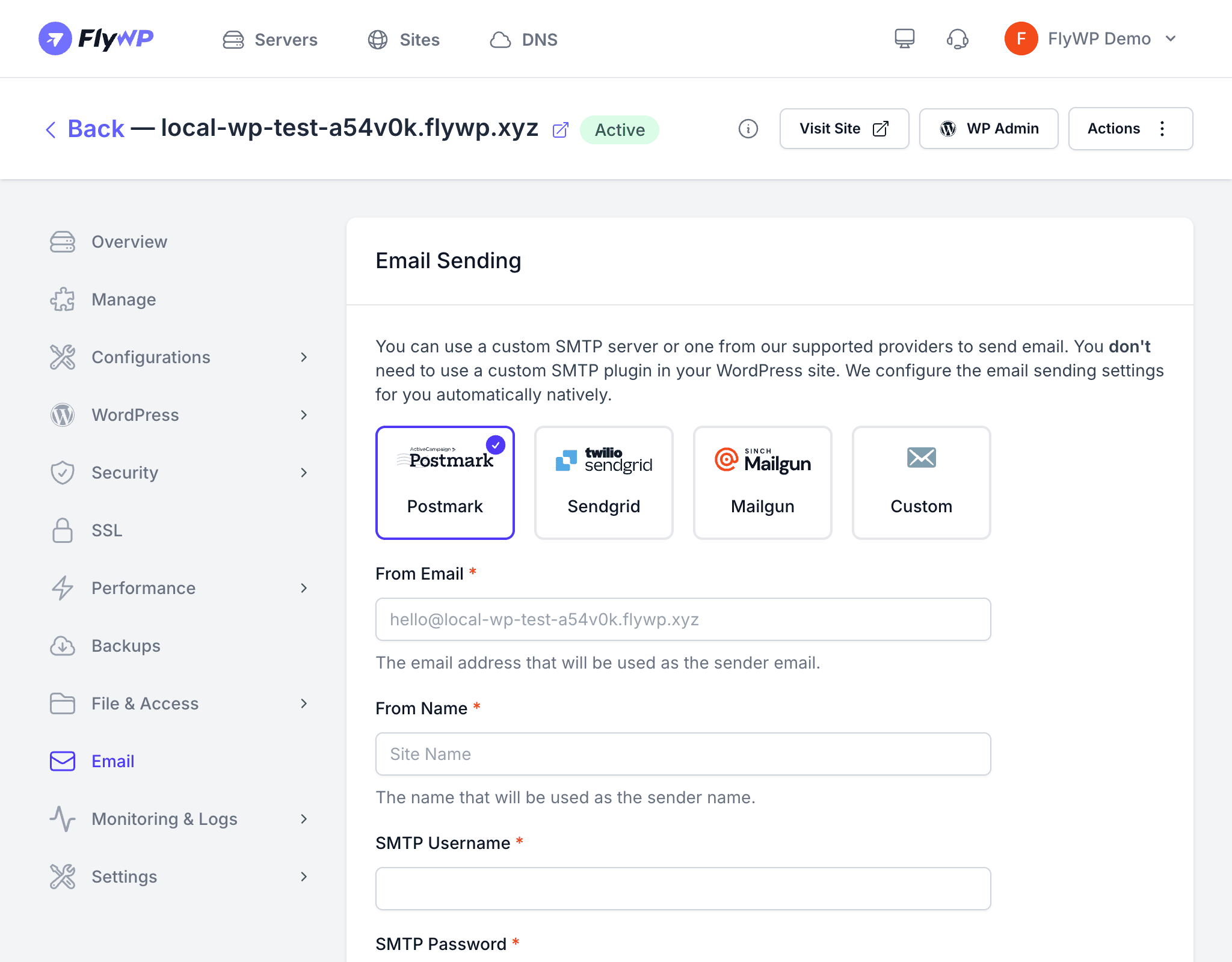
Without proper email configuration, your WordPress site quietly fails to deliver messages — password reset emails go missing, order confirmations never arrive, and contact form submissions disappear. Connecting your site to a dedicated email provider ensures every email reaches the inbox reliably, with tracking and deliverability tools built in.
Why Configure Email?
WordPress uses the wp_mail() function (WordPress’s built-in system for sending all site emails) to handle password resets, order confirmations, contact form submissions, and notifications. By default, it relies on the server’s own mail system, which most email providers treat with suspicion and route straight to spam — or block entirely.
Connecting a dedicated transactional email provider (a service built specifically for sending application emails at scale, with high deliverability rates) solves this problem. You get reliable delivery, bounce notifications, and open tracking instead of crossed fingers.
Setting Up Email in FlyWP
To connect an email provider to your site, follow these steps:
- Navigate to your site in the FlyWP dashboard.
- Click the Email tab in the sidebar.
- Enter your SMTP (Simple Mail Transfer Protocol — the standard system for sending email) credentials or select a supported provider.
- Click Save.
Supported Providers
FlyWP supports any standard SMTP server. Popular transactional email services include:
| Provider | Best For |
|---|---|
| Mailgun | High-volume transactional email with excellent deliverability |
| Postmark | Fast delivery and detailed analytics |
| Amazon SES | Cost-effective at scale, integrates with AWS |
| SendGrid | Feature-rich with marketing email support |
| Custom SMTP | Any SMTP-compatible email server |
Configuration Fields
When you fill in your provider’s credentials, here is what each field means:
| Field | Description |
|---|---|
| SMTP Host | Your provider’s server address (e.g., smtp.mailgun.org) |
| SMTP Port | Usually 587 (TLS) or 465 (SSL) — your provider will specify |
| Username | Your SMTP account username |
| Password | Your SMTP password or API key (a unique authentication code from your provider) |
| Encryption | TLS (Transport Layer Security — recommended) or SSL (Secure Sockets Layer), both encrypt the connection |
| From Address | The email address shown in the “From” field |
| From Name | The sender name shown alongside the email address |
Testing Email Delivery
After saving your settings, verify that everything is working before your users encounter a problem:
- Navigate to the Email tab on your site.
- Click Send Test Email if the option is available, or trigger a real email from WordPress — for example, use the login page to request a password reset.
- Check the recipient inbox and spam folder to confirm the email arrived.
If your test email lands in spam, check that your domain has SPF and DKIM records configured. SPF (Sender Policy Framework) and DKIM (DomainKeys Identified Mail) are DNS records that tell receiving mail servers your email is legitimate — most transactional email providers include instructions for setting these up.