Whitelisting IP for SSH Connections
Whitelisting IP for SSH Connections
Lock down SSH access so only trusted IP addresses can connect to your server.
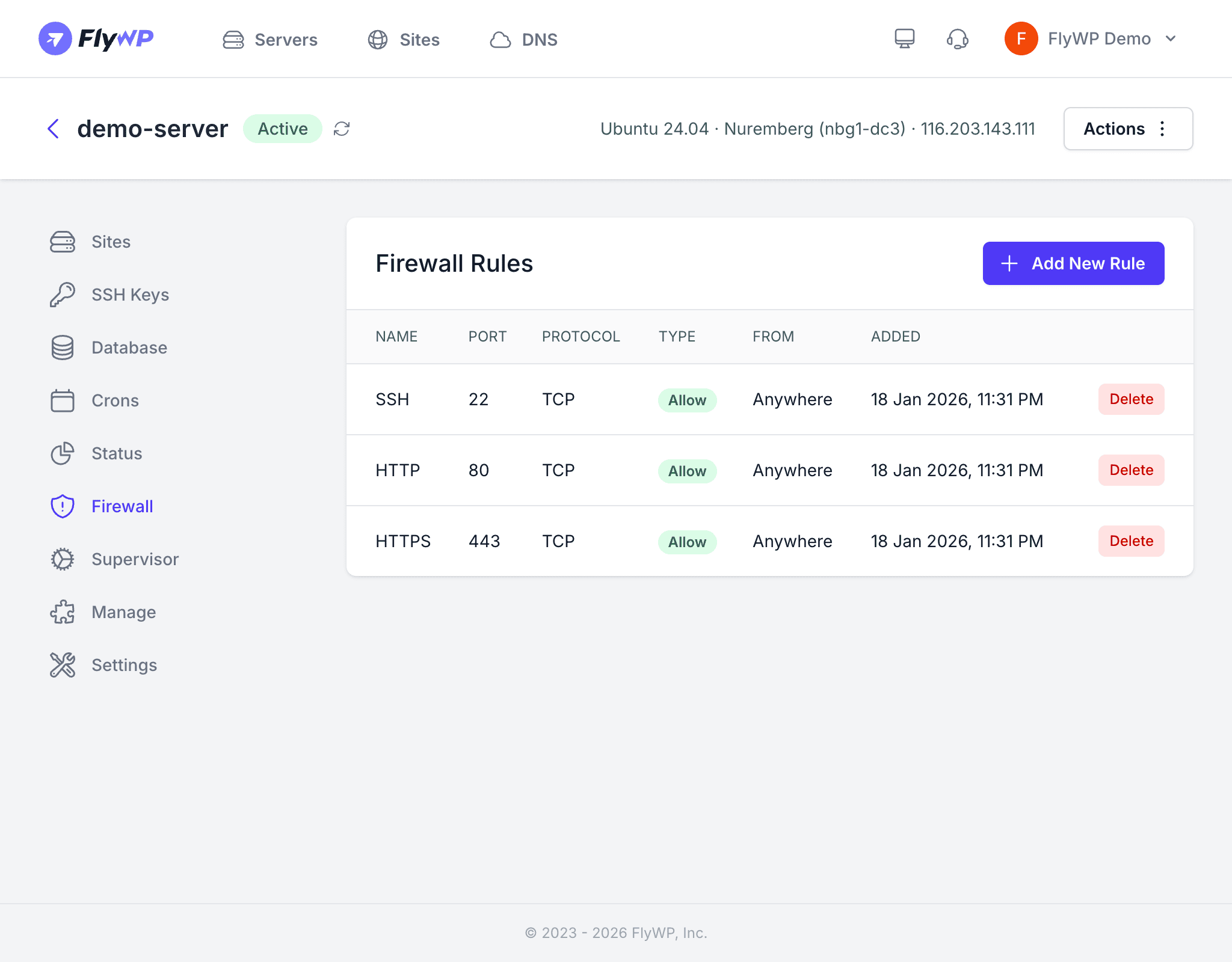
By default, FlyWP servers allow SSH connections from any IP address. While key-based authentication provides strong security on its own, restricting SSH to specific IP addresses adds a second layer of defense. This is done through firewall rules using UFW (Uncomplicated Firewall) on the server.
Why Whitelist IPs?
Even with SSH key authentication and password login disabled, exposing port 22 to the entire internet means:
- Automated bots will constantly probe your server for vulnerabilities
- A compromised or leaked SSH key could be used from anywhere in the world
- Brute-force attempts generate unnecessary log noise and consume resources
Whitelisting limits SSH access to only the IP addresses you trust, blocking everything else before it even reaches the SSH service.
How to Whitelist an IP Address
- Navigate to your server’s detail page and click the Firewall tab.
- Click the Add New Rule button.
- Fill in the rule details:
- Name — a descriptive label (e.g., “SSH from office” or “My home IP”)
- Port —
22 - Protocol — TCP
- Type — Allow
- From — enter the IP address you want to allow (e.g.,
203.0.113.50)
- Click Save.
Repeat this for every IP address that needs SSH access.
After adding your whitelisted IP rules, you may want to remove the default SSH rule that allows access from Anywhere. However, be very careful — if your IP changes or you forget to add a new IP, you will be locked out of SSH access. Always verify your current IP can connect before removing the open rule.
Whitelisting Multiple IPs
You can add as many IP-specific rules as you need. Common scenarios include:
| Rule Name | Port | Protocol | Type | From |
|---|---|---|---|---|
| SSH from office | 22 | TCP | Allow | 198.51.100.10 |
| SSH from home | 22 | TCP | Allow | 203.0.113.25 |
| SSH from CI server | 22 | TCP | Allow | 192.0.2.100 |
Each rule takes effect immediately after saving.
Blocking a Specific IP
If you notice suspicious activity from a particular IP address, you can block it explicitly:
- Click Add New Rule.
- Set Port to
22, Protocol to TCP, Type to Deny, and enter the attacker’s IP in the From field. - Click Save.
This instantly prevents that IP from reaching your SSH service.
Best Practices
- Keep a backup access method — before restricting SSH, make sure you have at least one reliable whitelisted IP or access through the FlyWP web terminal.
- Use a static IP — if your ISP assigns dynamic IPs, consider using a VPN with a fixed IP for server management.
- Document your rules — use clear names like “Office VPN” or “Home - John” so you remember what each rule is for.
- Audit regularly — remove rules for IPs that are no longer in use.