Site Settings
Site Settings
When your site needs tuning — whether you’re switching PHP versions before a plugin upgrade, locking visitors out during maintenance, or making scheduled tasks run on time — Site Settings is where you come to make it happen. Everything that controls how your site runs at the server level lives here, organized into three sub-tabs: General, PHP Settings, and Cron Settings.
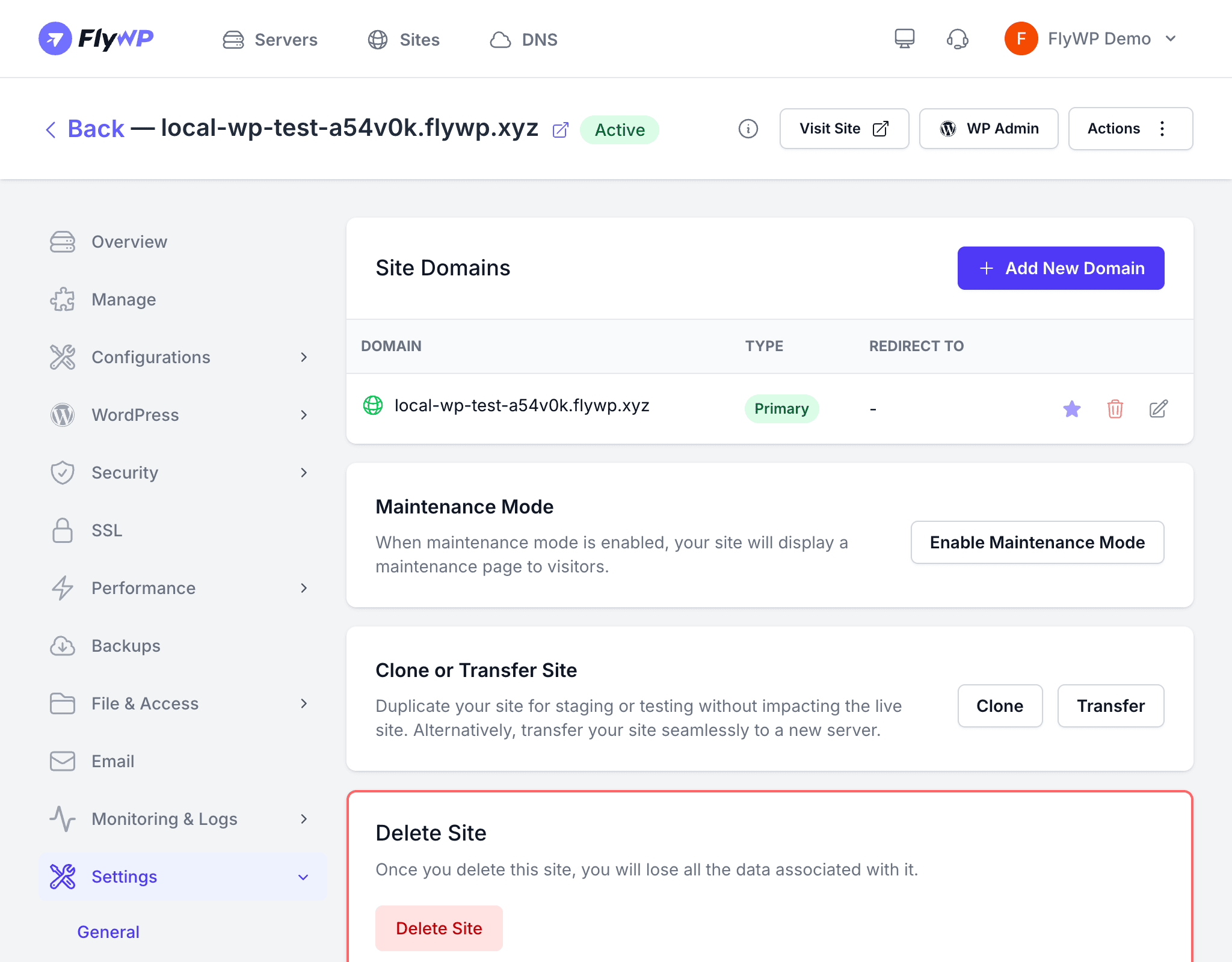
General
Site Domains
Your site can serve traffic from more than one domain. FlyWP lets you manage all of them from one place:
- Primary domain — the main domain visitors use to access your site
- Add new domain — attach additional domains or subdomains to the site
- Redirect — configure domain-level redirects (for example, redirect
www.example.comtoexample.comso visitors always land on the canonical address)
Maintenance Mode
Need to apply a major update or make structural changes without visitors seeing a broken page? Toggle Maintenance Mode on and FlyWP will serve a friendly holding page to all visitors, returning a 503 Service Unavailable (a standard HTTP status code that tells browsers and search engines the site is temporarily down) response in the background. Toggle it off when your work is done.
Clone or Transfer
- Clone Site — create an exact copy of this site on the same server or a different one. This is the quickest way to spin up a staging environment for testing changes before they go live.
- Transfer Site — move the site to a different server managed by your FlyWP account, without manually copying files or databases.
Delete Site
The danger zone at the bottom of the General tab contains the Delete Site button. FlyWP permanently removes the site’s files, database, and configuration from the server when you confirm.
Deleting a site is irreversible. Make sure you have a recent backup before proceeding.
PHP Settings
PHP (the programming language that powers WordPress) has a set of runtime limits you can tune per site. Changes here take effect after FlyWP restarts PHP-FPM (the process manager that runs your PHP code).
Runtime Configuration
| Setting | Description | Default |
|---|---|---|
| PHP Version | The PHP version this site runs on (e.g., 8.1, 8.2, 8.3) | Server default |
| Memory Limit | Maximum RAM a single PHP process can use | 256M |
| Max Execution Time | How long (in seconds) a PHP script can run before it is stopped | 30 |
| Max File Upload | Maximum number of files accepted in a single upload request | 20 |
| Max File Upload Size | Maximum size of an individual uploaded file | 64M |
| Max Input Time | How long (in seconds) PHP will spend parsing data sent to it | 60 |
| Max Input Vars | Maximum number of form fields or query variables accepted per request | 1000 |
PHP-FPM Process Manager
PHP-FPM (FastCGI Process Manager — the component that handles incoming requests and routes them to PHP) can manage its worker pool in three different ways. Choose based on your traffic pattern:
| Type | Description |
|---|---|
| Dynamic (recommended) | Maintains a pool of workers that scales up and down with traffic. Best for most sites. |
| Static | Keeps a fixed number of workers running at all times. Useful for high-traffic sites with predictable, steady load. |
| On Demand | FlyWP spawns a worker only when a request arrives and shuts it down when idle. Best for low-traffic or dormant sites to conserve server RAM. |
FPM Pool Settings
When using Dynamic or Static process management, you can fine-tune the worker pool size:
- Max Children — the maximum number of worker processes allowed to run at once
- Start Servers — the number of workers FlyWP creates on startup (Dynamic only)
- Min Spare Servers — the minimum number of idle workers kept alive and ready (Dynamic only)
- Max Spare Servers — the maximum number of idle workers allowed before FlyWP starts shutting them down (Dynamic only)
Cron Settings
WordPress relies on a pseudo-cron system called WP-Cron — a scheduling mechanism that fires when a visitor loads a page — to handle tasks like publishing scheduled posts, sending emails, or checking for updates. The problem: if no one visits your site, those tasks never run. FlyWP replaces WP-Cron with a real server-level cron job (a scheduled task the server runs on a fixed timer, independent of visitor traffic) for reliable, on-time execution.
- Cron interval — set how frequently the server triggers WP-Cron (e.g., every 1 minute, 5 minutes, or 15 minutes)