Server Settings
Server Settings
Keeping your server healthy means more than just deploying sites — it also means scheduling routine maintenance at a time that won’t interrupt your visitors, and knowing exactly what you’re working with under the hood. The Settings tab gives you a single place to review your server’s key details, control when FlyWP runs automatic maintenance tasks, and — when the time comes — cleanly retire a server you no longer need.
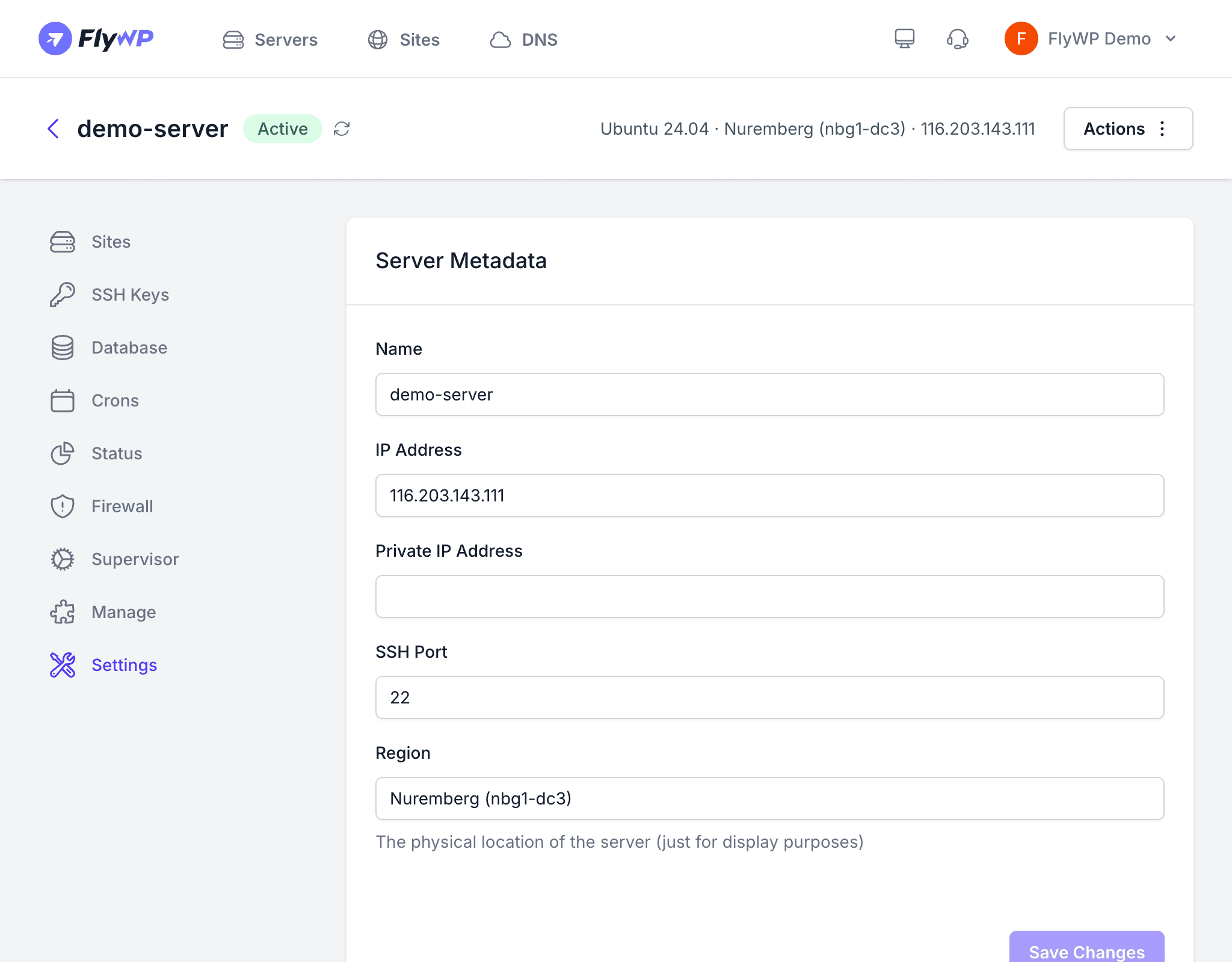
Server Metadata
The top section displays key information about your server. These fields are for reference only and cannot be changed after provisioning:
| Field | Description |
|---|---|
| Name | The hostname you assigned to the server |
| IP Address | The server’s public IPv4 address (the numeric address other computers use to reach your server over the internet) |
| Private IP Address | The server’s private/internal IP (if configured) — used for communication between servers on the same data center network |
| SSH Port | The port used for SSH (Secure Shell) connections — the encrypted channel you use to log in to your server from the command line |
| Region | The data center location where the server is hosted |
Maintenance Window
Over time, your server needs routine attention: security patches, system package updates, and other housekeeping tasks. The Maintenance Window lets you tell FlyWP exactly when to run these tasks automatically — so updates happen in the background during quiet hours rather than mid-afternoon on a Tuesday.
Configuring a Maintenance Window
- Select a Day from the dropdown (e.g., Sunday).
- Select an Hour from the dropdown (e.g., 3:00 – 4:00 AM).
- Click Save.
FlyWP will only perform automatic maintenance during this window, minimizing disruption to your live sites.
Delete Server
At the bottom of the Settings tab is a danger zone for permanently deleting the server. You would typically reach for this when decommissioning a server you no longer need — for example, after migrating all your sites to a larger server.
Deleting a server is irreversible. FlyWP permanently removes:
- The server itself from FlyWP’s management
- All WordPress sites hosted on the server
- All databases and their data
- All backups stored on the server
- All configuration (firewall rules, SSH keys, cron jobs, daemons)
If the server was provisioned through FlyWP or a connected cloud provider, the underlying VPS (virtual private server) is also destroyed at the provider. Make sure you have off-server backups of anything you need before proceeding.
How to Delete a Server
Before deleting, migrate any sites you want to keep to another server first.
- Scroll to the Delete Server section at the bottom of the Settings tab.
- Click the Delete Server button.
- Confirm the deletion when prompted.
FlyWP removes the server and all associated resources permanently.
Best Practices
- Back up critical sites to an external storage provider (e.g., Amazon S3 or Google Cloud Storage) before making any destructive changes.
- Review the Status tab periodically to confirm your server is healthy and sized appropriately for your workload.
- Before deleting a server, verify that all sites have been successfully migrated and that external backups are in place.