DigitalOcean Spaces
DigitalOcean Spaces
If you already run your servers on DigitalOcean, storing your backups there too means everything stays in one place — one billing account, one dashboard, and backups that travel over DigitalOcean’s internal network instead of the public internet. Spaces is DigitalOcean’s object storage service (a scalable system for storing files like backups, images, and archives) that works with the same S3 API (the industry-standard interface for interacting with object storage) that most backup tools already speak.
Prerequisites
Before connecting DigitalOcean Spaces, you need:
- A DigitalOcean account
- A Spaces bucket (a storage container you create in the DigitalOcean dashboard) in your preferred region
- A Spaces access key pair (a username-and-password style credential) generated from the DigitalOcean API settings
Required Credentials
The following credentials tell FlyWP how to connect to your Spaces bucket.
| Field | Description |
|---|---|
| Spaces Access Key | Your DigitalOcean Spaces access key |
| Spaces Secret Key | The secret key paired with your access key |
| Bucket | The name of your Spaces bucket |
| Region / Endpoint | The region where your bucket is located (e.g., nyc3, sfo3, ams3) |
Setup Steps
To connect DigitalOcean Spaces to FlyWP, follow these steps:
- Log in to your DigitalOcean Control Panel.
- Navigate to Spaces Object Storage and create a new Space (or use an existing one).
- Go to API > Spaces Keys and generate a new access key pair.
- Copy the Key and Secret — you will need both in the next steps.
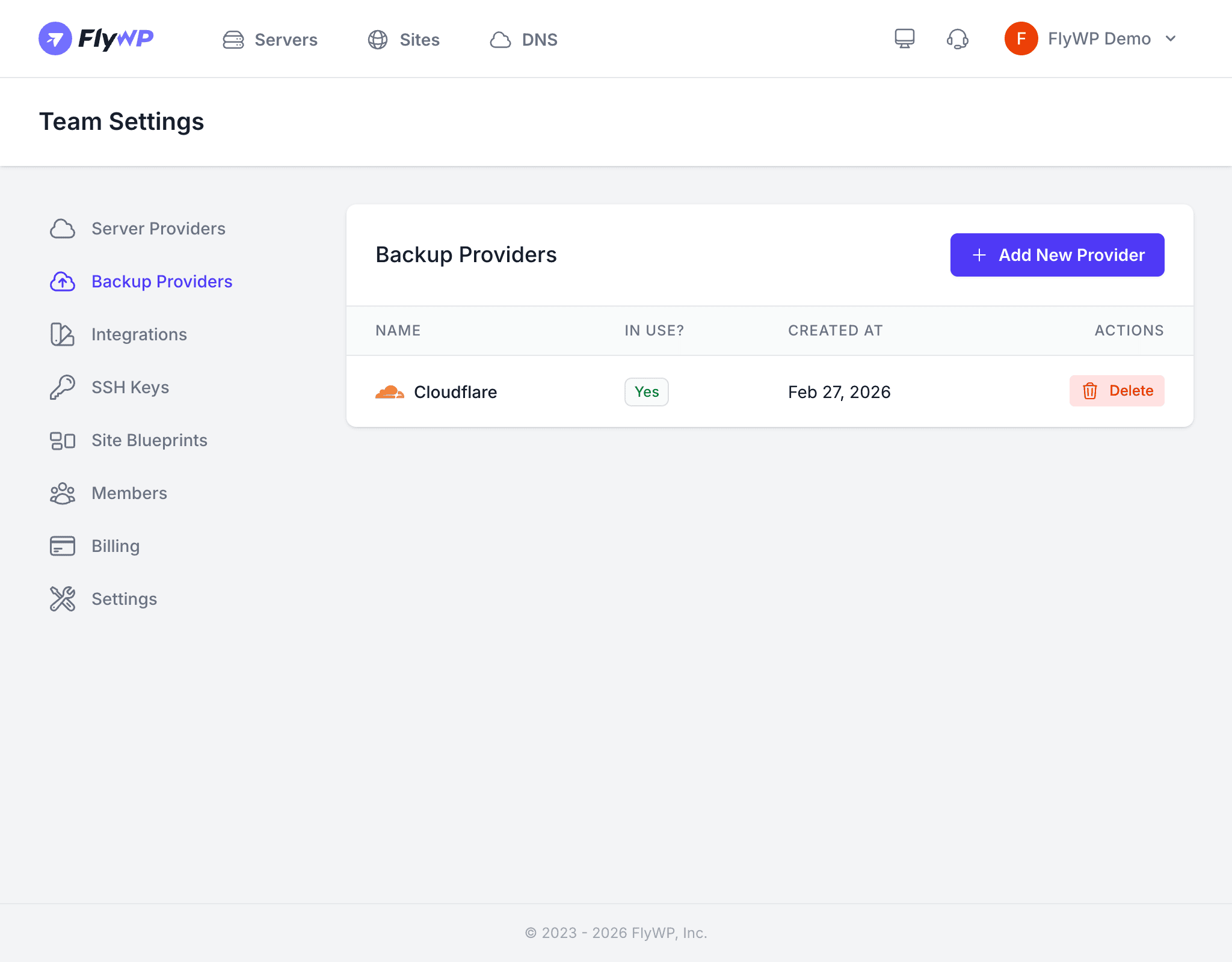
- In FlyWP, go to Team Settings > Backup Providers.
- Click Add Provider and select DigitalOcean Spaces.
- Enter your credentials and click Save.
Pricing Notes
DigitalOcean Spaces uses straightforward pricing with a base plan that includes a set amount of storage and outbound transfer. Check DigitalOcean’s current pricing page for the latest details. Unlike some cloud storage providers, there are no per-request fees for standard operations.
Using the Provider
Once connected, select DigitalOcean Spaces as the storage provider when configuring backups for any site on your team. FlyWP uses the S3-compatible API to upload, list, and delete your backup files automatically — you do not need to manage those files manually.