Understanding the Dashboard
Understanding the Dashboard
Knowing where everything lives in FlyWP saves you time every day. Whether you’re spinning up a new server, checking on a site’s uptime, or adjusting a team member’s access, this tour shows you where to go — so you spend less time hunting and more time building.
Top navigation
The main navigation bar sits at the top of every page and gives you three global views:
- Servers — View and manage all your servers
- Sites — View all sites across all servers in one place
- DNS — Manage DNS (Domain Name System) records for domains connected via Cloudflare
On the right side:
- Theme toggle — Switch between light and dark mode
- Notifications — View alerts and updates
- Team dropdown — Switch between teams, access team settings, profile, and log out
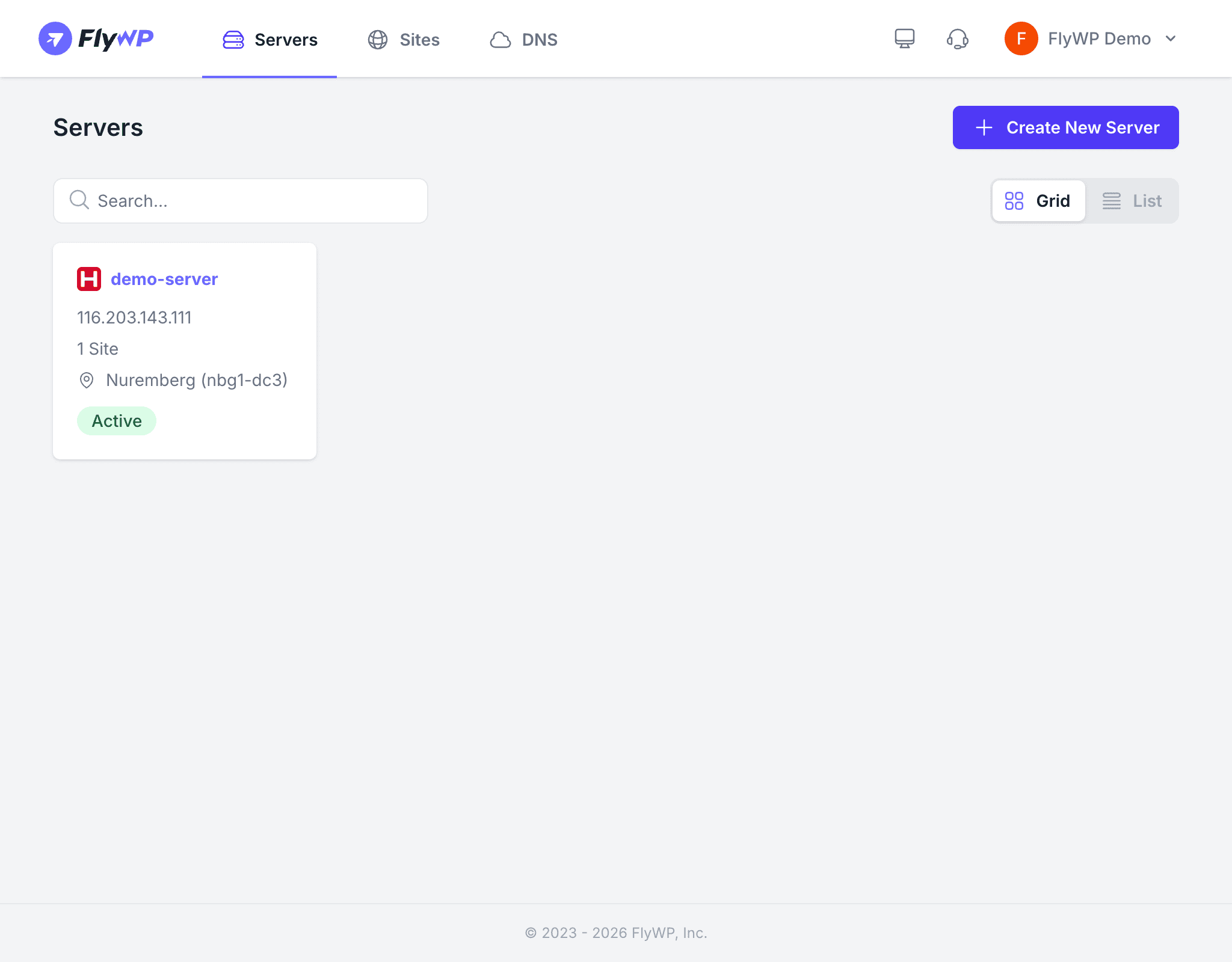
Servers page
The Servers page is your starting point for infrastructure management. Each server card shows you the key details at a glance:
- Server name with provider logo
- IP address (the numeric address that identifies your server on the internet)
- Site count — how many sites are running on this server
- Region — where the server is physically located
- Status badge — Active, Provisioning, or Failed
Toggle between Grid and List views using the buttons in the top-right. Use the search bar to filter servers by name when you have several to manage.
Server detail page
Click any server to open its detail page. The left sidebar gives you access to every aspect of that server’s configuration:
| Tab | What it does |
|---|---|
| Sites | List all sites on this server, create new sites |
| SSH Keys | Manage SSH (Secure Shell) keys for encrypted server access |
| Database | Manage MySQL databases and users, access phpMyAdmin |
| Crons | Schedule recurring tasks (cron jobs run commands automatically on a set schedule) |
| Status | Monitor CPU, RAM, disk, and Docker (the container runtime FlyWP uses internally) status |
| Firewall | Configure firewall rules to control which ports and protocols can reach your server |
| Supervisor | Manage background processes and daemons (long-running programs that keep services alive) |
| Manage | Restart services like Nginx (the web server), MySQL (the database), and Redis (an in-memory cache that speeds up dynamic sites) |
| Settings | Server metadata, maintenance window, delete server |
Site detail page
Click any site to open its detail page. Each tab puts a specific aspect of your site’s management within reach:
| Tab | What it does |
|---|---|
| Overview | Site info, domain, PHP version, status |
| Caching | Page cache and object cache settings |
| SSL | SSL/TLS certificate management (encrypts traffic between visitors and your site) |
| WP Config | Edit WordPress configuration constants |
| Security | Firewall, bot protection, vulnerability scanning |
| Configure SMTP (Simple Mail Transfer Protocol) email delivery settings | |
| Updates | WordPress core, plugin, and theme updates |
| File Manager | Browse and edit files on the server directly from your browser |
| SFTP | Manage SFTP (Secure File Transfer Protocol) accounts for transferring files |
| Uptime Monitor | Track site availability and get alerted if your site goes down |
| Performance Monitor | Google PageSpeed Insights scores |
| Manage | Restart services, view credentials |
| NGINX Config | Edit Nginx (the web server) configuration directly |
| Backups | Manual and scheduled backups |
| Redirect Rules | URL redirect management |
| Logs | Error and access logs |
| Settings | Domains, PHP settings, cron, maintenance mode, delete |
Team settings
Team settings control the shared resources and configuration that apply across your entire team. Access them from the team dropdown in the top-right corner:
- Server Providers — Connected cloud provider accounts (e.g., DigitalOcean, Hetzner)
- Backup Providers — Cloud storage destinations for your backups
- Integrations — Cloudflare and other third-party connections
- SSH Keys — Team-wide SSH keys shared across all members
- Site Blueprints — Reusable site templates to speed up new site creation
- Members — Invite and manage team members and their roles
- Billing — Subscription plan and invoices
- Settings — Team name and ownership transfer
Account settings
Your personal account settings are separate from team settings — they apply only to you. Access them from the team dropdown → Profile:
- Profile — Update your name, email, and password
- Git Providers — Connect GitHub, GitLab, or Bitbucket for deployment workflows
- OAuth Connections — Social login connections (Google, GitHub, etc.)
- API Tokens — Create API tokens (authentication keys for programmatic access to FlyWP) for automation or integrations
- Referral — Referral program details and your unique link