Servers
Servers
When you’re running multiple WordPress sites across different hosting providers, keeping track of which server does what can get overwhelming fast. The Servers page solves that by putting every server you’ve connected to FlyWP in one place — with at-a-glance status, site counts, and one click to dive into full management.
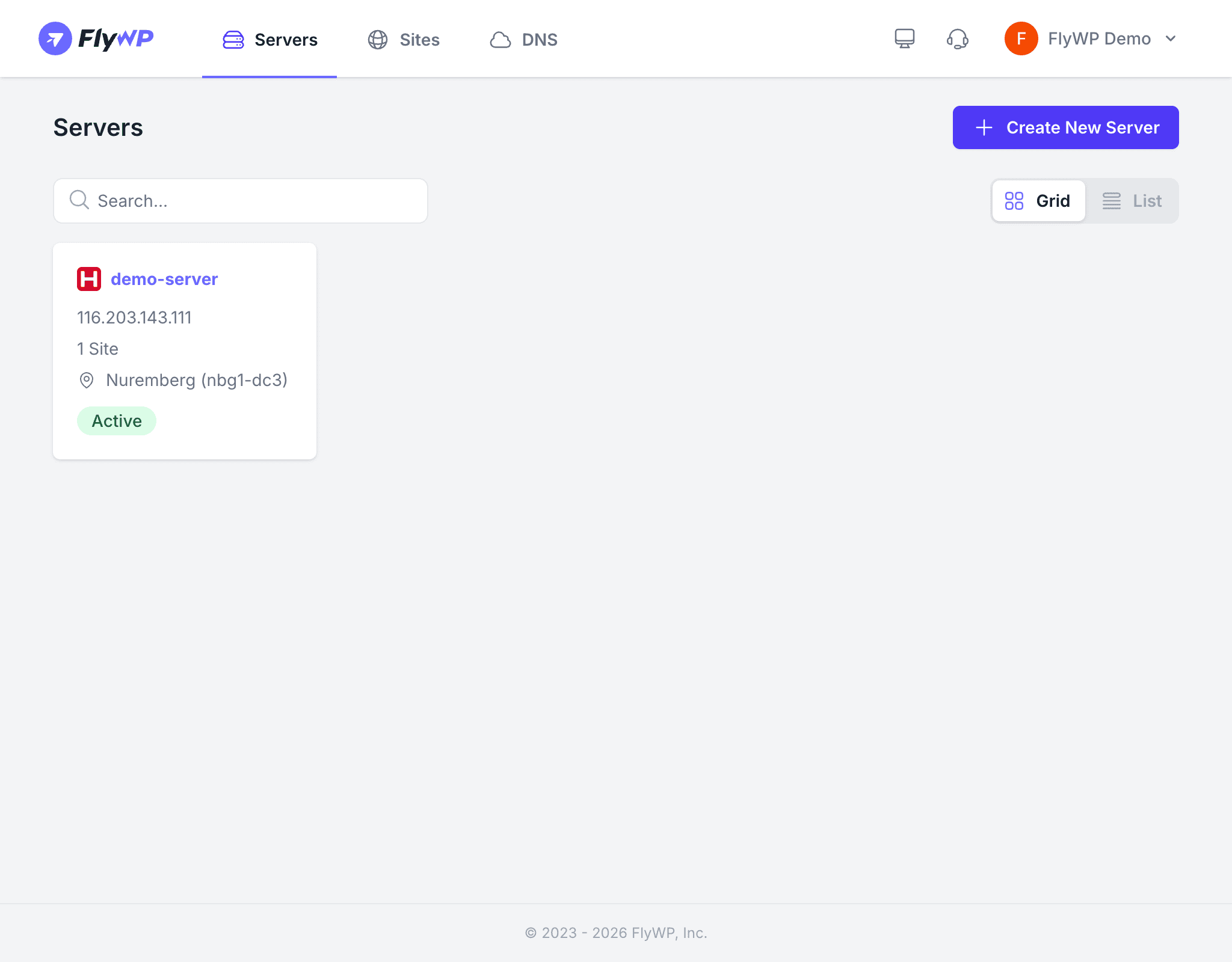
Whether you’re checking on a server that’s been acting up or spinning up a new one for a client project, this is your starting point.
What You See on the Servers Page
Each server card displays the following information:
- Server name — the label you assigned when creating the server
- IP address — the public IP (IPv4) address of the server, used to route traffic to it
- Site count — how many WordPress sites are running on this server
- Region — the data center location (e.g., New York, Frankfurt)
- Provider logo — the cloud provider icon (DigitalOcean, Vultr, AWS, etc.)
- Status indicator — shows whether the server is active, provisioning, or has an issue
Navigating the Server List
Grid and List View
Use the Grid/List toggle in the top-right corner to switch between two layouts:
- Grid view — displays servers as visual cards, ideal for scanning a smaller number of servers
- List view — displays servers in a compact table format, better for larger fleets
Searching for a Server
The search bar at the top of the page lets you filter servers by name or IP address. Start typing and the list updates instantly — no need to scroll through a long list when you know the server name.
Creating a New Server
Click the Create New Server button to begin the provisioning process. You can provision a server through FlyWP directly or connect your own cloud provider account. See Adding a Server for full details.
Server Detail Page
Clicking on any server card opens its detail page, which contains a sidebar with the following tabs:
| Tab | What It Does |
|---|---|
| Sites | Lists all WordPress sites hosted on this server |
| SSH Keys | Manage SSH keys (cryptographic credentials for secure, password-free server access) |
| Database | View databases, users, credentials, and access phpMyAdmin |
| Crons | Set up and manage server-level cron jobs (scheduled tasks that run automatically at set times) |
| Status | Monitor CPU, RAM, swap, and disk usage in real time |
| Firewall | Configure inbound firewall rules to control which traffic reaches your server |
| Supervisor | Install and manage background daemon processes (long-running background programs, useful for custom queue workers or automation scripts) |
| Manage | Restart services, open an SSH terminal (a secure command-line connection to your server), and view SSH connection info |
| Settings | Update server metadata, set maintenance windows, or delete the server |