Page Caching
Page Caching
If your WordPress site feels slow under traffic, page caching is the single biggest win you can achieve at the server level. Instead of running PHP and querying the database for every visitor, FlyWP stores a pre-built HTML copy of each page and delivers it instantly — cutting response times from hundreds of milliseconds down to single digits. You’ll want this enabled on any site that serves the same content to multiple visitors.
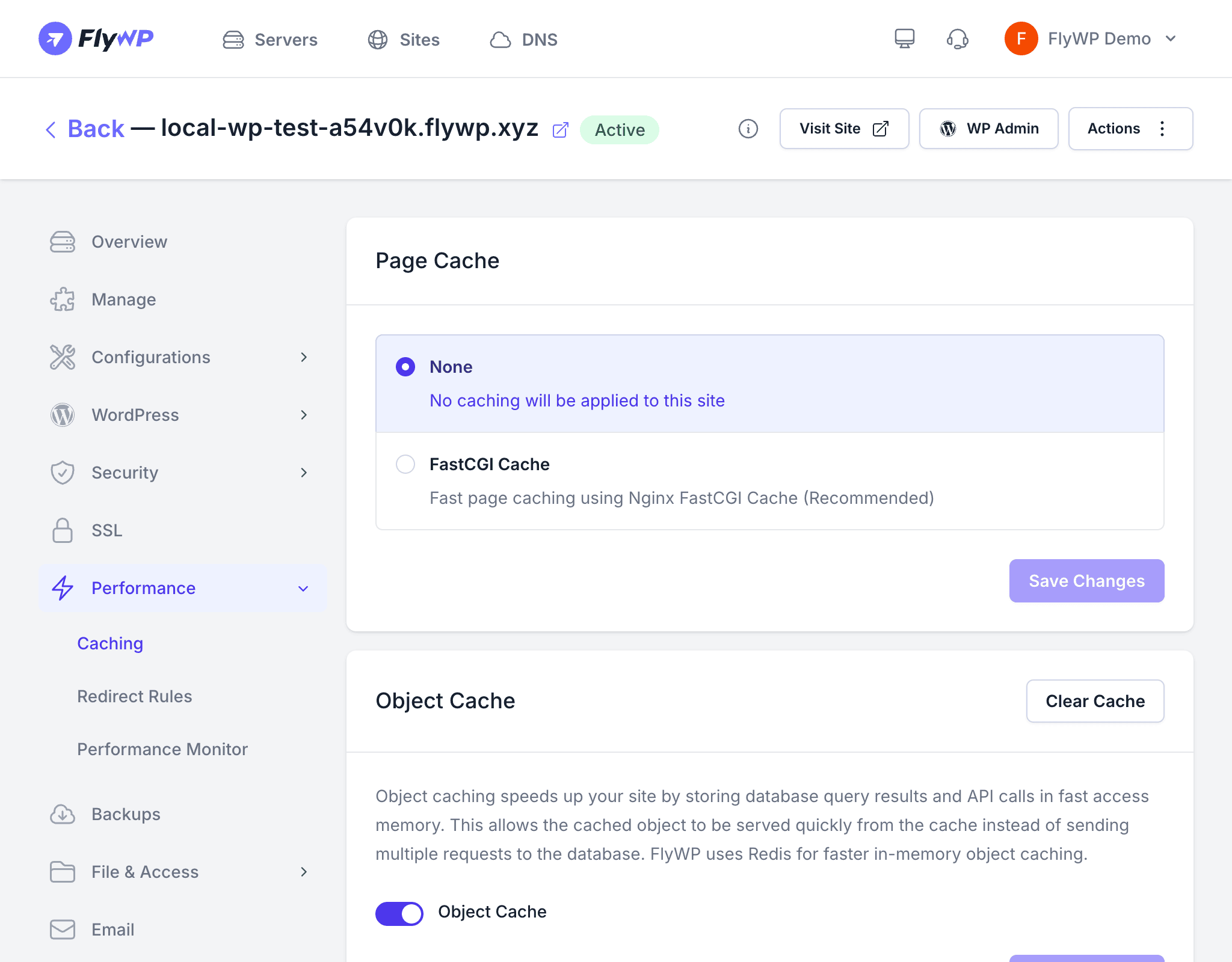
Page caching works by saving a fully rendered copy of each page on disk so that repeat visitors receive that cached HTML without touching PHP or the WordPress database. The result is dramatically faster load times and a much lighter load on your server.
Available Page Cache Options
FlyWP offers three page caching modes depending on your server’s web stack (the software combination — web server, PHP handler, and database — that processes requests on your server):
| Option | Web Stack | Description |
|---|---|---|
| None | Any | No page caching. Every request is processed by PHP and WordPress. |
| FastCGI Cache | Nginx | Uses Nginx’s (a high-performance web server) built-in FastCGI cache module. Recommended for Nginx-based servers. |
| LiteSpeed Cache | OpenLiteSpeed | Uses the LiteSpeed Cache engine, purpose-built for OLS servers. |
Enabling Page Caching
- Navigate to your site’s detail page and click the Caching tab.
- In the Page Cache section, select your preferred option from the dropdown.
- Click Save.
FlyWP configures the web server automatically — no WordPress plugin is needed for FastCGI Cache.
Cache Exclusions
Not every page should be cached. Dynamic pages — like a shopping cart or a logged-in user’s dashboard — must always be generated fresh. FlyWP provides a flexible exclusion system with built-in presets and the ability to define custom rules.
Exclusion Presets
| Preset | What It Excludes |
|---|---|
| WooCommerce | Cart, checkout, and account pages that must be dynamic for each visitor |
| WordPress Admin | The /wp-admin/ area and login page |
| WordPress Cache | Standard WordPress cache-control paths including feeds |
Excluded Request Paths
When a preset is enabled, FlyWP automatically skips caching for these paths:
/cart/*/checkout/*/wp-admin/*/wp-login.php/feed/*
Excluded Cookies
Requests that carry certain cookies (small data files browsers store to identify a session or user) bypass the cache entirely, so logged-in users and active shoppers always see fresh content:
woocommerce_items_in_cartwordpress_logged_in_*wp-postpass_*comment_author_*
Clearing the Cache
Click the Clear Cache button at the top of the Caching tab to purge all cached pages at once. FlyWP discards the stored HTML and rebuilds fresh copies on the next visit. Clear the cache after:
- Publishing significant content changes
- Updating themes or plugins that affect front-end output
- Changing site-wide settings such as permalinks or menus
- Troubleshooting display issues that may be caused by stale cached pages
Object Cache (Redis)
Page caching isn’t the only layer available. FlyWP also supports Redis object caching — Redis (an in-memory data store) speeds up WordPress by keeping database query results in RAM so they don’t have to be re-fetched on every request. Object cache and page cache operate at different layers and work best together. See Redis Object Cache for details.
Choosing the Right Setup
| Scenario | Recommended Configuration |
|---|---|
| Static blog or brochure site | FastCGI/LiteSpeed Cache + Object Cache |
| WooCommerce store | Object Cache only, or page cache with WooCommerce exclusions |
| Membership site with logged-in users | Object Cache only |
| High-traffic content site | FastCGI/LiteSpeed Cache + Object Cache |
| Development or staging | None or Object Cache only |