SSL Certificate Not Activating
SSL Certificate Not Activating
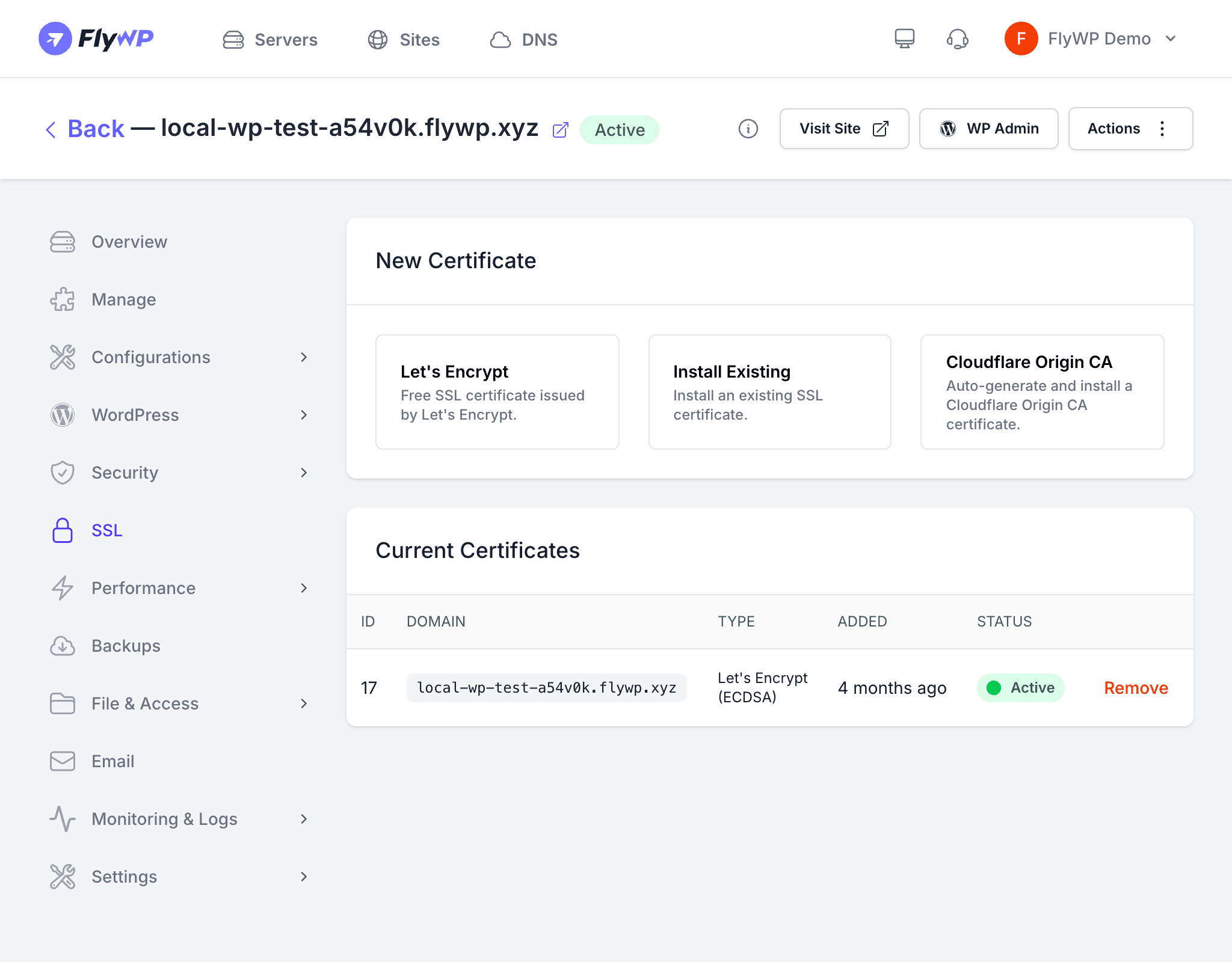
When you add a domain to your site and request an SSL (Secure Sockets Layer) certificate — the technology that enables the padlock in the browser and the https:// prefix — you expect it to activate within minutes. If it doesn’t, something is preventing Let’s Encrypt (the free, automated certificate authority FlyWP uses) from verifying that you own the domain. This guide walks you through the most common causes, in the order you’re most likely to find the culprit.
Troubleshooting Checklist
Work through these checks in order — most SSL activation failures are caused by the first two items.
1. Verify DNS is pointing to your server
The domain’s A record (the DNS setting that maps your domain name to a numeric IP address) must point to your FlyWP server’s IP address. Let’s Encrypt validates your domain by making an HTTP request to your server, so the domain must resolve to the correct address before a certificate can be issued.
- Check your DNS settings with your domain registrar or DNS provider.
- Use a DNS lookup tool (such as dnschecker.org) to confirm the A record resolves to your server’s IP.
- If you recently changed DNS, allow up to 48 hours for propagation (the time it takes for DNS changes to spread across the internet).
2. Check for Cloudflare proxy interference
If your domain uses Cloudflare with the proxy enabled (shown as an orange cloud icon in your Cloudflare DNS settings), Let’s Encrypt’s HTTP-01 validation — where Let’s Encrypt checks a file on your server over plain HTTP — may fail in some configurations.
To fix:
- Temporarily switch the DNS record to DNS only (grey cloud) in Cloudflare.
- Request the SSL certificate in FlyWP.
- Once the certificate is issued, switch back to proxied if desired.
3. Check Let’s Encrypt rate limits
Let’s Encrypt enforces rate limits to prevent abuse. If you’ve been issuing and reissuing certificates repeatedly — for example, while troubleshooting — you may hit one of these caps:
| Limit | Value |
|---|---|
| Certificates per registered domain | 50 per week |
| Duplicate certificates | 5 per week |
| Failed validations | 5 per hour |
If you’ve hit a rate limit, you’ll need to wait for it to reset before trying again.
4. Verify the domain is added to the site
Make sure the domain is listed under your site’s Domains tab in FlyWP. SSL certificates are only issued for domains that are explicitly added to the site — a domain pointing to your server isn’t enough on its own.
5. Check for server firewall rules
Ensure your server’s firewall (the network-level filter that controls which traffic reaches your server) allows inbound traffic on port 80. Let’s Encrypt’s HTTP-01 challenge requires access to port 80, even if your site is configured to redirect all visitors to HTTPS.
Do not block port 80 on your server firewall. Let’s Encrypt requires it for certificate validation and renewal, even when your site uses HTTPS exclusively.
If It Still Does Not Work
- Try removing the domain from the site and adding it back to trigger a new SSL request.
- Check the site’s Logs tab for any SSL-related error messages.
- Contact FlyWP support with your domain name and server details for further assistance.