Whitelist FlyWP API in Cloudflare
Whitelist FlyWP API in Cloudflare
If FlyWP can’t check for updates, install plugins, or communicate with your WordPress site, Cloudflare’s security layer is often the culprit. This page explains how to tell Cloudflare to trust FlyWP’s requests so your site management works without interruption.
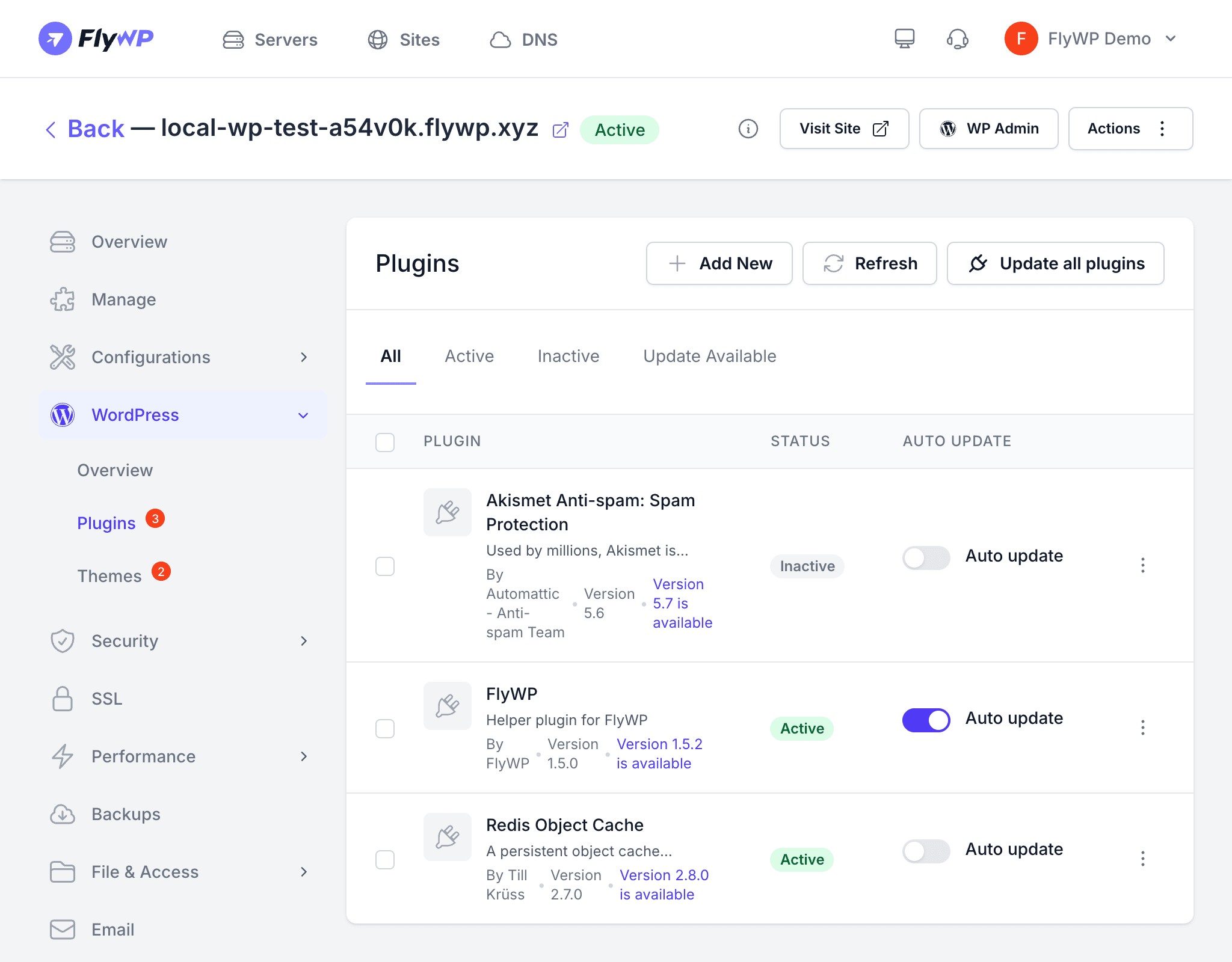
When your site’s DNS is routed through Cloudflare’s proxy (the orange cloud icon in your Cloudflare DNS settings), all incoming traffic passes through Cloudflare’s network before reaching your server. This includes the API (Application Programming Interface — a channel that lets two software systems exchange data) requests FlyWP sends to your site’s helper plugin. Cloudflare’s firewall or WAF (Web Application Firewall — a security layer that inspects and filters incoming web traffic) rules may block these requests, which prevents FlyWP from checking for updates, installing them, or managing caching.
Why Requests Get Blocked
FlyWP communicates with your site by sending HTTP requests to the helper plugin’s API endpoints (e.g., /fly-api/updates). Cloudflare may block these requests for several reasons:
- Bot protection — Cloudflare’s bot management may classify FlyWP’s automated requests as suspicious traffic.
- WAF rules — Managed rules or custom WAF rules may flag the request patterns.
- Rate limiting — Aggressive rate-limit rules can block repeated API calls.
- Under Attack Mode — If Cloudflare’s “I’m Under Attack” mode is enabled, all non-browser requests are challenged and blocked.
Option 1: Create a Cloudflare WAF Allow Rule
The recommended approach is to create a WAF rule that explicitly allows traffic from your FlyWP server’s IP address. This tells Cloudflare to let FlyWP’s requests through without inspection.
- Log in to the Cloudflare Dashboard and select your domain.
- Navigate to Security > WAF.
- Click Create rule.
- Configure the rule:
- Rule name —
Allow FlyWP API - Field —
IP Source Address - Operator —
is in - Value — Enter your FlyWP server’s IP address (found on the server detail page in FlyWP)
- Rule name —
- Set the Action to Allow.
- Click Deploy.
Option 2: Use FlyWP’s Cloudflare Integration
If you’ve connected your Cloudflare account to FlyWP through the Cloudflare integration, FlyWP can manage DNS and firewall rules automatically. This eliminates the need to manually create allow rules for each server — FlyWP handles it for you.
Verifying the Configuration
After creating the allow rule, confirm it’s working by running an update check:
- Go to your site’s Updates tab in FlyWP.
- Click Check Updates to trigger a fresh update check.
- If the check completes successfully, Cloudflare is now allowing FlyWP’s requests.
If the check still fails, review these Cloudflare security settings:
| Setting | Where to Check | What to Look For |
|---|---|---|
| Security Level | Security > Settings | Set to Medium or lower for the allow rule to take effect |
| Under Attack Mode | Overview page | Disable if enabled — it blocks all non-browser traffic |
| Rate Limiting | Security > WAF > Rate limiting rules | Ensure FlyWP IPs are not being rate-limited |
| Custom Rules | Security > WAF > Custom rules | Check for rules that might override your allow rule |
If “I’m Under Attack” mode is enabled on your Cloudflare zone, all automated requests — including FlyWP’s — will be challenged and fail. Only enable this mode during active DDoS attacks and disable it afterward.
Troubleshooting
- Allow rule exists but updates still fail — Make sure the rule priority is higher than any blocking rules. Cloudflare evaluates rules in order, and a preceding block rule takes precedence.
- Helper plugin shows “Unknown” status — This often means Cloudflare is blocking the status check request. Create the allow rule and run Check & Fix from the site overview.
- Intermittent failures — Rate-limiting rules may allow some requests but block bursts. Exclude your FlyWP server IPs from rate-limiting rules entirely.