Custom NGINX Config for a Single Website
Custom NGINX Config for a Single Website
When FlyWP’s default web server settings aren’t quite right for your site, you can take full control by editing the NGINX (pronounced “engine-ex” — the web server software that handles all traffic to your site) configuration directly. This lets you add security rules, fix redirect problems, allow larger file uploads, or route traffic to a separate service — all without touching the server-level config that other sites share.
Accessing the NGINX Config Editor
Open the per-site editor from your site’s dashboard:
- Navigate to your site in the FlyWP dashboard.
- Click the NGINX Config tab in the site sidebar.
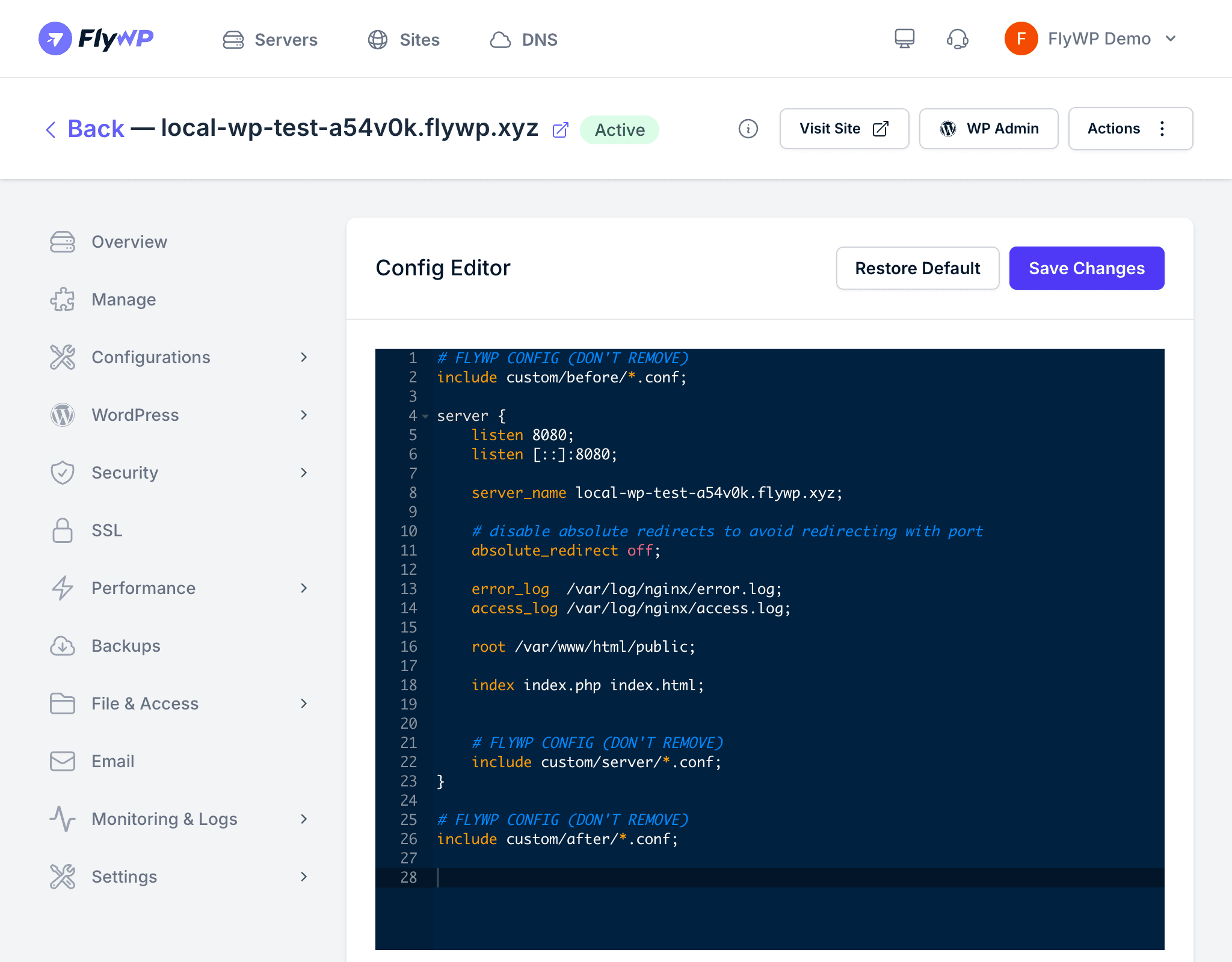
- The full NGINX configuration for this site appears in an editor.
Making Changes
The editor shows the complete NGINX server block for your site. You can add or modify any directive within it. Here are the most common reasons people reach for this editor:
| Customization | Example Use Case |
|---|---|
| Custom headers | Add security headers or CORS (cross-origin resource sharing) headers |
| Redirects | Redirect old URLs to new ones, force www or non-www |
| Proxy rules | Forward specific paths to another service running on the same server |
| Rate limiting | Throttle (slow down or block) requests to specific endpoints to prevent abuse |
| File upload limits | Increase client_max_body_size for large uploads |
After making your changes, click Save to apply the new configuration. FlyWP reloads NGINX automatically — no manual restart needed.
An invalid NGINX configuration can take your site offline. Double-check your syntax before saving. If something breaks, use the Restore Default option to revert to FlyWP’s default configuration.
Common Examples
These ready-to-use snippets cover the most frequent customizations.
Force HTTPS redirect
Redirect any plain HTTP request to the secure HTTPS version of your site:
if ($scheme = http) { return 301 https://$host$request_uri;}Increase upload size limit
WordPress’s default upload limit is often too small for themes, plugins, or media. Raise it here:
client_max_body_size 256M;Add custom security headers
These headers (browser instructions that prevent common attacks like clickjacking and MIME-type sniffing) improve your site’s security score:
add_header X-Frame-Options "SAMEORIGIN" always;add_header X-Content-Type-Options "nosniff" always;Restoring the Default Configuration
If your custom changes cause issues, click Restore Default in the NGINX Config tab. FlyWP reverts the configuration to its standard template for your site, discarding your changes.