Billing
Billing
Keeping your subscription healthy means your servers stay online and your sites keep running. The Billing section puts everything in one place — your current plan, how much of it you’re using, your payment method, and your full invoice history — so you’re never caught off guard by a charge or an unexpected service interruption.
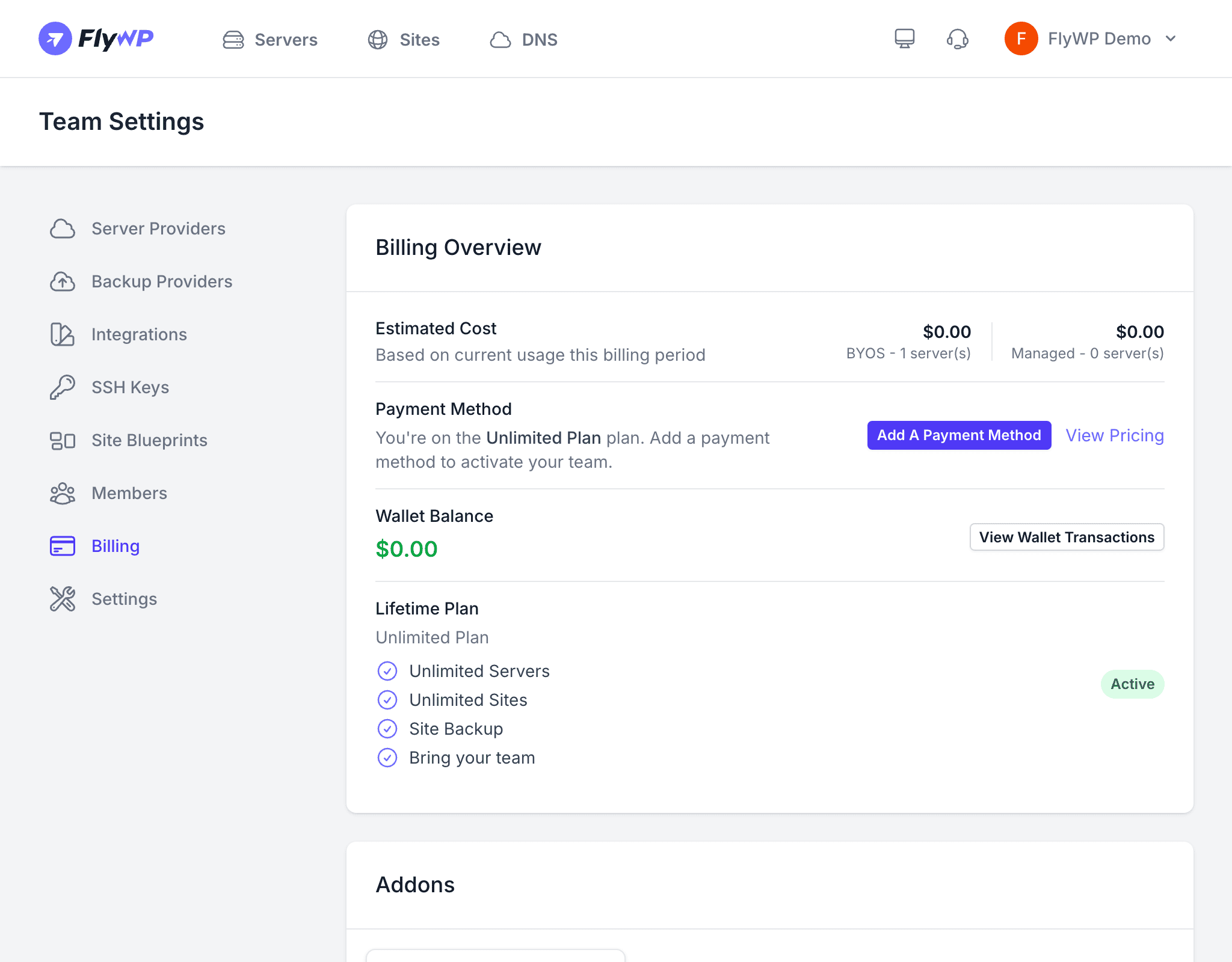
You can reach it from Team Settings > Billing. FlyWP uses a tiered subscription model, meaning different plans unlock different numbers of servers, sites, and features. Understanding where you stand helps you plan as your team or client base grows.
Current Plan and Usage
At the top of the Billing page, FlyWP shows your current subscription plan alongside a snapshot of your usage:
- Plan name — which tier you are subscribed to
- Server count — how many servers you are currently running
- Site count — how many WordPress sites you are running across all servers
- Billing cycle — whether you are billed monthly or annually
Checking this regularly helps you spot when you’re approaching your plan limits before hitting a wall.
Subscription Plans
FlyWP offers plans ranging from a free tier up to enterprise-level options. Each plan sets the ceiling for how many servers and sites you can manage, and which advanced features are unlocked.
To change your plan:
- Navigate to Team Settings > Billing.
- Click Change Plan or Upgrade.
- Select the plan that fits your needs.
- Confirm the change.
Customer Portal
The Customer Portal is a secure, hosted page (powered by Stripe, the payment processor FlyWP uses) where you manage the financial side of your account. Click the Customer Portal button on the Billing page to access it. From there you can:
- View and download past invoices
- Update your payment method
- Manage your subscription details
- View upcoming charges
Wallet
The FlyWP wallet lets you pre-load credits onto your account. When an invoice comes due, FlyWP draws from your wallet balance first before charging your card — which means fewer card transactions and easier expense tracking.
- Add Credits — load a specific dollar amount into your wallet
- View Balance — your current wallet balance is visible directly on the Billing page
Payment Methods
To update the card on file, go through the Customer Portal rather than directly in FlyWP — this keeps your card details securely handled by Stripe and never stored on FlyWP’s servers.
- Navigate to the Customer Portal from the Billing page.
- Click Update Payment Method.
- Enter your new card details.
- Save the changes.
If your payment method fails and you do not update it, FlyWP may pause your subscription. Keep your payment details current to avoid any interruption to your servers and sites.
Invoice History
Every past invoice is available through the Customer Portal. Each invoice includes:
- Invoice date and number
- Plan and usage details
- Amount charged
- Payment status
- Download link (PDF)