Wasabi
Wasabi
If you’re tired of cloud storage bills that spike every time you restore a backup, Wasabi solves that problem. Wasabi is a hot cloud storage provider (meaning your files are always instantly accessible, with no waiting period to retrieve them) that charges a flat rate for storage only — no fees for downloading your data, no fees for API requests. For teams running multiple WordPress sites, this makes backup storage costs predictable and often significantly cheaper than alternatives like Amazon S3.
Prerequisites
Before connecting Wasabi, you need:
- A Wasabi account (sign up at wasabi.com)
- A storage bucket (a named container where your backup files will be stored) created in your preferred region
- An access key pair (a set of credentials — similar to a username and password — that FlyWP uses to read and write files on your behalf) generated from your Wasabi console
Required Credentials
When you add Wasabi as a provider in FlyWP, you’ll be asked for the following:
| Field | Description |
|---|---|
| Access Key | Your Wasabi access key |
| Secret Key | The secret key paired with your access key |
| Bucket | The name of your Wasabi bucket |
| Region | The Wasabi region where your bucket is located |
Available Regions
Wasabi offers multiple storage regions across North America, Europe, and Asia-Pacific. Choosing a region close to your server reduces the time it takes to upload and restore backups. FlyWP shows the full list of available regions in a dropdown when you add the provider.
Setup Steps
Here’s how to connect Wasabi to your FlyWP team:
- Log in to your Wasabi Console at console.wasabisys.com.
- Create a new bucket in your preferred region.
- Navigate to Access Keys and create a new key pair.
- Copy the Access Key and Secret Key — you’ll need both in the next step.
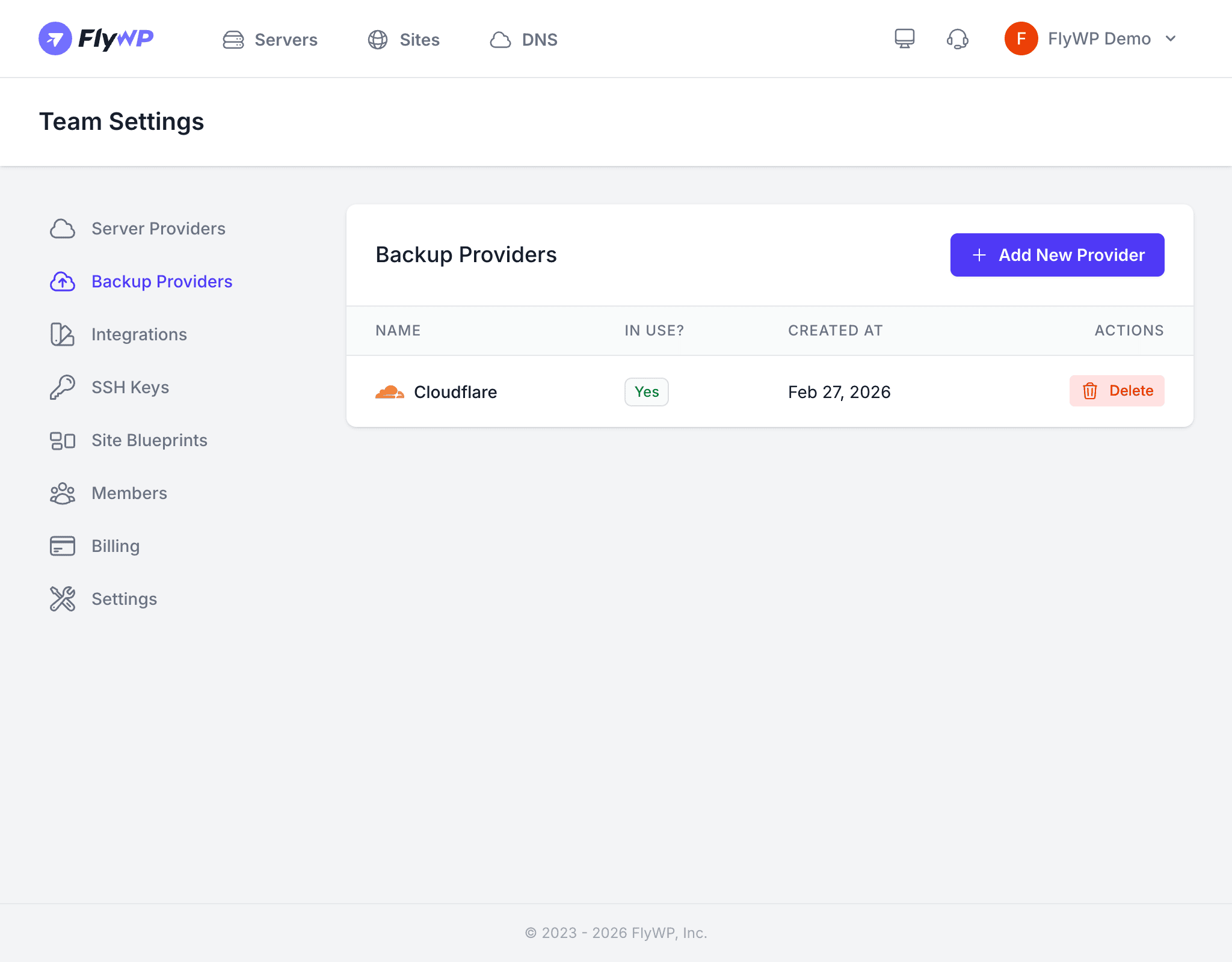
- In FlyWP, go to Team Settings > Backup Providers.
- Click Add Provider and select Wasabi.
- Enter your credentials, select your region, and click Save.
Pricing Notes
Wasabi charges only for the storage you use. There are no fees for:
- Data egress (downloading your backup files)
- API requests (the calls FlyWP makes to upload, list, and delete backups)
- Data retrieval
This means your monthly cost stays the same whether you restore zero times or ten times.
Using the Provider
Once you’ve saved the provider, select Wasabi as the storage destination when configuring backups for any site on your team. FlyWP uses Wasabi’s S3-compatible API (an industry-standard interface for object storage) to upload, manage, and delete your backup files automatically.