Teams
Teams
Everything you create in FlyWP — servers, sites, integrations, and billing — lives inside a team. Teams let you group related resources together and share access with the right people, making it easy to manage one personal setup or dozens of client environments from a single dashboard.
When you sign up, FlyWP automatically creates a personal team for you. You can also create additional teams — for example, one per client, department, or project. Each team has its own servers, billing subscription, and member roster, completely separate from your other teams.
How Teams Work
FlyWP is built around teams, and understanding this model helps you stay organized as you grow:
- All servers and sites are owned by a team, not by an individual user.
- Billing and subscriptions are managed at the team level, so each team has its own plan and invoices.
- Team members share access to the team’s resources based on their assigned roles (think of roles like permission levels — an admin can do everything, while a developer might only manage sites).
- Switching between teams takes one click — select the team from the team switcher (the dropdown in the top navigation bar).
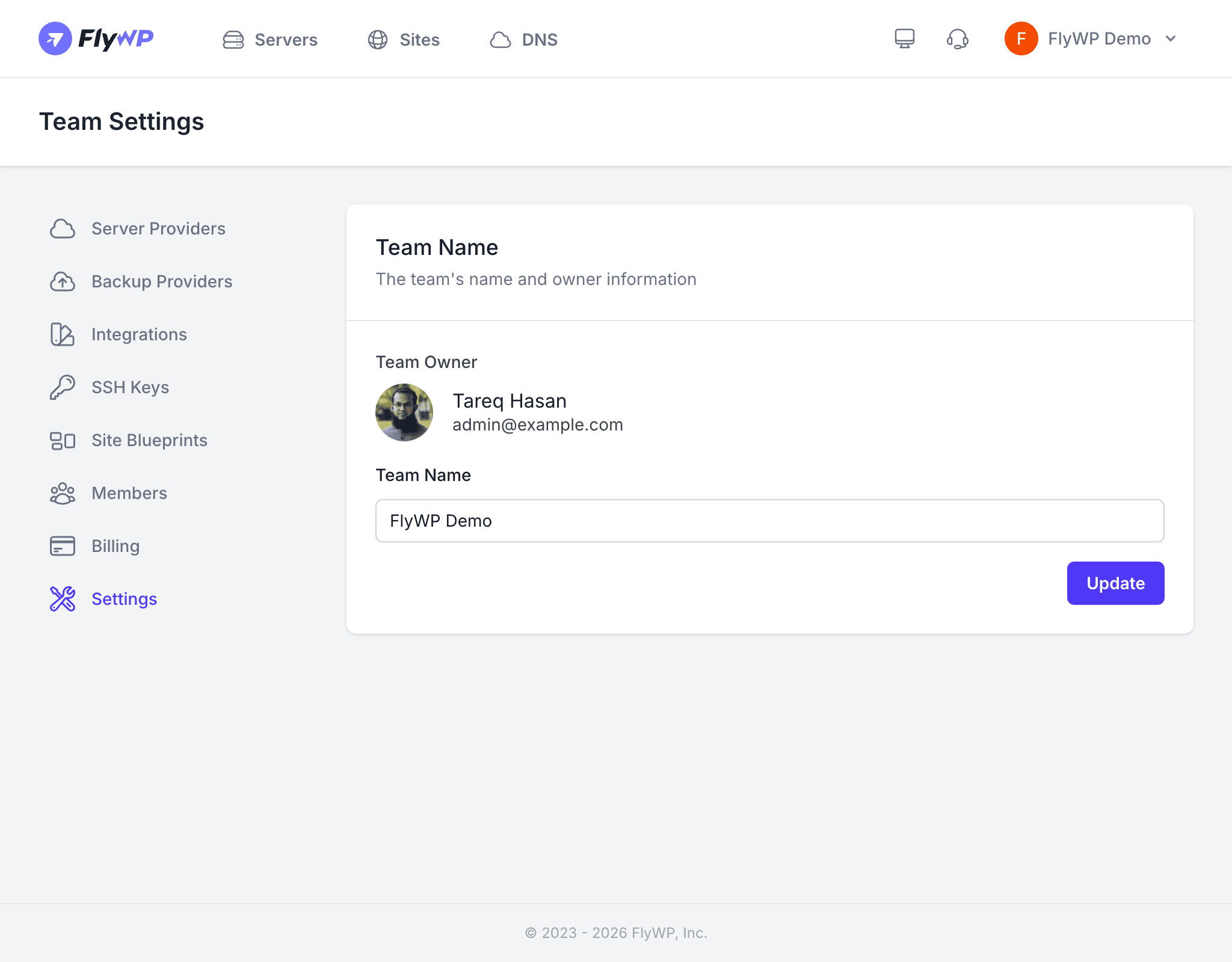
Team Settings Sidebar
Navigate to Team Settings to find all the controls for your team. The sidebar groups these into the following sections:
| Section | What It Manages |
|---|---|
| Server Providers | Cloud provider API (application programming interface) connections (DigitalOcean, Vultr, AWS, etc.) |
| Backup Providers | Cloud storage connections for site backups (S3, Backblaze, etc.) |
| Integrations | Third-party service connections (e.g., Cloudflare) |
| SSH Keys | SSH (Secure Shell — encrypted remote access) keys shared across the team’s servers |
| Site Blueprints | Reusable site templates for standardized WordPress setups |
| Members | Invite, manage, and remove team members |
| Billing | Subscription plan, payment methods, invoices, and wallet |
| Settings | Team name, ownership, and team deletion |
Updating Team Information
Team Name
To rename your team:
- Navigate to Team Settings > Settings.
- Edit the Team Name field.
- Click Save.
Team Owner
The team settings page displays the current team owner. The owner holds full administrative control over the team, including billing and the ability to delete the team entirely.
Creating a New Team
Creating a new team takes under a minute:
- Open the team switcher in the top navigation bar.
- Click Create New Team.
- Enter a name for the team.
- Click Create.
Your new team starts with a clean slate — no servers, sites, or connected providers. You can begin setting it up by connecting server providers and inviting team members.