Akamai
Akamai
If you want to host WordPress sites on reliable cloud infrastructure without paying premium prices, Akamai Connected Cloud (formerly Linode) is worth a close look. With over 30 data center locations worldwide — one of the broadest regional footprints among FlyWP’s supported providers — you can place your servers close to your visitors no matter where they are. Connecting your Akamai account takes just a few minutes, and FlyWP handles everything from server provisioning to ongoing management.
Prerequisites
Before connecting Akamai to FlyWP, make sure you have:
- An Akamai (Linode) account — new users can get $100 in free credit through our referral link.
- A Personal Access Token (a private key that allows FlyWP to create and manage servers on your behalf) with read/write permissions for Linodes.
Connecting Akamai to FlyWP
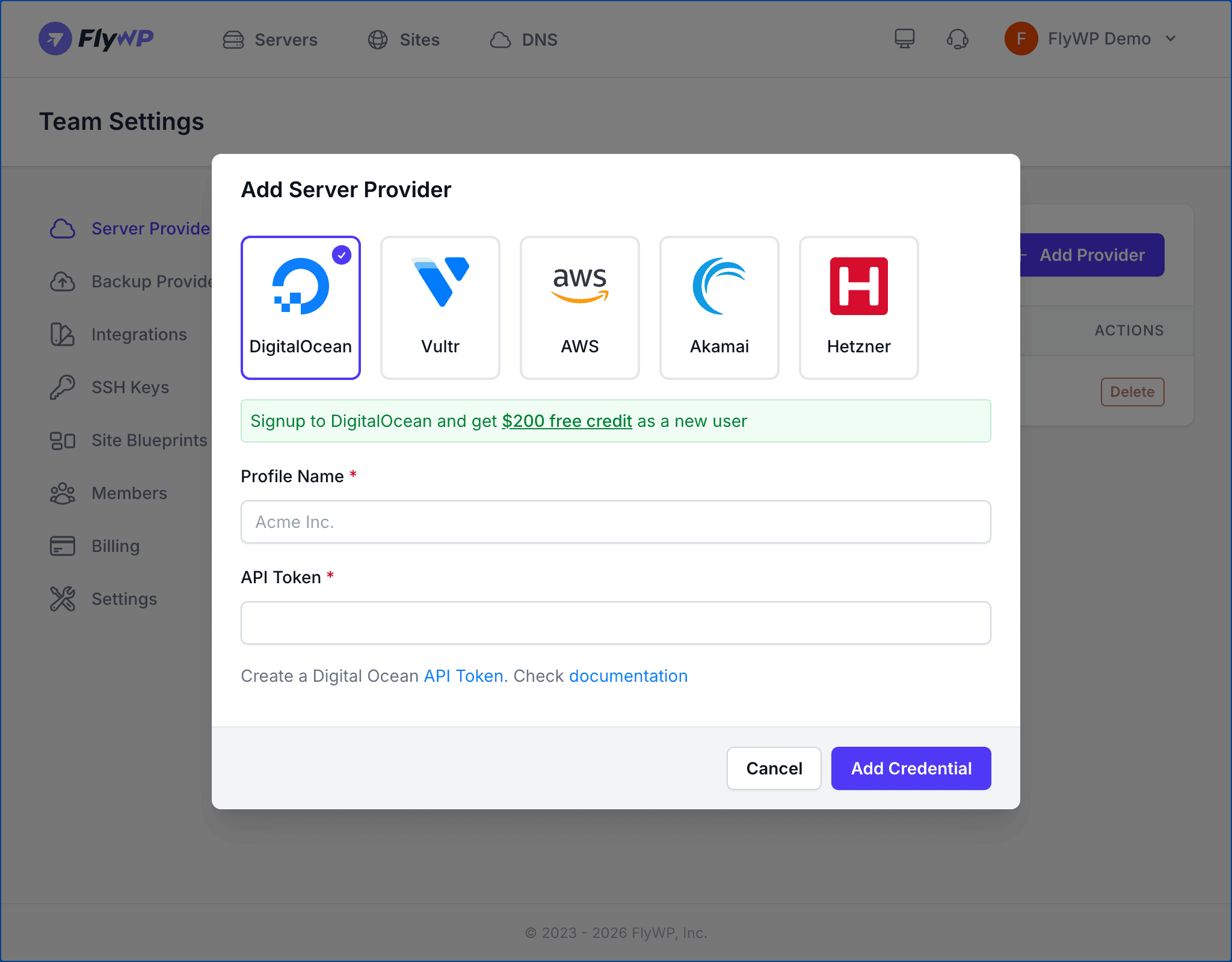
- Navigate to Team Settings > Server Providers.
- Click Add Provider.
- Select the Akamai icon from the provider list.
- Enter a Profile Name for this connection (e.g.,
Akamai Production). This must be unique within your team and can be up to 80 characters. - Paste your Personal Access Token into the token field.
- Click Add Credential.
FlyWP validates your token against the Linode API (the interface Akamai uses for server management) before saving. If the token is invalid or lacks sufficient permissions, you will see an error message.
Getting Your API Token
An API token is a secret string that acts like a password for automated tools — it lets FlyWP communicate with your Akamai account without requiring your username and password.
Step 1: Open the Linode API Token Settings
Log in to the Linode Cloud Manager and navigate to My Profile > API Tokens, or go directly to https://cloud.linode.com/profile/tokens.
Step 2: Create a Personal Access Token
Click Create a Personal Access Token. Give it a descriptive label like FlyWP and set the expiry as needed. Grant the following permissions at minimum:
- Linodes — Read/Write
- Images — Read/Write
- Regions — Read Only
Step 3: Copy the Token
Copy the token immediately after creation. The Linode Cloud Manager only shows the full token once. If you lose it, you will need to create a new token.
Set an appropriate expiry for your token. If the token expires, FlyWP will lose the ability to manage servers until you replace it with a new token.
Available Server Options
When creating a server through FlyWP with Akamai, you can choose from the following options.
Server Types
| Category | Best For |
|---|---|
| Shared CPU | Development, staging, and small production sites |
| Dedicated CPU | High-traffic production sites needing guaranteed CPU resources |
| High Memory | Large databases, caching servers, and memory-intensive applications |
| Premium | Workloads that require the highest performance tier |
Regions
Akamai’s 30+ data center locations span North America, Europe, Asia-Pacific, and beyond. This extensive coverage makes it straightforward to place servers close to your users regardless of their location.
Web Server Stack
Akamai servers provisioned through FlyWP support both Nginx and OpenLiteSpeed web server stacks. Nginx (pronounced “engine-x”) is a widely used, high-performance web server. OpenLiteSpeed is an open-source alternative known for strong WordPress performance.
Pricing
Akamai uses USD-based pricing with monthly billing. Shared CPU plans start at $5/month. Some newer regions carry region-specific pricing that may differ from standard rates. Akamai bills you directly — FlyWP does not add any markup to infrastructure costs.