Site-Specific SFTP Access
Site-Specific SFTP Access
When you need to give a designer, developer, or deployment tool access to your site’s files — but you don’t want them touching anything else on the server — site-specific SFTP accounts are the answer. FlyWP lets you create a separate login for each site, locked down to that site’s directory only. No shared passwords, no accidental access to other sites.
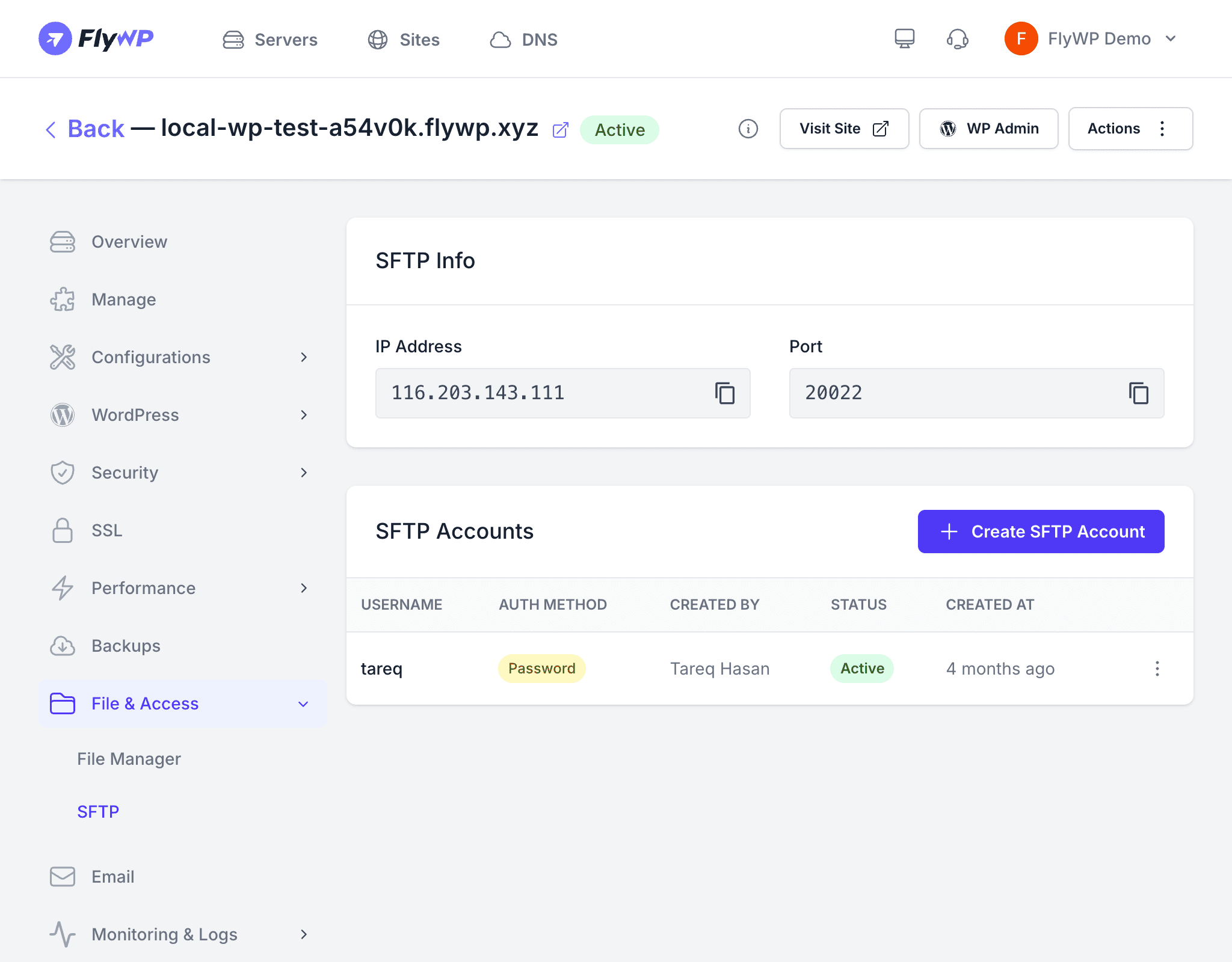
FlyWP lets you create dedicated SFTP (SSH File Transfer Protocol — a secure way to transfer files over an encrypted connection) accounts for each site on your server. Each account is locked to a single site’s directory, so the account holder can only access the files for that site. FlyWP provisions and removes these accounts in the background, so you stay in control without needing to manage users on the server directly.
Connection Details
SFTP accounts in FlyWP use a non-standard port for added security:
| Setting | Value |
|---|---|
| Protocol | SFTP (SSH File Transfer Protocol) |
| Port | 20022 |
| Host | Your server’s IP address |
| Username | The username you set when creating the account |
FlyWP uses port 20022 for SFTP — not the standard port 22. Make sure your SFTP client is configured to connect on port 20022, or the connection will fail.
Creating an SFTP Account
To create a new SFTP account for a site, follow these steps:
- Navigate to your site and click the File Management tab.
- Scroll to the SFTP Accounts section.
- Click Create SFTP Account.
- Enter a username — it must be unique across the entire server.
- Choose a credential type:
- Password — provide a password between 16 and 32 characters.
- SSH Key — paste your public SSH key (the
.pubfile generated on your local machine).
- Click Create.
FlyWP provisions the account in the background. The status will show Creating while the account is being set up, then change to Active once it is ready.
Account Statuses
Each account moves through a lifecycle that you can track at a glance:
| Status | Meaning |
|---|---|
| Creating | FlyWP is provisioning the account on the server |
| Active | The account is ready to use |
| Updating | FlyWP is applying credential changes |
| Deleting | FlyWP is removing the account |
| Failed | Something went wrong — try deleting and recreating the account |
Connecting with an SFTP Client
Any SFTP-compatible client works — FileZilla, Cyberduck, WinSCP, VS Code Remote, and others. Use the following settings when configuring your client:
Host: your-server-ipPort: 20022Protocol: SFTPUsername: your-sftp-usernameAuthentication: Password or SSH KeyDeleting an SFTP Account
When you no longer need to grant access — for example, after a project handoff — you can remove the account immediately:
- Find the account in the SFTP Accounts list.
- Click the Delete button.
- Confirm the deletion.
FlyWP removes the account from the server, and those credentials can no longer be used to connect.