Redis Object Cache
Redis Object Cache
If your WordPress site feels slow for logged-in users, or you’re running a WooCommerce store that hammers the database on every page load, Redis object caching is the fix. It stores the results of database queries in memory so WordPress can retrieve them instantly on the next request — no repeated round-trips to MySQL. The result is faster page generation, lower database load, and a smoother experience for your visitors.
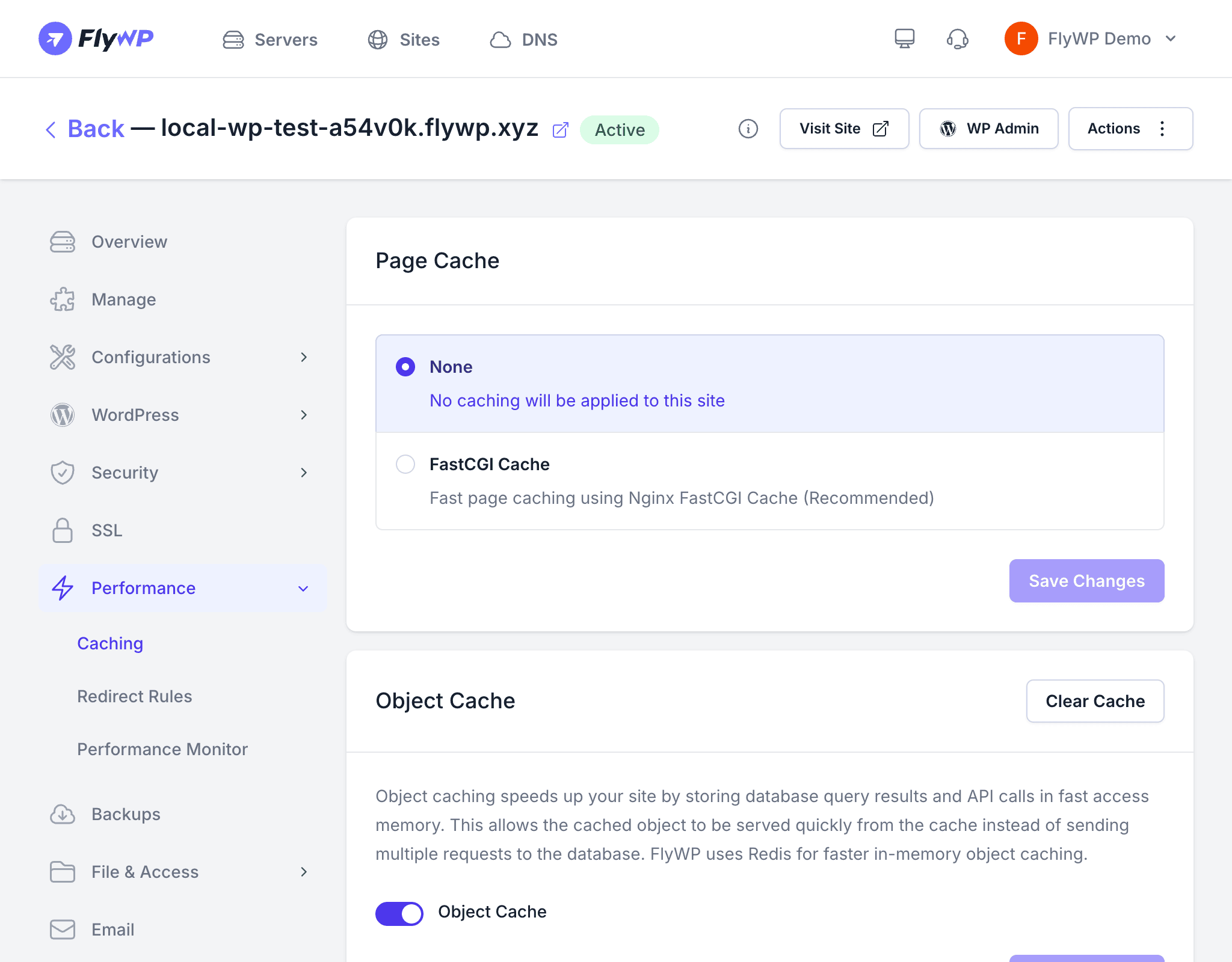
Redis (an in-memory data store — think of it as a super-fast scratch pad that lives in your server’s RAM) is pre-installed on every FlyWP server. Instead of running the same database queries on every page load, WordPress stores the results in Redis and retrieves them instantly on subsequent requests. This is especially valuable for dynamic pages — like a WooCommerce cart or a members-only dashboard — that cannot be served from a static page cache.
How It Works
Here’s what happens behind the scenes when object caching is enabled:
- WordPress performs a database query or expensive computation.
- FlyWP stores the result in Redis with a unique cache key.
- On the next request, WordPress checks Redis first. If the data is there, it returns immediately — no MySQL query needed.
- When the cache entry expires or you flush it manually, WordPress falls back to MySQL and re-populates Redis with fresh data.
Server-Level Architecture
Redis runs as a server-level service, meaning a single Redis instance is shared across all sites on the same server. Each site uses a unique database prefix (a short identifier prepended to every cache key) to prevent one site’s cached data from colliding with another’s.
Enabling Object Cache
To turn on Redis object caching for a site:
- Navigate to your site’s detail page and click the Caching tab.
- Find the Object Cache section.
- Toggle the switch to On.
- Click Save.
FlyWP installs the Redis object cache drop-in for WordPress and configures the connection automatically.
Disabling Object Cache
To turn off Redis object caching:
- Navigate to the Caching tab.
- Toggle the Object Cache switch to Off.
- Click Save.
FlyWP removes the Redis object cache drop-in and WordPress reverts to its default file-based object cache.
Clearing the Object Cache
You can flush the Redis object cache in two ways:
- From the dashboard — click the Clear Object Cache button on the Caching tab.
- Via WP-CLI (a command-line tool for managing WordPress) — run
wp cache flushfrom the server terminal or WP-CLI.
Clear the object cache when:
- You update plugins or themes that store data in the object cache
- You notice stale data appearing on dynamic pages
- You change database content directly (outside of WordPress)
Redis Credentials
FlyWP stores the Redis password securely in an encrypted format on the server. If you need the credentials for manual configuration or debugging, here are the connection details:
| Field | Details |
|---|---|
| Host | 127.0.0.1 (localhost — Redis runs on the same server) |
| Port | 6379 (default Redis port) |
| Password | Encrypted and managed by FlyWP automatically |
Never expose your Redis port to the public internet. FlyWP’s default firewall rules block external access to port 6379. If you need to connect from another server, add a firewall rule restricted to that server’s IP address.
When to Use Object Cache
| Scenario | Object Cache Recommended |
|---|---|
| WooCommerce store with many products | Yes — reduces database queries significantly |
| Membership site with logged-in users | Yes — dynamic content benefits the most |
| High-traffic blog | Yes — combined with page cache for best results |
| Small brochure site with low traffic | Optional — the benefit is minimal |
| Development or staging site | Optional — useful for testing cache behavior |