FlyWP Helper Plugin Status
FlyWP Helper Plugin Status
When FlyWP loses touch with the helper plugin on your site, key features like update management and caching control go dark — and it is not always obvious why. This page explains what each status indicator means, what triggers it, and how to get back to a healthy connection without touching the command line.
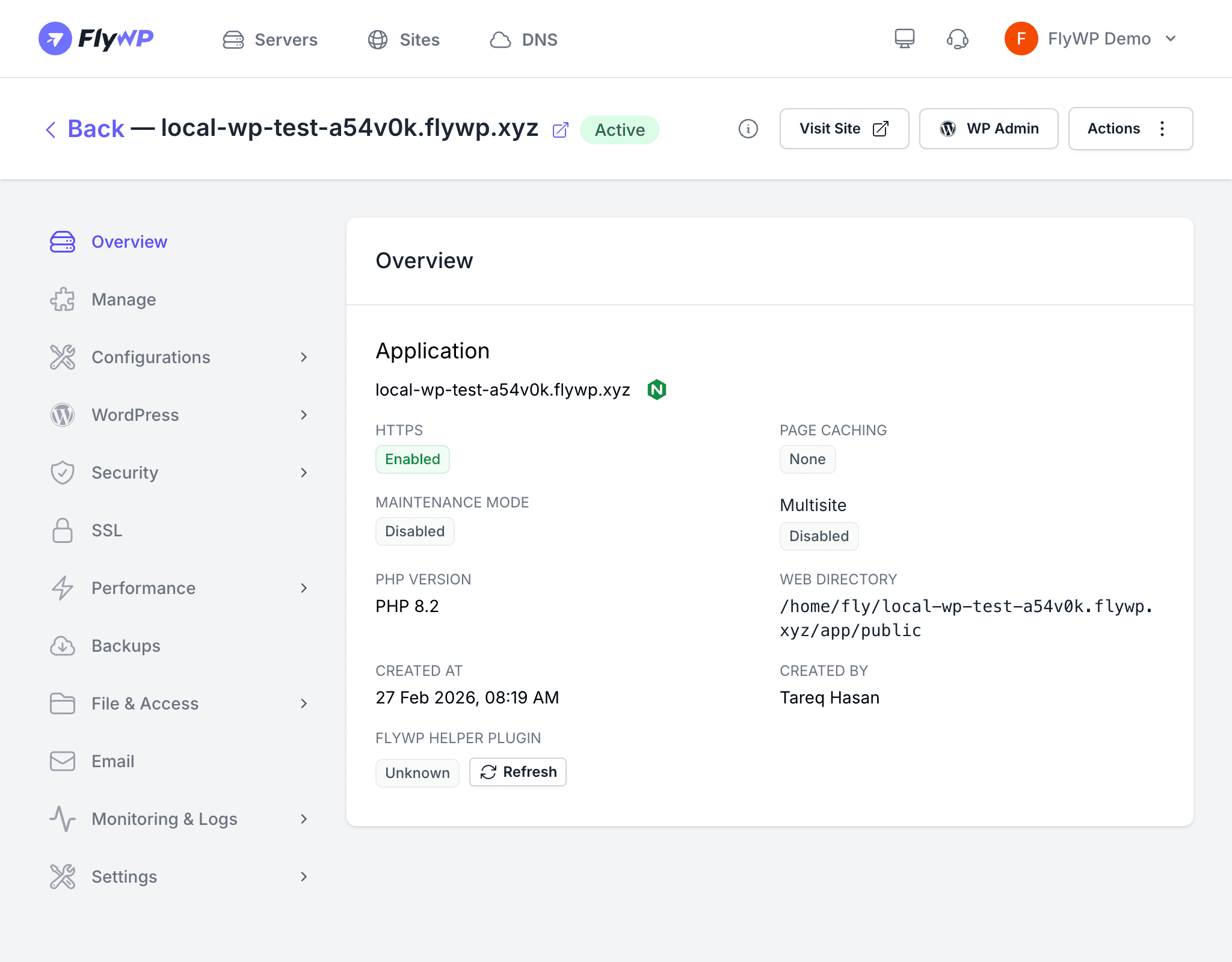
FlyWP continuously tracks the state of the helper plugin on each managed site. The current status appears on the site overview page. If the plugin is not working correctly, several dashboard features — including update management and caching control — will be unavailable until the connection is restored.
Status Values
| Status | Meaning | Action Required |
|---|---|---|
| Enabled | The plugin is installed and active. Everything is working. | None |
| Disabled | The plugin is installed but deactivated. | Activate it or run Check & Fix. |
| Not Found | The plugin files are missing from the site. | Run Check & Fix to reinstall. |
| Unknown | FlyWP cannot determine the plugin state. | Run Check & Fix to diagnose. |
What Causes Each Status
Each status has a distinct root cause, so knowing which one you are looking at points you straight to the fix.
- Enabled — Normal state after a fresh site creation or a successful Check & Fix run.
- Disabled — Someone deactivated the plugin from the WordPress admin panel, or a plugin conflict caused it to deactivate automatically.
- Not Found — The plugin was deleted via FTP (File Transfer Protocol), the file manager, or WP-CLI (the WordPress command-line tool). This also happens when a site migration did not carry over the plugin files.
- Unknown — The site may be unreachable due to a DNS (Domain Name System — the system that maps your domain to a server IP address) issue or the server being offline, or the API key (a secret token FlyWP uses to authenticate with your site) has become invalid.
How Check & Fix Works
When you click Check & Fix on the site overview page, FlyWP runs through the following steps automatically:
- Check installation — Verify whether the
flywpplugin directory exists on the site. - Check activation — Determine if the plugin is active (or network-active for multisite — a WordPress setup where one installation powers multiple sites).
- Reinstall if missing — If the plugin files are not found, FlyWP installs a fresh copy.
- Activate — For single-site installs, FlyWP activates the plugin. For multisite installs, FlyWP performs a network activation so all subsites are covered.
- Verify — Confirm the plugin is now reporting an Enabled status.
Troubleshooting
If Check & Fix does not resolve the status, one of the scenarios below is likely the cause.
Status stays “Unknown” after Check & Fix
- DNS not pointing to the server — Make sure your domain resolves to the correct server IP address. Changes to DNS can take up to 48 hours to propagate worldwide.
- Site is behind Cloudflare — FlyWP’s requests may be blocked by Cloudflare’s firewall (WAF — Web Application Firewall, a security layer that filters incoming traffic). See Whitelist FlyWP in Cloudflare.
- Server is down — Check the server status page to confirm the server is running and responsive.
Status stays “Disabled”
- Plugin conflict — Another security or management plugin may be force-deactivating FlyWP’s helper. Deactivate other management plugins temporarily and run Check & Fix again.
- Corrupted plugin data — The
active_pluginsdatabase option (the WordPress database record that tracks which plugins are turned on) may contain bad data. Clear it using WP-CLI, then run Check & Fix.
Status stays “Not Found”
- File permissions — The web server user may not have write access to the
wp-content/plugins/directory. Check directory permissions on the server. - Disk full — If the server disk is full, plugin installation will fail without a clear error message. Free up disk space and retry.
If the helper plugin remains in a non-Enabled state, FlyWP cannot check for updates, manage caching, or communicate with your WordPress site. Resolve status issues promptly to keep all dashboard features operational.