WordPress Management
WordPress Management
Managing a WordPress site usually means jumping between your hosting panel, wp-admin, FTP (File Transfer Protocol), and your SSH (Secure Shell) terminal. FlyWP pulls the most important tasks into one place so you can update plugins, tweak configuration, and log into the admin without opening a single extra browser tab or remembering another password.
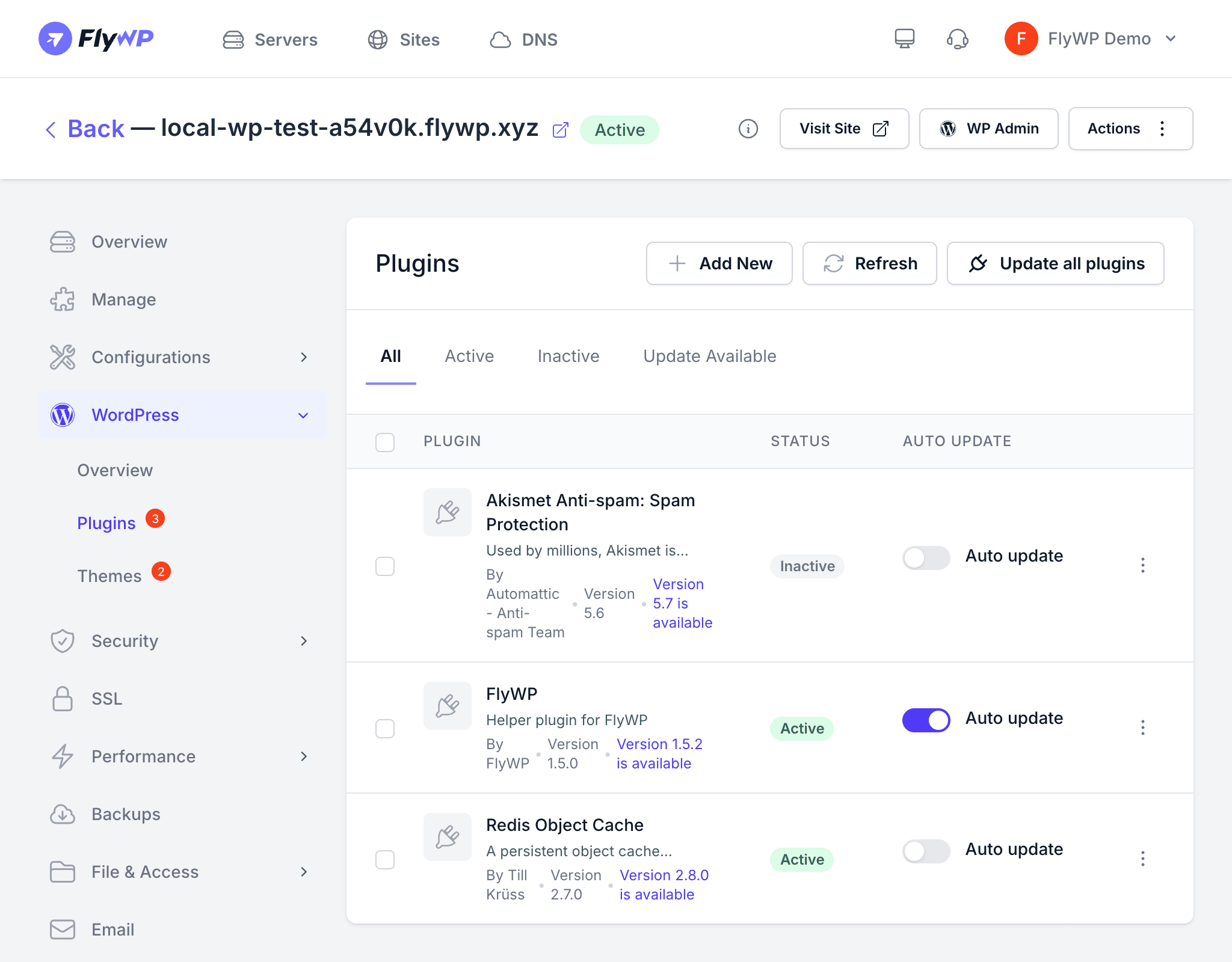
The WordPress tab gives you direct access to magic login, the wp-config.php (your site’s master configuration file) editor, core and plugin updates, full plugin management, and theme management — all from your FlyWP dashboard.
WP Admin Access (Magic Login)
Digging up your wp-admin password or keeping it saved somewhere is a chore. Magic login removes that friction entirely — FlyWP generates a one-time authenticated link and drops you straight into your WordPress admin dashboard.
- Navigate to your site’s WordPress tab.
- Click the WP Admin button.
- A new browser tab opens and you are automatically logged in as the site administrator.
WP Config Editor
Your site’s wp-config.php file is where WordPress stores critical settings — database credentials, debug flags, secret keys, and any custom constants your plugins or theme require. Normally, editing this file means connecting over SSH or FTP. FlyWP’s WP Config editor lets you make those changes directly from your dashboard.
You can:
- Add new constants
- Edit existing values
- Remove constants you no longer need
Incorrect changes to wp-config.php can break your site. Double-check every edit and make sure you have a recent backup before modifying configuration values.
Updates Management
Outdated WordPress core, plugins, or themes are one of the most common entry points for attackers. FlyWP surfaces all available updates in one view so nothing slips through.
FlyWP shows you available updates for:
- WordPress core — update to the latest stable version
- Plugins — see which plugins have updates available
- Themes — see which themes have updates available
You can apply updates individually or in bulk, all from the FlyWP dashboard.
Plugin Management
Need to install a new plugin or deactivate one that’s causing trouble? FlyWP handles it without requiring you to log into wp-admin. The table below covers every action available:
| Action | Description |
|---|---|
| Activate | Enable an installed plugin |
| Deactivate | Disable an active plugin without removing it |
| Install | Install a new plugin from the WordPress.org repository |
| Delete | Remove a plugin from the server entirely |
| Auto-update toggle | Enable or disable automatic updates for individual plugins |
FlyWP Helper Plugin
The FlyWP Helper Plugin is a lightweight WordPress plugin that FlyWP installs automatically on every site you add. It acts as the communication bridge between your WordPress installation and the FlyWP platform, enabling remote management features that would otherwise require direct server access.
The helper plugin powers features like:
- Magic login
- Plugin and theme management from the dashboard
- WordPress version detection
- Health checks and status reporting
Do not deactivate or delete the FlyWP Helper Plugin. Removing it will break the connection between your site and FlyWP, and features like magic login and remote management will stop working.