Creating Your First Site
Creating Your First Site
Your server is ready — now it’s time to launch your WordPress site. FlyWP takes care of all the infrastructure work behind the scenes: creating the database, installing WordPress, configuring Nginx (the web server software that handles your visitors’ requests), and provisioning an SSL certificate (the security layer that gives your site “https”). You go from blank server to live WordPress site in about two minutes.
Before you begin
You need:
- An active server in FlyWP
- A domain name pointed to your server’s IP address (optional — you can use a free test domain)
Step-by-step guide
1. Start the site creation wizard
Navigate to your server and click + Create New Site. Alternatively, go to the Sites page, click + Create New Site, and then select which server to deploy to.
2. Choose your site type
FlyWP supports several site types — pick the one that matches your project:
- WordPress — Standard WordPress installation (most common)
- Bedrock — WordPress with a modern development workflow using Composer (a PHP dependency manager), suited for developer teams who want version-controlled plugins and themes
- One-Click Apps — Pre-configured applications like n8n, Nextcloud, Statamic, and more
- HTML — Static HTML site (no PHP or database needed)
3. Set your domain
- Enter your primary domain (e.g.,
example.com) - Optionally add alias domains (e.g.,
www.example.com) that redirect to the primary - Or check the test domain option to get a free
.flywp.xyzsubdomain
4. Choose your stack
- Nginx (recommended) — A fast, efficient web server optimized for WordPress
- OpenLiteSpeed — An alternative web server that supports
.htaccessfiles, which can be useful if you’re migrating from a traditional cPanel host
5. Configure DNS (optional)
DNS records (the settings that tell the internet where your domain lives) can be managed automatically if you have Cloudflare connected to FlyWP. FlyWP will create the A record (which maps your domain to your server’s IP address) on your behalf. If you’re not using Cloudflare, you’ll need to add this A record manually at your domain registrar.
6. Set up WordPress
Fill in your WordPress admin details:
- Admin Username — avoid “admin” for security; choose something unique
- Admin Password — use a strong password
- Admin Email — used for WordPress notifications and password resets
- Site Title — your website name
- WordPress Version — the latest stable version is recommended
- Multisite — enable only if you need to run multiple WordPress sites under one installation (an advanced setup)
7. Review and create
Review your settings on the summary page and click Create Site. FlyWP will:
- Create a Docker container (an isolated environment) for your site
- Set up the MySQL database (where all your WordPress content is stored)
- Install WordPress with your credentials
- Configure Nginx for optimal performance
- Provision an SSL certificate via Let’s Encrypt (a free certificate authority)
- Apply default security settings
This process takes about 1-2 minutes.
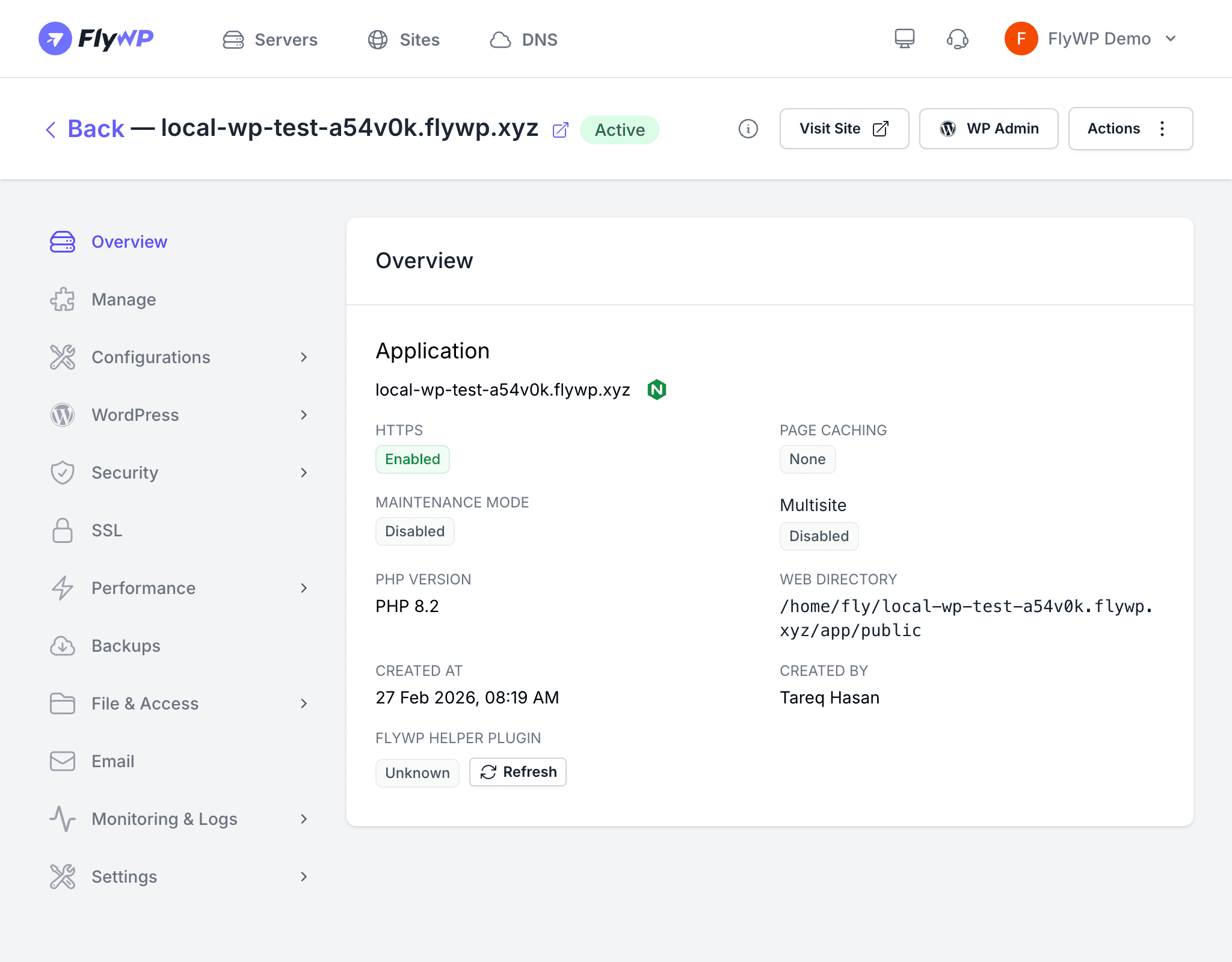
After creation
Once your site is active, you’ll land on the Site Overview page. Here you can see your site’s health and configuration at a glance:
- Domain and SSL status
- PHP version (the scripting language WordPress runs on)
- Page caching status
- Maintenance mode status
- Web directory path
- Creation date and creator
Quick actions from the header:
- Visit Site — opens your live site in a new tab
- WP Admin — one-click magic login to WordPress admin (no password needed)
- Actions — dropdown with additional options
What to do next
- Configure caching to speed up your site
- Set up backups to protect your content
- Review security settings to harden your site
- Add a custom domain if you started with a test domain