DNS Manager
DNS Manager
Switching between FlyWP and Cloudflare just to add an A record or verify a domain breaks your flow. The DNS Manager brings full DNS control directly into FlyWP: browse all your domains, manage every record type, and push changes live — all without opening another tab.
Prerequisites
Before using the DNS Manager, you need a Cloudflare integration connected to your team. You can set this up in Team Settings > Integrations.
Step 1: Select your integration
Navigate to DNS in the top navigation. The DNS Manager opens on the integration overview, where you select which Cloudflare account to manage.
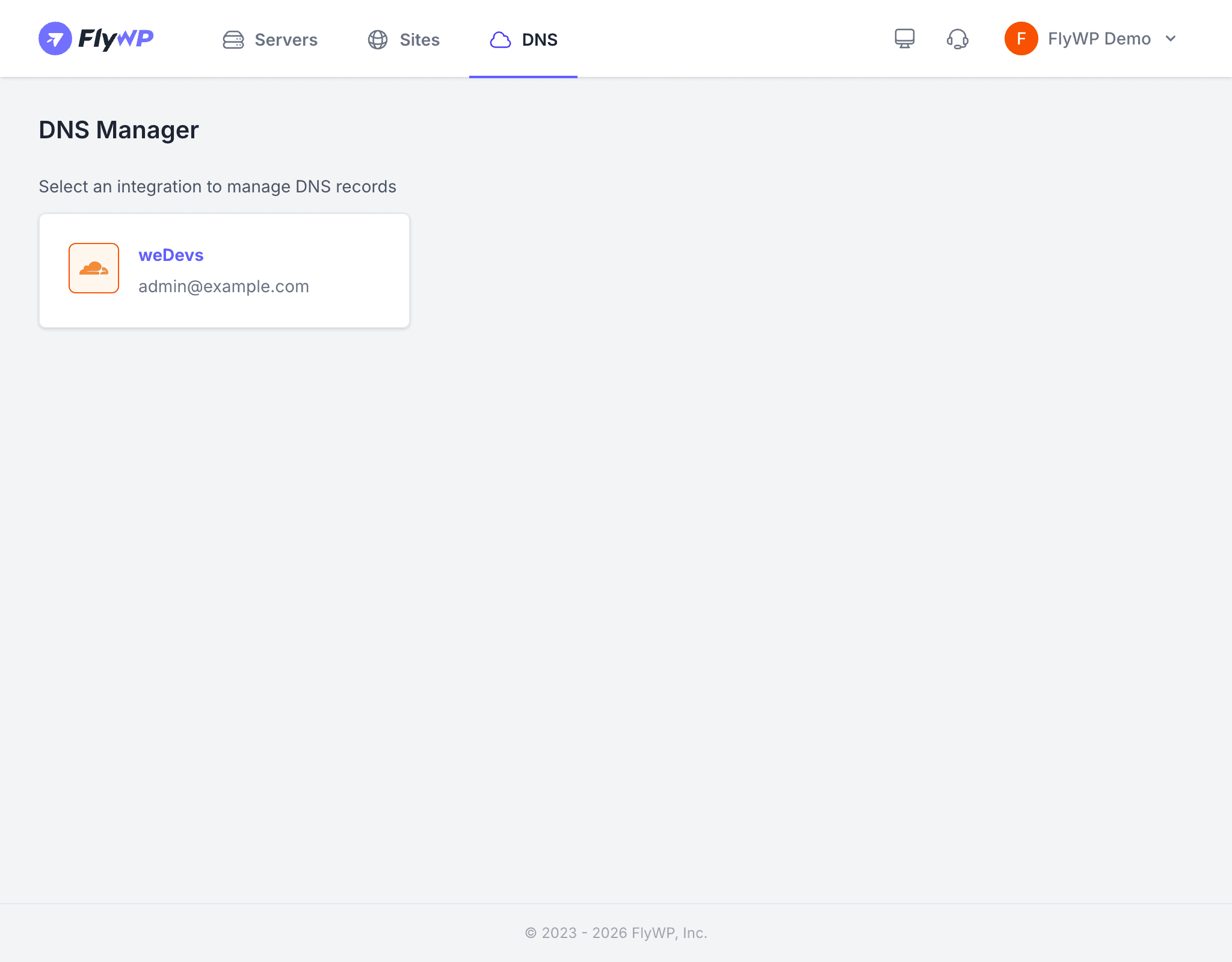
If you have connected multiple Cloudflare accounts, they all appear here. Click the one whose domains you want to manage.
Step 2: Browse your domains
After selecting an integration, the DNS Manager lists every domain (called a zone in Cloudflare’s terminology — a zone covers a domain and all of its subdomains) under that account. You can search to filter by name.
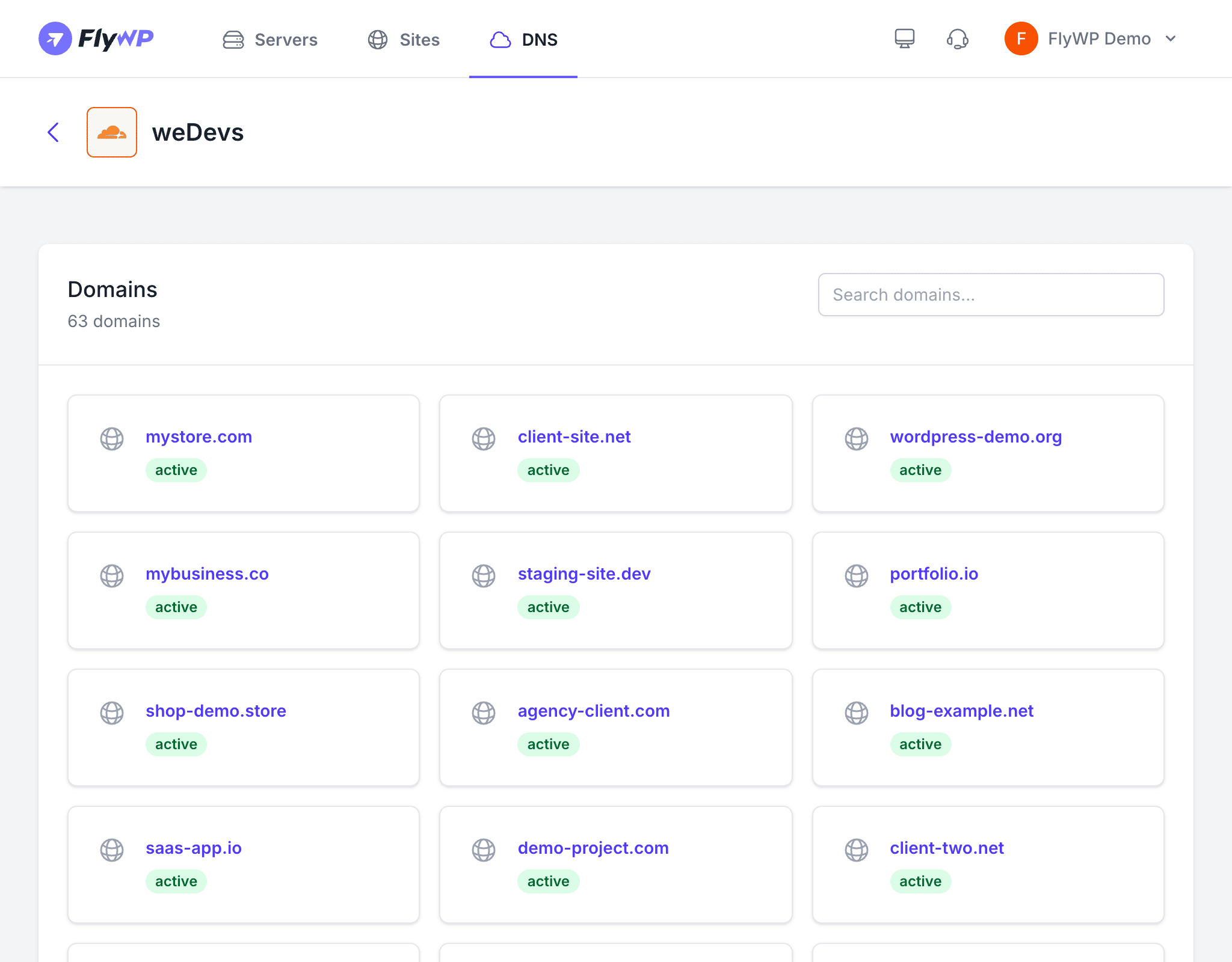
Each row shows the domain name and its active status in Cloudflare. Click any domain to open its DNS records.
Step 3: Manage DNS records
The records view shows every DNS entry for the selected domain — A, AAAA, CNAME, MX, TXT, SRV, and more.
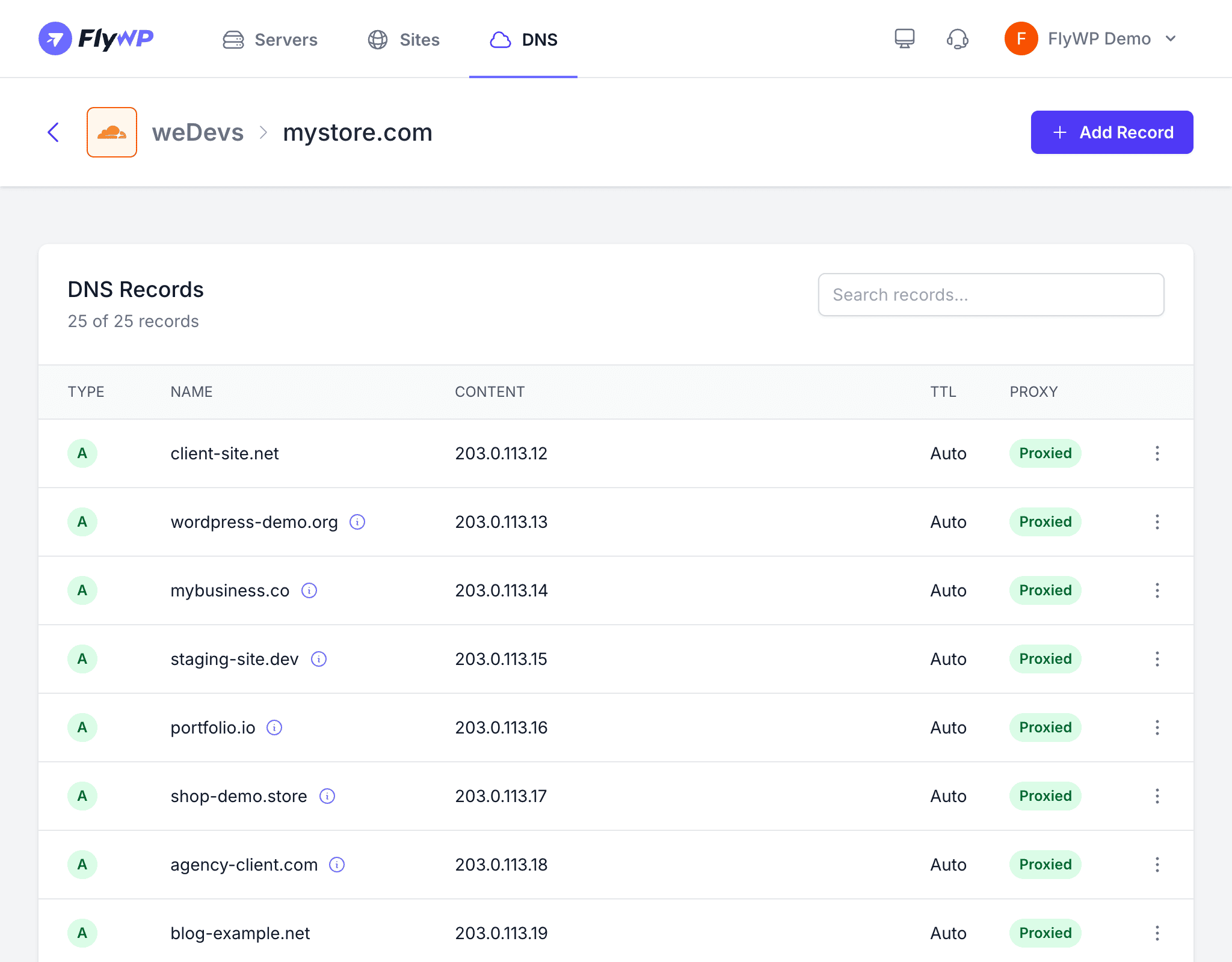
Records table columns
| Column | Description |
|---|---|
| Type | The record type (A, CNAME, MX, TXT, etc.) |
| Name | The hostname the record applies to (@ = root domain, www, mail, etc.) |
| Content | What the record points to (an IP address, hostname, or text value) |
| TTL | Time to Live — how long DNS resolvers cache this record before re-checking (in seconds) |
| Proxy | Cloudflare proxy toggle — orange cloud routes traffic through Cloudflare; gray cloud resolves directly to your server |
| Actions | Edit or delete the record |
Adding a DNS record
Click Add Record to open the record editor.
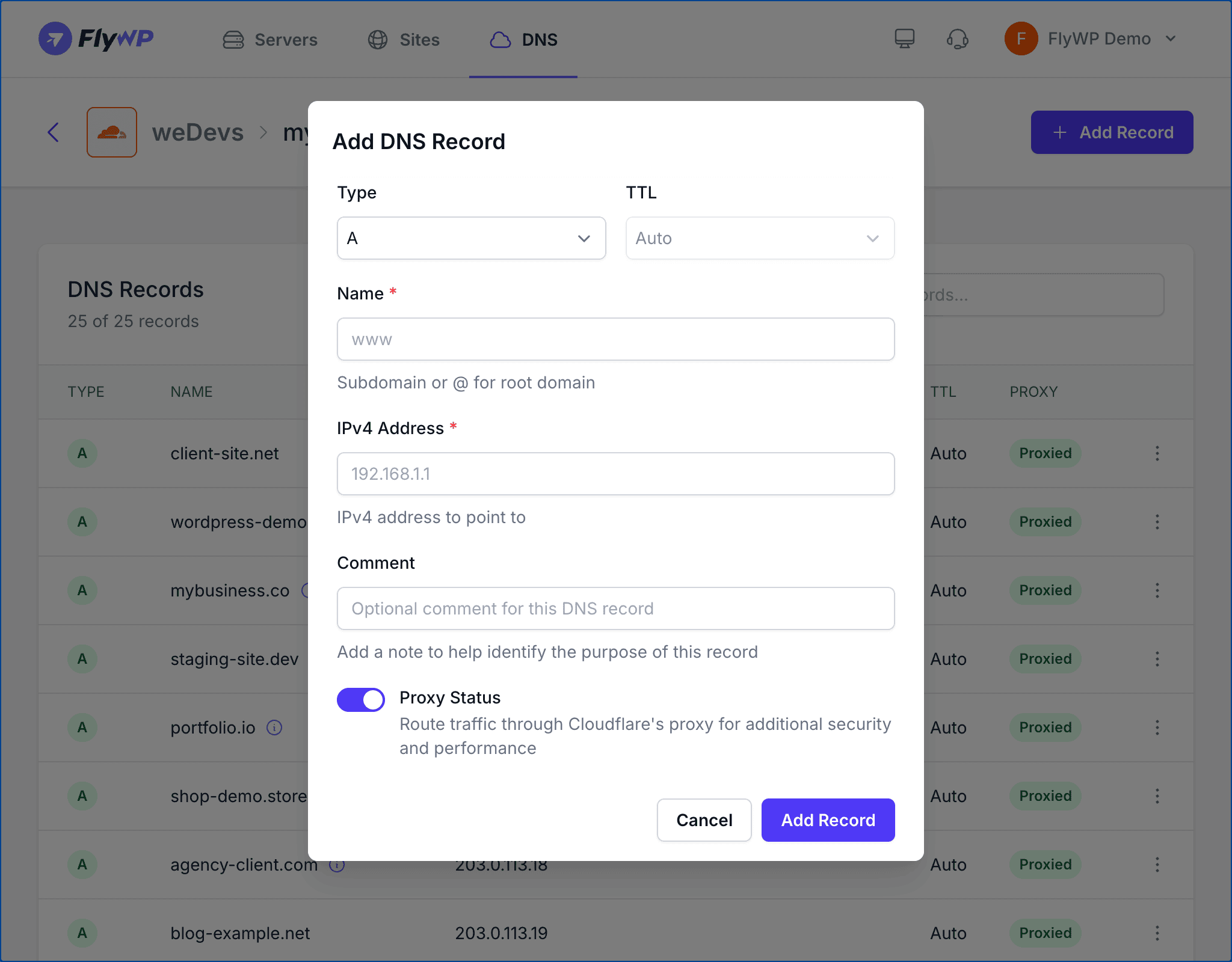
- Choose the record type from the dropdown (A, CNAME, MX, TXT, etc.).
- Enter the name — use
@for the root domain, or a subdomain likewwwormail. - Enter the content — the value the record points to (an IP address, hostname, or text string).
- Set the TTL — use Auto for most records; lower it to 60 seconds before planned changes so updates spread faster.
- For A, AAAA, and CNAME records, toggle the Cloudflare proxy if needed.
- Click Save.
Changes go live on Cloudflare within seconds. Full global propagation (the spread of the update to all DNS resolvers worldwide) typically takes minutes with Cloudflare, though some resolvers can take up to 48 hours.
Editing a record
Click the Edit button next to any record, update the fields, and click Save.
Deleting a record
Click Delete next to the record and confirm.
Deleting A, CNAME, or MX records can immediately take down your site or break email delivery. Always double-check before removing a critical record.
Automatic DNS setup
When you create a new site in FlyWP and the domain is managed by a connected Cloudflare account, FlyWP automatically creates the records needed to point the domain to your server:
- An A record pointing the root domain to your server’s IP address
- A CNAME record pointing
wwwto the root domain
For a standard WordPress site, you never need to touch DNS manually — FlyWP handles it at site creation time.