Domain Management
Domain Management
Configure primary domains, aliases, and redirects for your FlyWP sites.
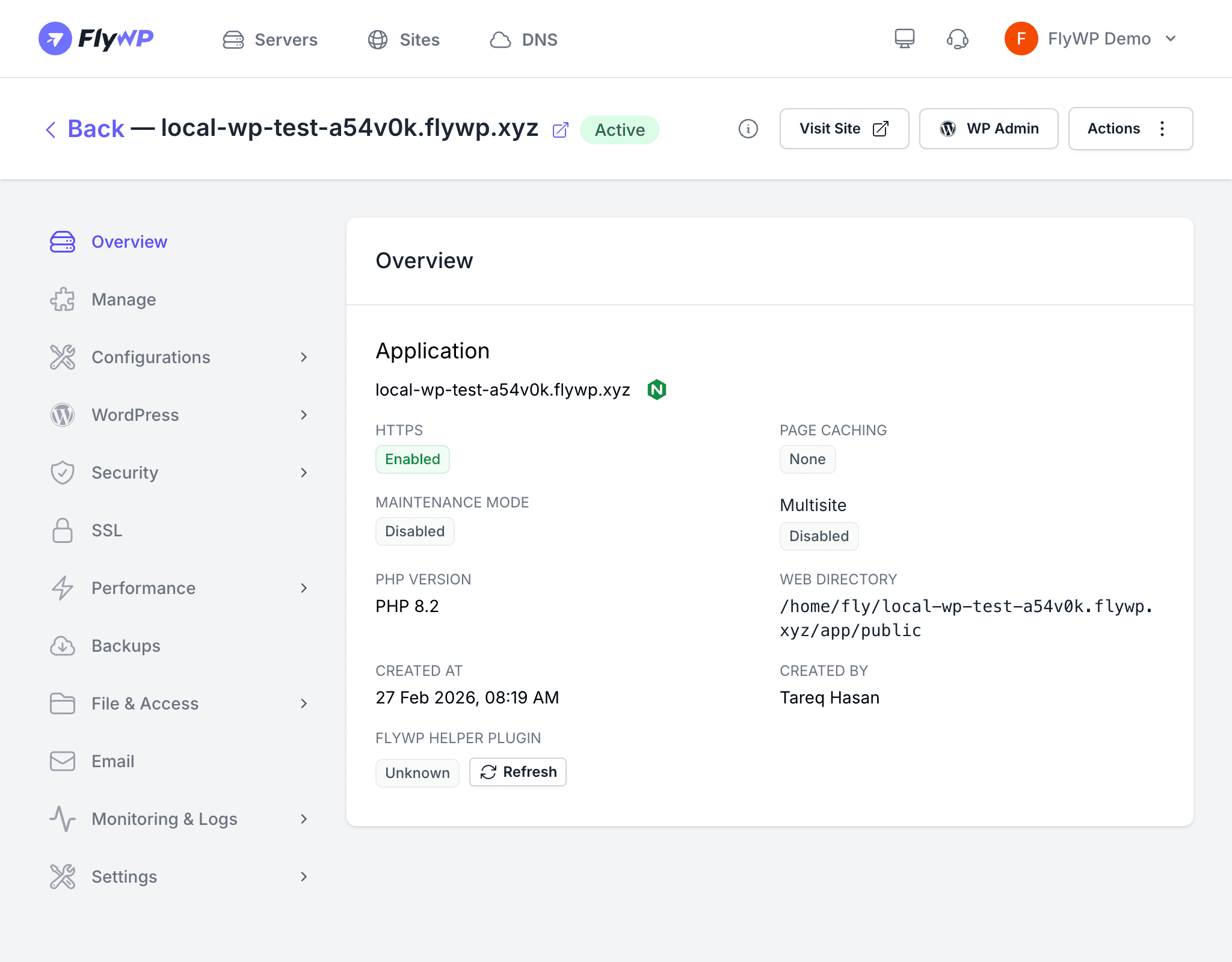
Every site needs at least one domain. FlyWP lets you attach multiple domains to a single site, each serving a different purpose — from the canonical primary domain to aliases and redirects that funnel traffic to the right place.
Domain Types
FlyWP supports three domain types:
| Type | Behavior |
|---|---|
| Primary | The canonical domain for your site. WordPress siteurl and home should match this domain. Each site has exactly one primary domain. |
| Alias | An additional domain that serves the same content as the primary domain. Useful for alternate TLDs or brand variations. |
| Redirect | A domain that automatically redirects visitors to the primary domain. Useful for consolidating old domains or enforcing a preferred URL. |
Adding a Domain
- Navigate to the site’s detail page and click the Domains tab.
- Click Add Domain.
- Enter the domain name (e.g.,
example.comorwww.example.com). - Select the domain type: Primary, Alias, or Redirect.
- Click Save.
FlyWP will configure the web server to recognize the new domain and, if a Cloudflare DNS integration is connected, can automatically create the required DNS records.
Changing the Primary Domain
- Open the Domains tab for your site.
- Find the domain you want to promote to primary.
- Use the domain’s action menu to set it as the Primary domain.
The previous primary domain is automatically demoted to an alias. Remember to update your WordPress siteurl and home settings if they reference the old domain.
Wildcard Domains
FlyWP supports wildcard domains (e.g., *.example.com) for sites that need to respond to any subdomain. This is common for WordPress Multisite with subdomain routing.
When adding a wildcard domain:
- Enter
*.example.comas the domain name. - FlyWP configures the web server to accept all subdomains under that root.
Cloudflare DNS Integration
If your team has a Cloudflare integration configured, FlyWP can automatically manage DNS records when you add or remove domains:
- Adding a domain — FlyWP creates an A record (or AAAA for IPv6) pointing to your server’s IP address.
- Removing a domain — FlyWP removes the corresponding DNS record from your Cloudflare zone.
This eliminates the need to manually update DNS records in the Cloudflare dashboard every time you change domains.
Deleting a Domain
- Open the Domains tab.
- Click the Delete button next to the domain you want to remove.
- Confirm the deletion.
You cannot delete the primary domain. To remove it, first designate a different domain as primary, then delete the old one.
SSL and Domains
Each domain on your site can have its own SSL certificate status. When you add a new domain, FlyWP will attempt to provision an SSL certificate for it automatically. Check the SSL overview for more information on certificate management.