Update Team Account Info
Update Team Account Info
When your agency grows, you rename a client workspace, or you need to make sure the right people get alerted about server issues, the team settings page is where you go. It centralizes your team’s identity, ownership details, notifications, and defaults — so every member works from the same shared configuration.
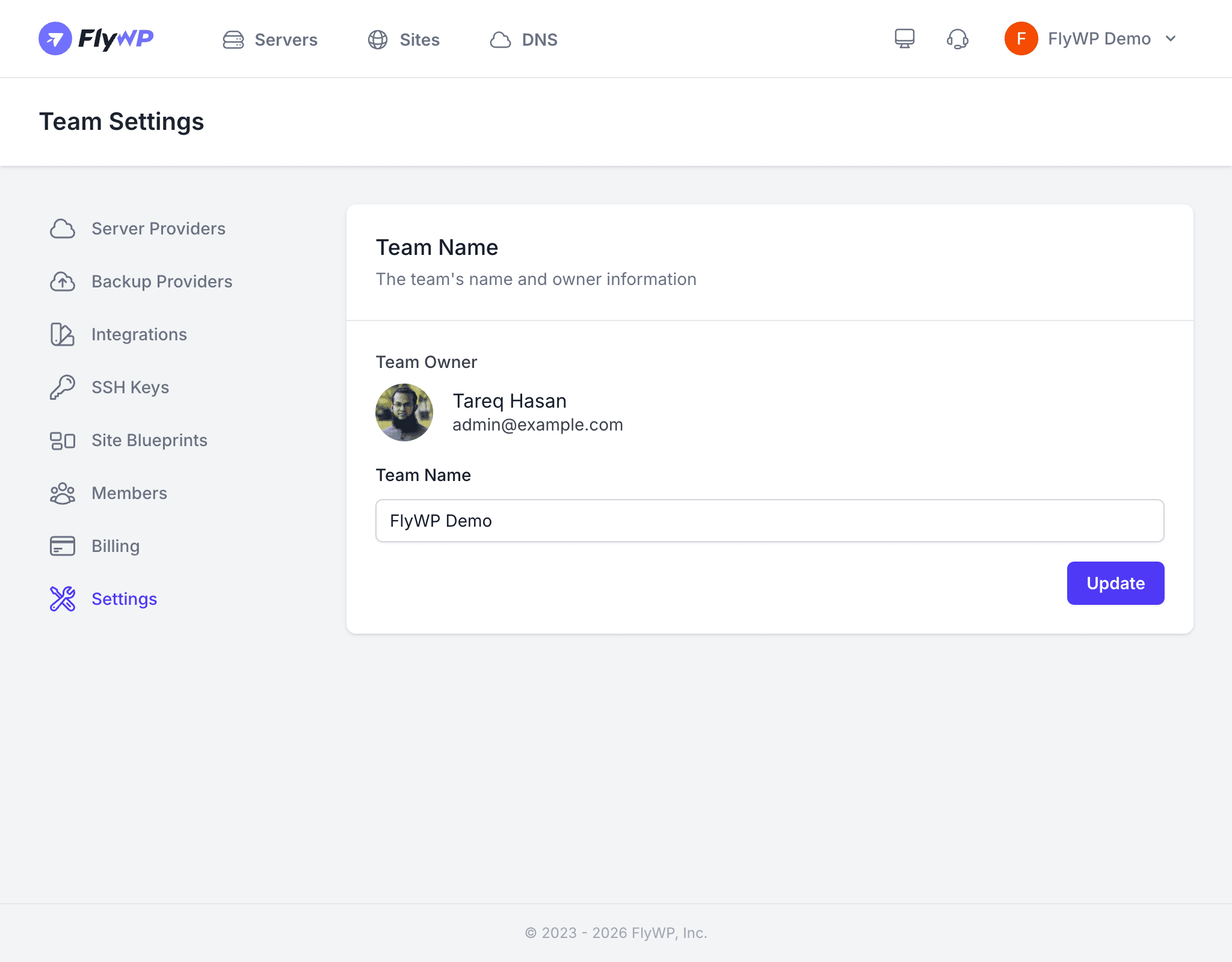
The Settings section of your team lets you update core information like the team name, review ownership, and manage team-level configuration. These settings apply to the entire team and are visible to all members.
Updating the Team Name
To rename your team, follow these steps:
- Navigate to Team Settings > Settings.
- Edit the Team Name field.
- Click Save.
The new name takes effect immediately and appears in the team switcher (the dropdown in the top navigation that lets you switch between teams) for all members.
Viewing Team Ownership
The Settings page displays the current team owner. The owner holds the highest level of access and has full administrative control, including:
- Managing billing and subscription
- Inviting and removing members (including admins)
- Deleting the team
- Accessing all servers and sites without restriction
Notification Preferences
Team-level notifications let you control which events trigger alerts and where FlyWP sends them. This is especially useful if you want your whole team to be aware of critical issues — like a server going offline at 2am — rather than relying on one person to notice.
| Notification Type | What It Covers |
|---|---|
| Server alerts | Server offline, high resource usage, service failures |
| Backup notifications | Backup success, failure, or skipped events |
| SSL alerts | SSL certificate (the security credential that enables HTTPS) expiration warnings and renewal failures |
| Security alerts | Vulnerability scan results, integrity check findings |
Notification settings are configured per team and apply to all team members based on their roles.
Team-Level Settings
These defaults save time when team members provision new infrastructure, so everyone follows the same setup without having to remember choices each time:
- Default server provider — pre-select a cloud provider (such as DigitalOcean or Hetzner) when creating new servers
- Default backup provider — pre-select a storage destination (such as Amazon S3 or a custom location) for site backups
- Timezone — set the team’s default timezone for scheduling tasks and reading log timestamps accurately